RAM is one of the most useful specifications to understand when buying or upgrading a computer. It gives running programs space to work, but capacity, compatibility and speed are separate questions. The aim of this guide is still practical: choose memory that suits your applications and computer, rather than paying for the largest number or the most technical label.
RAM Is Your Working Space
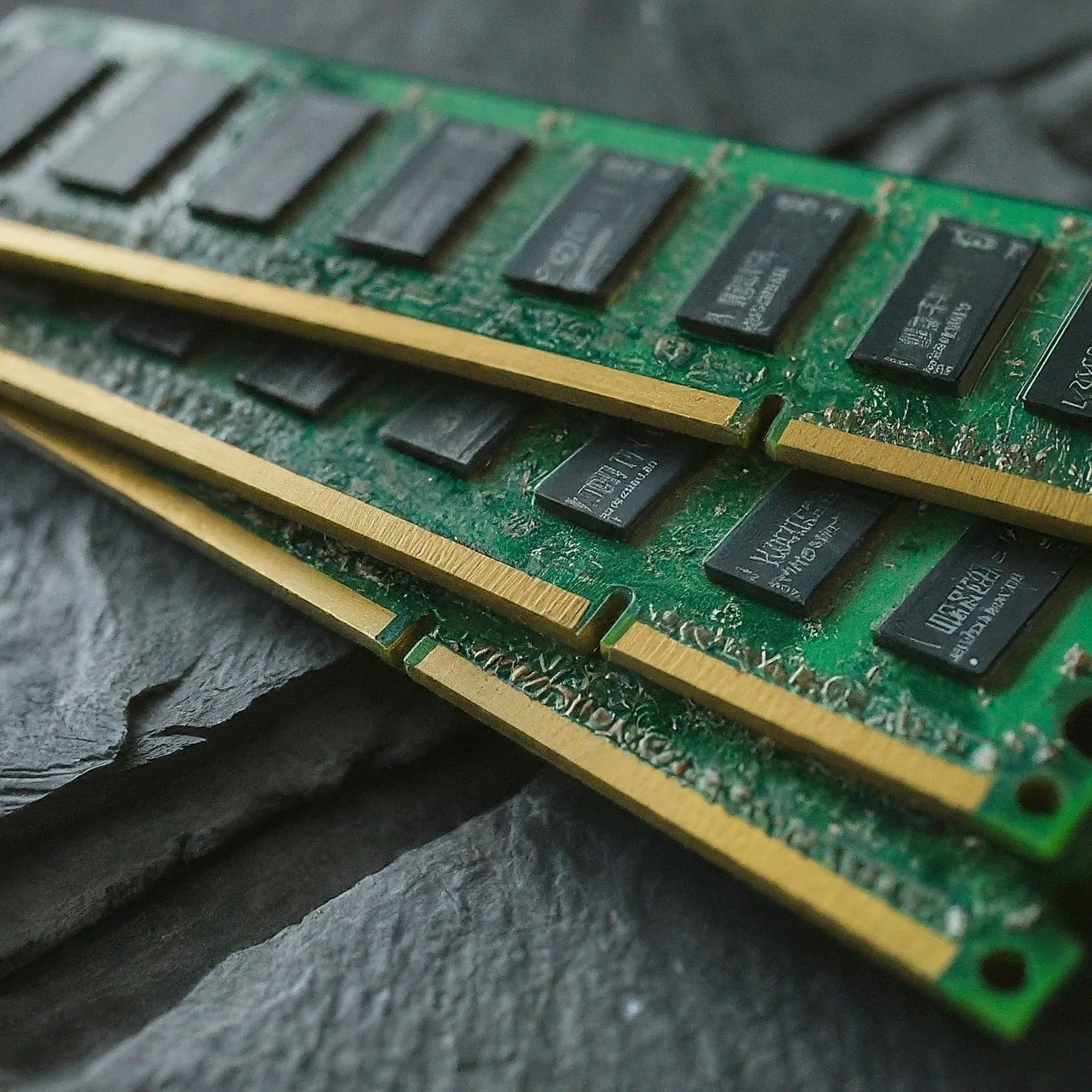
RAM stands for Random Access Memory. Ordinary system memory temporarily holds information used by the operating system and applications. Think of it as the desk where you spread out your current work, while an SSD or hard drive is the filing cabinet. A larger desk lets more work remain accessible; it does not make every individual task faster.
RAM and storage capacity are therefore different. Adding memory does not give you more permanent room for photographs, and a larger SSD does not physically add RAM. Save important work to persistent storage. Ordinary DRAM is volatile and needs power to retain its contents; an operating system may separately preserve session information through files or hibernation.
The processor also has caches, which serve a different role from system RAM. A computer can still be limited by CPU work, graphics, storage or a network connection even when memory capacity is sufficient. Do not expect a memory upgrade alone to fix every pause, slow download or low frame rate.
Capacity: Start with Your Actual Work
My practical starting points remain 8 GB for modest everyday work, 16 GB for more demanding multitasking or gaming, and 32 GB or more for larger professional projects. These are buying guidelines, not universal requirements or a promise that every application fits. Check the current operating system and your most important applications, especially before buying a computer whose memory cannot be upgraded.
| Capacity to consider | Useful question |
|---|---|
| 8 GB | Does your limited application mix remain comfortable with the tabs and background tools you actually use? |
| 16 GB | Does it provide room for your games, documents and ordinary simultaneous applications? |
| 32 GB or more | Do large projects, virtual machines or other measured demands justify the extra capacity? |
A 4 GB machine can be restrictive depending on its software; a nominal minimum requirement is different from a comfortable workload. Conversely, 64 GB or 128 GB is not automatically required for every homelab. Add the needs of the services or guests that run concurrently and leave room for the host, rather than assigning one capacity to everyone using a hypervisor.
Observe your normal busy session before spending. Open the programs and representative project you use together and examine memory usage and responsiveness. A large project may need more than a small file in the same application. Avoid judging from an idle desktop or a single moment when an installer is running.
Paging and Why More RAM Can Help
Operating systems manage memory rather than simply loading every complete file permanently into RAM. Microsoft's working-set documentation distinguishes pages resident in physical memory from pages that need to be retrieved. A hard page fault can require a read from the backing store; a soft page fault can be resolved without that read.
This means not every reported page fault is evidence of inadequate memory or a failing disk. Correlate sustained pressure with the applications that are slow. More RAM can help when it lets useful active data remain resident, but there is no fixed percentage speed improvement for every upgrade.
Cached data can also make repeat access useful. Do not assume all memory reported as used is permanently unavailable to another program, or install a memory-cleaning utility just to make an idle figure smaller. Start by identifying a particular problem and the process responsible. Closing an unnecessary application may be sufficient for occasional work.
Compatibility Comes Before Speed
Check the exact computer or motherboard manual, CPU memory support and any current compatibility list. DDR4 and DDR5 are different memory generations with different electrical and socket requirements. A similarly sized module is not interchangeable; do not force its keyed connector into a socket.
CPU support alone does not select the module. For example, Intel lists DDR4 and DDR5 support for its 12th-generation desktop processors, but you still need the appropriate motherboard implementation. A processor listing both types is not permission to mix them in an ordinary board.
Desktop DIMMs, laptop SO-DIMMs, registered server memory and other formats require the correct platform. Some computers have soldered memory or a mixture of onboard and replaceable memory. Check upgrade access, supported capacity and module arrangement before ordering, rather than assuming every laptop has two removable slots.
Four sockets also do not automatically mean four memory channels. Follow the board's population instructions for one or two modules; slot names such as A2/B2 are model-specific guidance, not a universal rule. A supported matched kit is a sensible starting point. Modules bought separately can have different components even when the branding looks similar.
Speed and Latency Mean Different Things
Kingston explains MT/s and MHz as different measures. MT/s means millions of transfers per second; MHz measures clock cycles. DDR transfers data on both clock edges. For example, a 1,600 MHz memory clock corresponds to 3,200 MT/s, so a diagnostic showing the lower clock is not by itself proof of a half-speed fault.
CAS latency, or CL, is measured in clock cycles. A timing label such as 16-18-18-38 contains several timings rather than four nanosecond values. Compare CL with the data rate: a higher cycle count on faster memory can describe the same CAS delay as a lower count on slower memory.
The calculation is CAS delay in ns = CL × 2,000 ÷ data rate in MT/s. DDR4-3200 CL16 and DDR5-6000 CL30 both give 10 ns in this calculation. That is an illustration of the CAS portion, not the complete CPU-to-RAM access latency or a benchmark proving equal performance. Other timings, the controller, channels and the workload matter.
DDR5-6000's nominal rate is 1.875 times DDR4-3200's, rather than more than double in that example. Nor does the ratio promise an equivalent improvement in an application. For everyday use, sufficient compatible capacity can be more useful than chasing a small timing difference.
DDR5 and ECC: Avoid a Common Mix-up
Kingston's DDR5 overview explains two independently addressable 32-bit subchannels in a conventional module. That internal arrangement does not establish that one module has populated every channel available on the CPU. Consult the platform's recommended arrangement.
DDR5 on-die ECC addresses certain errors within the memory chip. It does not provide the same protection as platform-supported ECC memory, particularly for errors outside the chip or across the link to the controller. Ordinary DDR5 should not be advertised as a complete ECC server setup.
If ECC is important, confirm compatible modules, CPU, motherboard and firmware support together. It can be valuable in a suitable workstation or server, but does not replace backups or prevent every form of corruption. Do not infer a universal guarantee from the presence of “ECC” in one component's listing.
XMP, EXPO and Stability
Intel XMP and AMD EXPO store profiles for compatible memory-overclocking arrangements. They are options beyond standard settings, not a requirement for a computer to boot or proof that every CPU and board reaches the kit's advertised profile. Intel documents an initial standard-setting boot for XMP memory.
Check the actual platform and manufacturer's terms before enabling a profile. Record the current setting and recovery method. If errors or crashes appear after a change, return to the supported default while diagnosing it. A successful boot is not sufficient evidence that a demanding workload remains stable.
A faster module can also run at a lower supported rate, and adding more modules can change the platform's permitted rate. Do not assume filling every slot preserves the same overclock. Stable capacity for your real work is a more useful goal than a headline rate the complete system cannot sustain.
A Practical Upgrade Decision
Brands worth comparing include Corsair, G.Skill and Kingston. Choose the exact compatible kit, support and warranty rather than treating a brand name as proof that every product suits your computer. Check heat-spreader clearance around the cooler, particularly when adding memory to an existing build.
Follow the computer's service instructions, disconnect power and use appropriate static precautions when installing. Seat modules in the documented slots without forcing the keyed connector. Allow the platform's documented memory-training process to finish; do not repeatedly interrupt it because the first start takes longer.
Afterward, confirm the detected capacity and operating rate, then repeat the workload that motivated the purchase. If only some memory appears, inspect seating and the supported module arrangement before buying another kit. Keep the old working configuration available while resolving a problem.
My recommendation remains to prioritise enough compatible capacity, then consider data rate and timings within the budget. Plan some room for the work you expect, especially with non-upgradable systems, without assuming excess RAM guarantees future performance. That keeps the choice focused on a responsive, dependable computer for your actual tasks.