Does your computer sound as though its fans are auditioning for a jet engine commercial? Alongside choosing between air and liquid cooling for your CPU, undervolting is another option worth understanding. It can potentially reduce heat and noise while maintaining performance, but the result depends on your particular processor, motherboard and workload. The aim is a useful, stable improvement rather than the lowest number a tuning tool will accept.
Factory Settings and the Silicon Lottery
Undervolting means reducing the operating voltage, or adjusting the voltage-frequency relationship, while checking that the CPU still performs its work correctly. Voltage helps transistors switch reliably; operating frequency describes how quickly the processor runs. Supplying too little voltage for a particular operating point can produce errors, freezes or restarts.
Individual chips vary, but it is misleading to say manufacturers cannot tune them individually or that 99% receive unnecessary voltage. AMD describes factory-fused voltage-frequency curves in its Curve Optimizer documentation. Factory settings also have to account for supported operating conditions and changing workloads. There may be room for user tuning, but neither the existence nor the size of that margin is guaranteed.
A hot processor also needs diagnosis before tuning. Check cooling installation, ventilation, dust and the exact model's documented temperature limits. A temperature such as 90°C does not have the same meaning on every CPU. Intel's Processor Base Power, previously described as TDP on relevant products, is a defined thermal-design operating point rather than a universal maximum wall-power measurement; turbo operation can draw more power.
How Voltage Affects Power and Heat
A useful simplified relationship for the switching component of CMOS power is Pdynamic ∝ C × V² × f, with effective capacitance and switching activity accounted for in the model. Holding frequency and activity constant, a 5% reduction in voltage gives 0.95² = 0.9025: about 9.75% less power for that dynamic component. This is a quadratic relationship, rather than an exponential one.
That calculation is not a prediction of the complete PC's savings. Leakage, other components, the workload and automatic boost behaviour all matter. A CPU may use the available headroom to boost faster, making a task finish sooner without showing the same reduction in instantaneous watts. Lower temperatures and quieter fans are possible, especially when cooling constrains performance, but fixed temperature drops or lifelong performance gains cannot be promised.
Reducing a power limit is a different adjustment: it caps allowed consumption and may reduce performance. Undervolting changes the voltage relationship. Keep these separate during initial comparisons so you can tell which change produced the result.
Check Which Controls Your Hardware Supports
| Platform | Possible control | What to verify first |
|---|---|---|
| Supported AMD desktop processors | Curve Optimizer in supported firmware or Ryzen Master | Exact CPU, motherboard, BIOS and software version; available modes and ranges vary. |
| Supported unlocked Intel platforms | Intel Extreme Tuning Utility or documented motherboard controls | CPU and chipset eligibility, OEM support and Undervolt Protection. |
| Laptops and compact systems | OEM-provided settings or compatible utilities | Many products lock voltage controls. Desktop advice is not automatically applicable. |
| Always-on homelab hosts | Platform-specific controls, where officially supported | Recovery access, service availability and whether measured savings justify tuning. |
Start with the manufacturer's support documentation for your exact system. A setting absent from its interface is not evidence that a downloaded utility will safely unlock it. Linux register-writing tools are also hardware-specific; they are not a universal server undervolting method. Saving settings in firmware and applying a software profile at login are different persistence mechanisms, so establish how your particular configuration will be restored.
AMD Curve Optimizer: Curve Offsets, Not Fixed Millivolts
AMD's current Ryzen Master guide describes Curve Optimizer as changing the voltage-frequency curve. A negative setting shifts the curve towards lower voltage. Depending on the supported processor, options may include all-core, per-die or per-core adjustments. AMD explicitly notes that the feature is unavailable on some CPUs and that larger offsets can cause instability.
A curve count is not a universal millivolt conversion. The old suggestion that each count always equals 3–5 mV, or that every Ryzen generation accepts the same range, should not be used as a recipe. Nor is another owner's apparently stable setting a validated starting point for your chip.
Record the stock configuration, identify the documented control and make a small change within that platform's supported range. Keep power limits and other tuning variables unchanged during the comparison. An automatic optimiser's suggested result is a starting point for validation, not a guarantee: AMD's own FAQ calls for further testing with your workloads. If an error appears, reduce the adjustment or return to stock before continuing.
Intel Controls and Undervolt Protection
Intel Extreme Tuning Utility supports particular unlocked processors and compatible platforms, rather than all Intel CPUs. Intel's requirements page directs users to the supported processor list and suitable chipsets; laptops also depend on OEM firmware. Intel does not provide software voltage-control support for ordinary non-K desktop processors, although a motherboard manufacturer may expose its own settings.
On relevant 12th-generation and newer products, Undervolt Protection can prevent runtime settings below the configured boot voltage from taking effect. A slider changing on screen does not prove that the voltage actually changed. Intel does not recommend disabling this protection for security reasons. Avoid bypassing it or switching off Windows security features simply to make a tuning tool work.
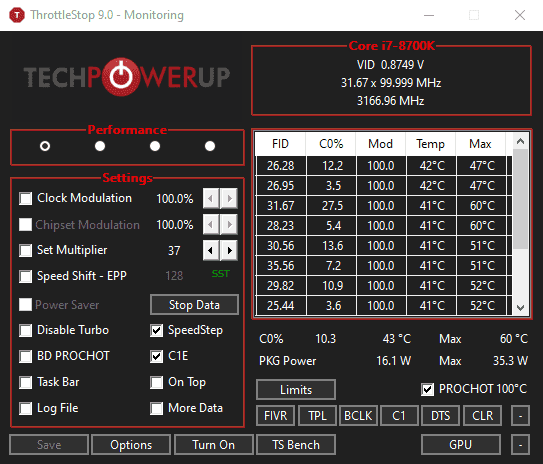
The original article linked ThrottleStop from TechPowerUp. It remains a useful publisher reference to investigate for compatible hardware, but the historical screenshot below does not establish support for your current laptop. There is no universal Intel offset or load-line calibration level: motherboard vendors use different controls and numbering. Follow the documented recovery and tuning process for your exact board rather than copying a generic voltage value.
GPU Tuning Is a Separate Exercise
The CPU principles do not provide a validated graphics-card recipe. GPU utilities, voltage controls and boost behaviour depend on the card and firmware. A frequency-voltage pair copied from an RTX 4070 example does not establish stability on another card, and a particular wattage or temperature reduction cannot be inferred from it.
If you also intend to tune a GPU, use its supported documentation and assess it separately. Changing CPU and GPU settings together makes a game crash or performance change much harder to diagnose. Establish a reliable CPU baseline before introducing a second variable.
Test Performance as Well as Stability
Before making changes, save important work, back up data and record the settings needed to recover. An unstable system can interrupt work or damage data; “it cannot cause damage” is too broad a reassurance. Check the relevant warranty and support terms. Do not enable automatic application of experimental profiles at boot until you have a reliable recovery method.
- Record a baseline: use the same repeatable workload and note completion time or score, temperatures, reported power and fan behaviour.
- Change one variable: use small, documented adjustments and keep a written record so you can undo the last change.
- Test different operating conditions: include multi-core and single-core work, lighter tasks, idle periods, rebooting and sleep/wake if the system uses them.
- Check errors and useful performance: crashes, application failures and hardware-error reports require investigation. A cooler CPU that completes less work is not automatically an efficiency improvement.
- Return to a known stable configuration: if problems appear, undo the change and repeat the relevant comparison. Follow the board's recovery instructions if the machine cannot boot.
CoreCycler's maintainer explains why intensive all-core testing alone can miss instability at higher single-core boost operating points. The tool cycles workloads across cores; it should not simply be described as a light-load test. Understand its configuration before running it, since optional modes can change tuning settings or arrange automatic resumption. No single benchmark or 30-minute run proves that every future workload will be stable.
Resetting firmware can also alter boot, storage and security settings. Keep their original values available rather than assuming a factory reset is consequence-free. A software uninstall is not necessarily a complete reversal of firmware changes.
Consider the Workload on a Homelab Host
A quieter, cooler always-on host is an appealing goal, but reliable services and intact data come first. A short benchmark's peak-power saving does not establish the saving while containers spend most of the day idle. Compare the host's actual mix of idle time, scheduled jobs and sustained work.
For a machine providing storage or essential home services, stock settings may be the better choice if tuning gains are small or recovery is difficult. Avoid treating lower temperature as proof of a measurable increase in component lifespan; that claim requires evidence beyond a temperature reading.
Measure the Whole System Fairly
A wall power meter measures the system's electricity use, including power-supply losses and other components. CPU-reported package power is useful for diagnosis but describes a different boundary. Keep the same workload, cooling settings, connected equipment and measurement interval when comparing stock and adjusted configurations.
For a fixed task, compare completion time and total energy as well as peak watts. For an always-on host, measure a representative interval rather than assuming the maximum load runs continuously. As a calculation example only, a measured average reduction of 10 W across a complete year would be 10 × 24 × 365 ÷ 1000 = 87.6 kWh. That is not a benchmark result or a promised saving; multiply a genuinely measured energy reduction by your own tariff if you want an estimate.
Conclusion: Cooler, Quieter and Efficient Where Supported
My original view remains positive: if you enjoy careful tinkering and your hardware supports it, undervolting can be a worthwhile way to improve comfort and efficiency. Cooler temperatures, quieter fans and better sustained performance are possibilities, especially in a thermally constrained system. The worthwhile result is a stable configuration that does the same useful work more efficiently, confirmed by measurement on your machine. If support or recovery is uncertain, improving cooling or staying at stock is a sensible decision.