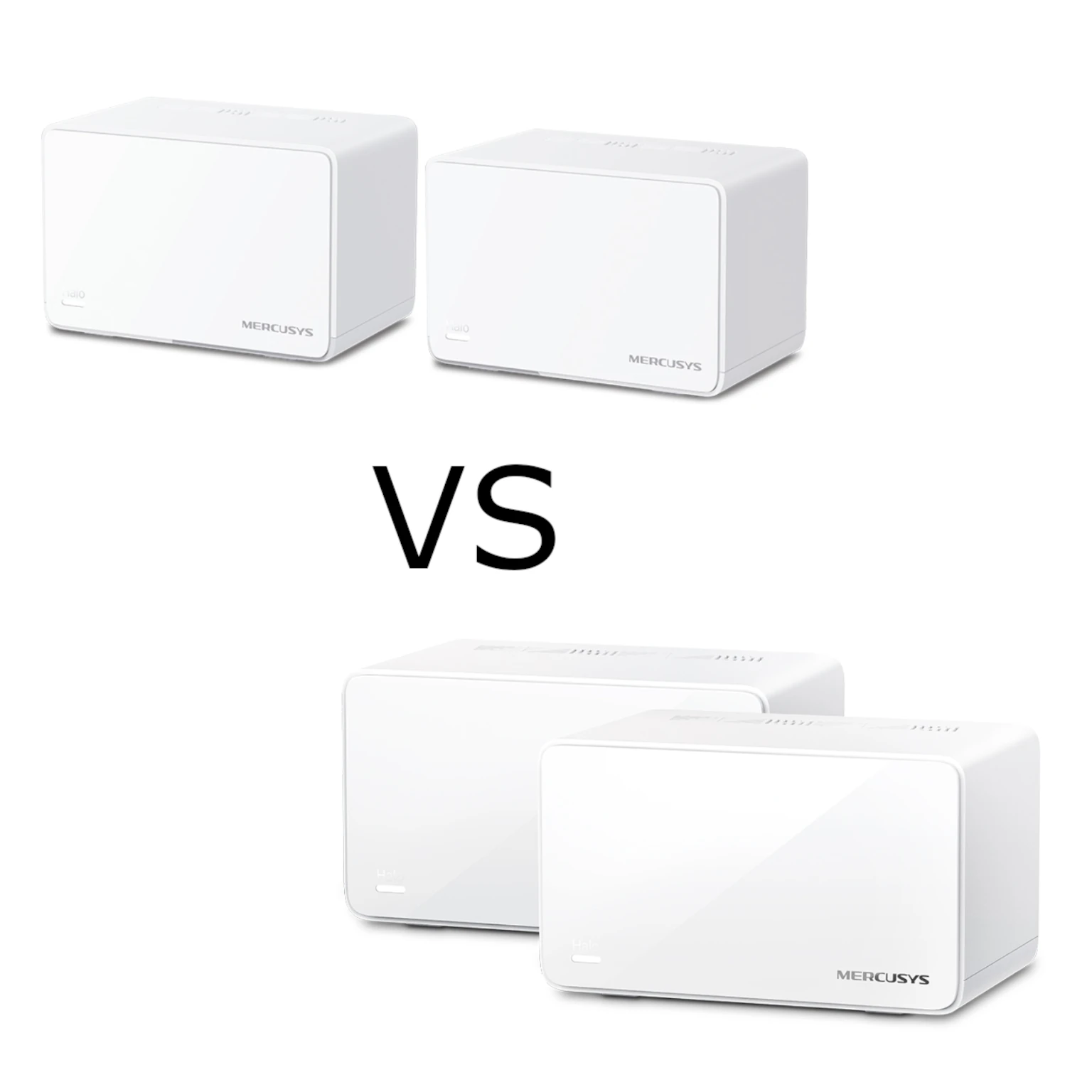
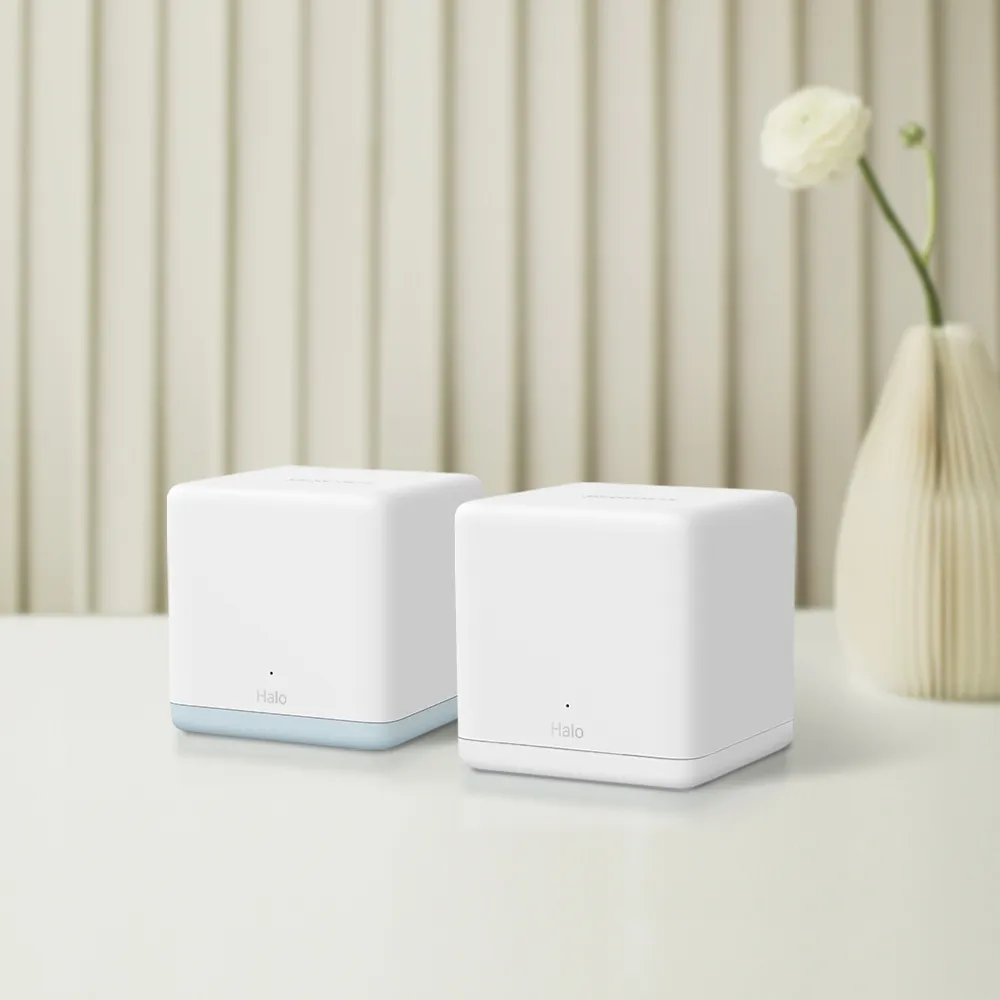
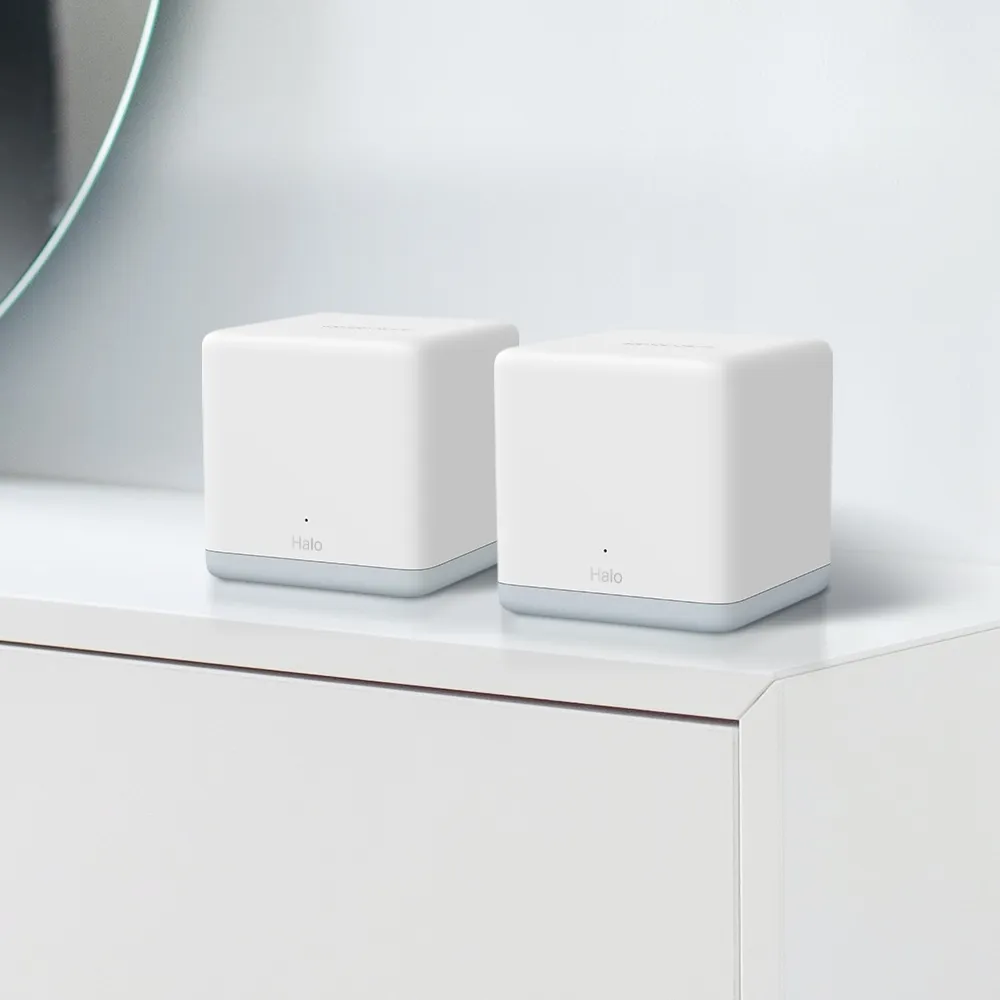
The Mercusys Halo H50G is a Wi-Fi 5 mesh system aimed at households that want broader coverage at an affordable price. Its most useful hardware distinction is straightforward: each node has three Gigabit Ethernet ports. That avoids the 100 Mbps wired-port limit found in some cheaper mesh kits, although it does not guarantee full internet-plan speed over every wireless link.
Think of a single router as a sprinkler covering part of a garden. A mesh adds more points of coverage, but those points still need a good connection to each other. Our view is that H50G offers solid value for everyday browsing and streaming when priced competitively. Its older wireless standard and the layout of your home remain important considerations before choosing it over a Wi-Fi 6 alternative.
What Wi-Fi 5 and AC1900 mean here
The official specifications list 802.11ac on 5 GHz and 802.11n on 2.4 GHz. Calling the kit Wi-Fi 5 does not mean 802.11ac operates on both bands. The maximum physical rates are 1,300 Mbps on 5 GHz and 600 Mbps on 2.4 GHz; adding them produces the AC1900 class. One client does not receive a 1,900 Mbps internet connection by combining those figures.
Mercusys describes six simultaneous data streams and MU-MIMO support. A client must support the corresponding features to benefit from them, and its own radio capabilities constrain its connection. Signal quality, interference and traffic sharing also matter. Several devices performing small background tasks create a different workload from several high-rate downloads, even if the connected-device count is identical.
The H50G uses both its wireless bands for a dual-band mesh. There is no separate third radio dedicated to communication between nodes. A wired television plugged into a wireless satellite still depends on that satellite’s wireless upstream link. An Ethernet socket beside the television therefore improves the last local connection without making the entire route wired.
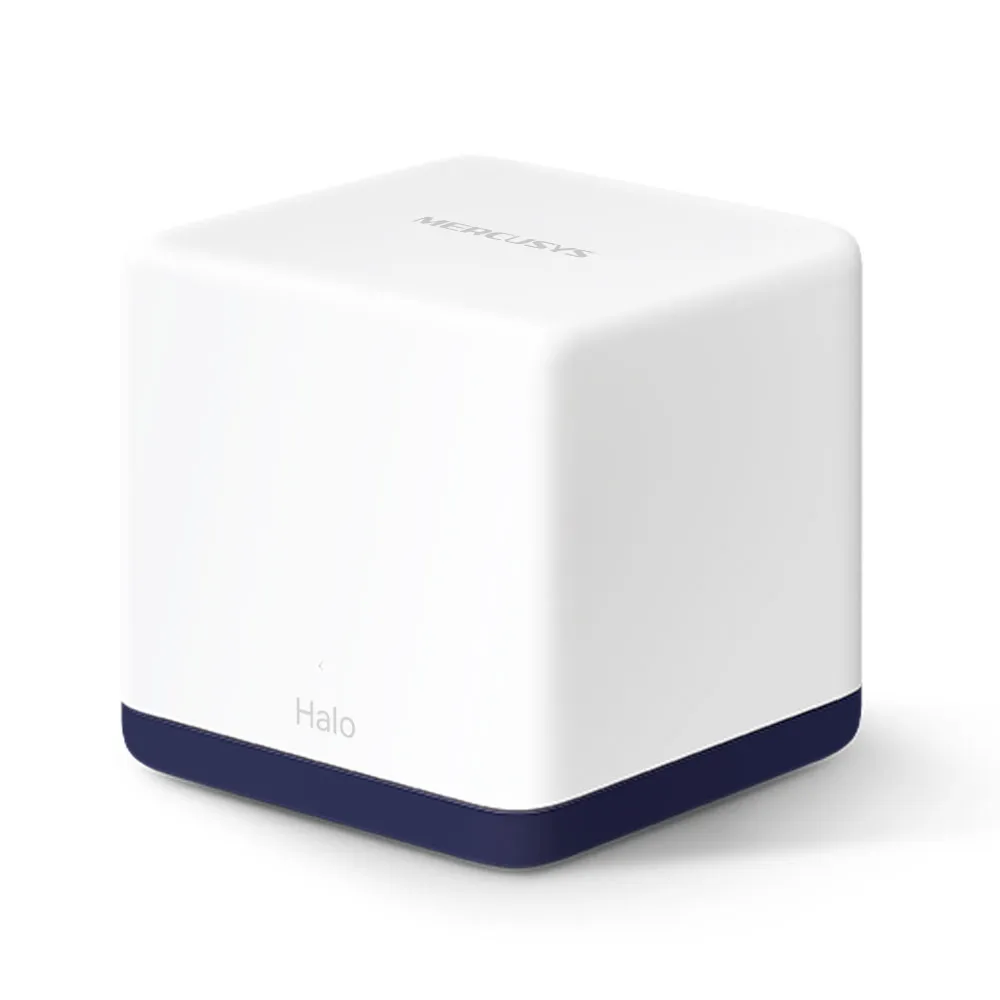
Verified H50G specifications
| Item | Documented specification |
|---|---|
| Wireless rates | 1,300 Mbps on 5 GHz + 600 Mbps on 2.4 GHz |
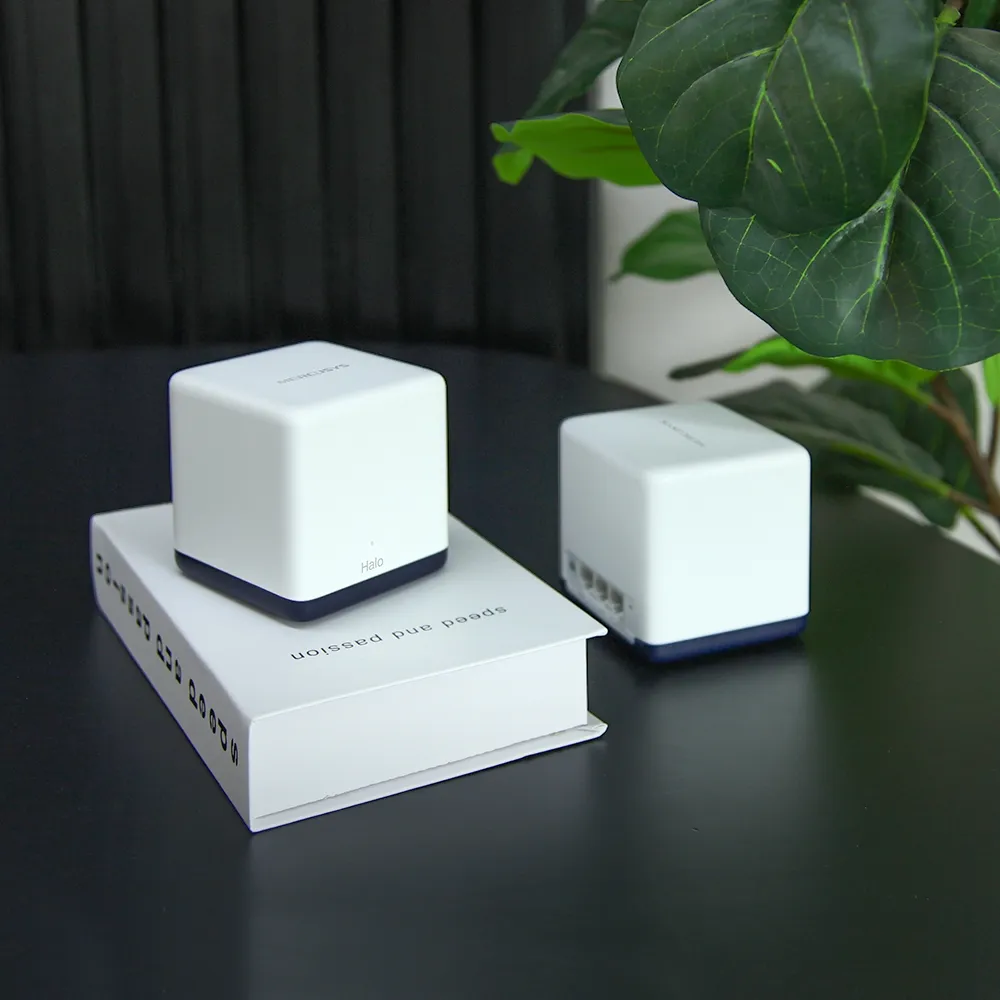
| Ethernet | Three Gigabit WAN/LAN auto-sensing ports per unit |
| Operating modes | Router and access point |
| Dimensions | 88 × 88 × 88 mm |
| Mesh protocol | 802.11k/v/r |
| Original wireless security listing | WPA-PSK/WPA2-PSK; verify later firmware options for your revision |
| Vendor coverage estimate | Up to 4,000 square feet for two units; 6,000 for three |
These are manufacturer specifications and planning figures, rather than measured results from a particular home. The datasheet explicitly qualifies wireless throughput, coverage and device capacity. Its compact cube dimensions are also worth checking when deciding where to place a node: leave it in an open location where the signal can reach the rest of the network.
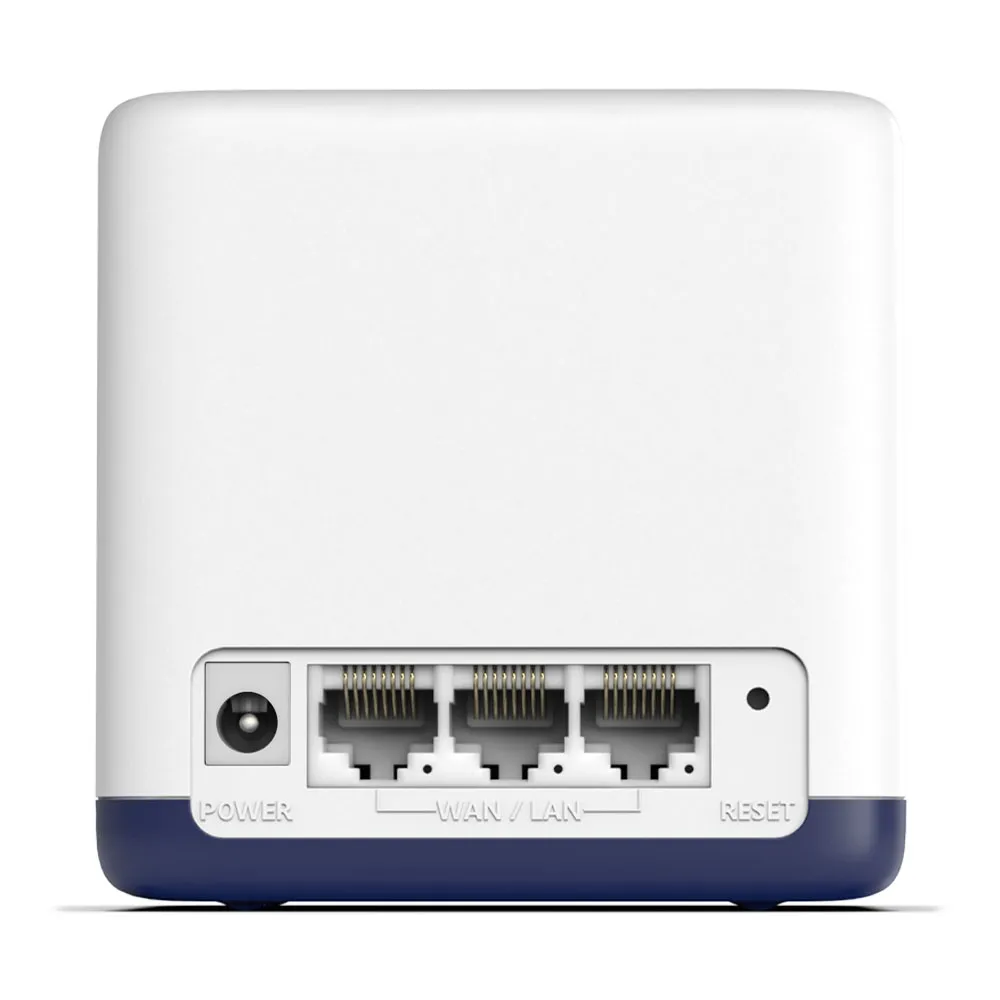
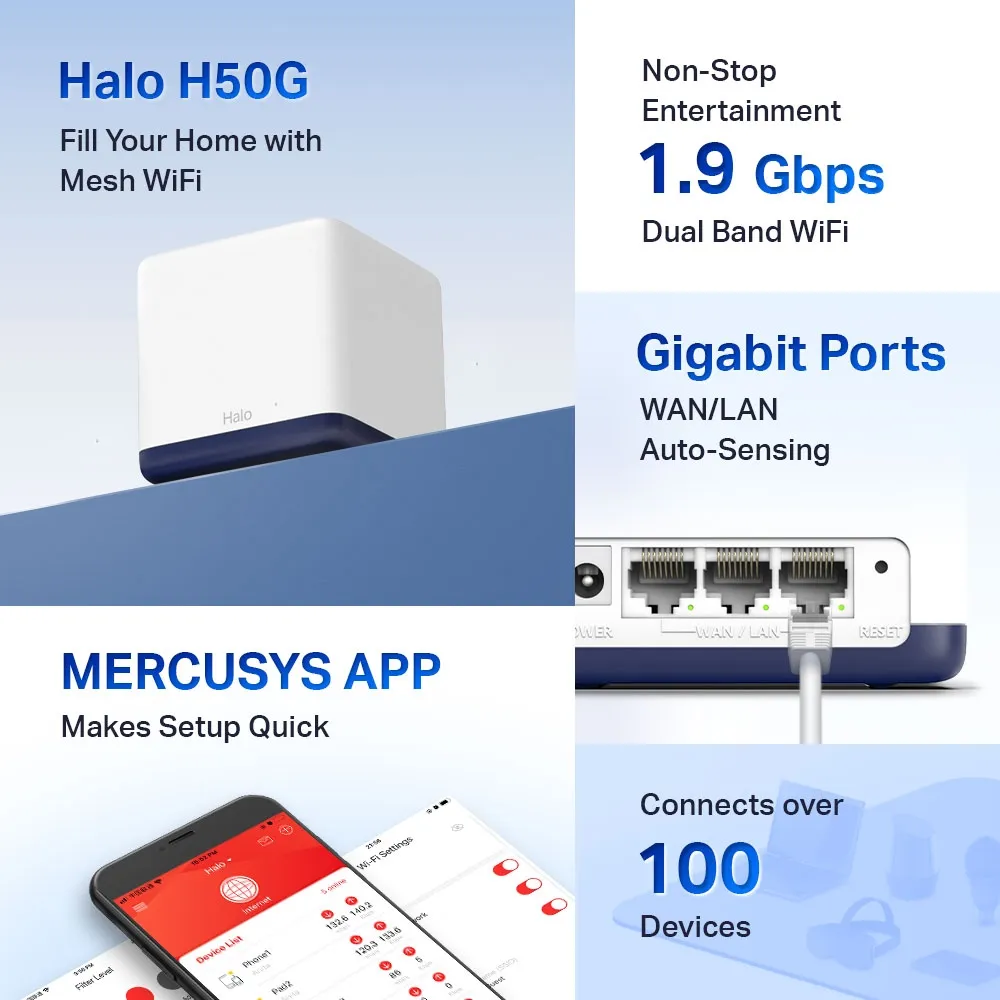
Use the Gigabit ports well
Gigabit ports make H50G more suitable than a Fast Ethernet kit for a broadband service above 100 Mbps. However, Gigabit is a link rating; protocol overhead and the rest of the route affect useful transfer speed. It is also a ceiling for each socket, so H50G cannot provide a multi-gigabit wired WAN connection.
Count ports after assigning the uplinks. A main node using one port for internet access and another for a wired satellite has one free port. A satellite using one port for Ethernet backhaul has two left for local equipment. A small switch can provide more sockets if needed. Avoid buying based on three ports per node and then discovering that the planned cables already consume most of them.
According to the Halo Ethernet backhaul guidance, set up the units on the same network through the app first, then connect Ethernet cables. The backhaul switches automatically for the wired connection. In router mode, satellites must connect behind the main Halo’s LAN port, directly or through a switch. In access-point mode, connections to the existing router are also possible. Check the app’s network map to confirm the resulting backhaul type.
If a wired link does not activate, check the cable and port, then try connecting two nodes directly to exclude the switch. An IPTV-assigned port cannot also serve that backhaul connection. Follow the vendor’s wiring diagrams for your mode rather than connecting multiple nodes indiscriminately to the modem.
Coverage, roaming and connected devices
The original three-pack coverage claim is up to 6,000 square feet, or about 550 square metres. It should guide initial planning, not promise coverage through any building material. Place wireless satellites where they still receive a useful upstream connection. A node at the deepest point of a dead zone may broadcast a strong local signal while remaining poorly connected to the main unit.
The promotional graphics advertise more than 100 connected devices. This is not a guarantee that every device can run at maximum speed simultaneously. Count workload as well as devices: a camera uploading continuously consumes more capacity than an idle smart plug. Wired backhaul can remove an important wireless hop, but does not change the capabilities of each client radio.
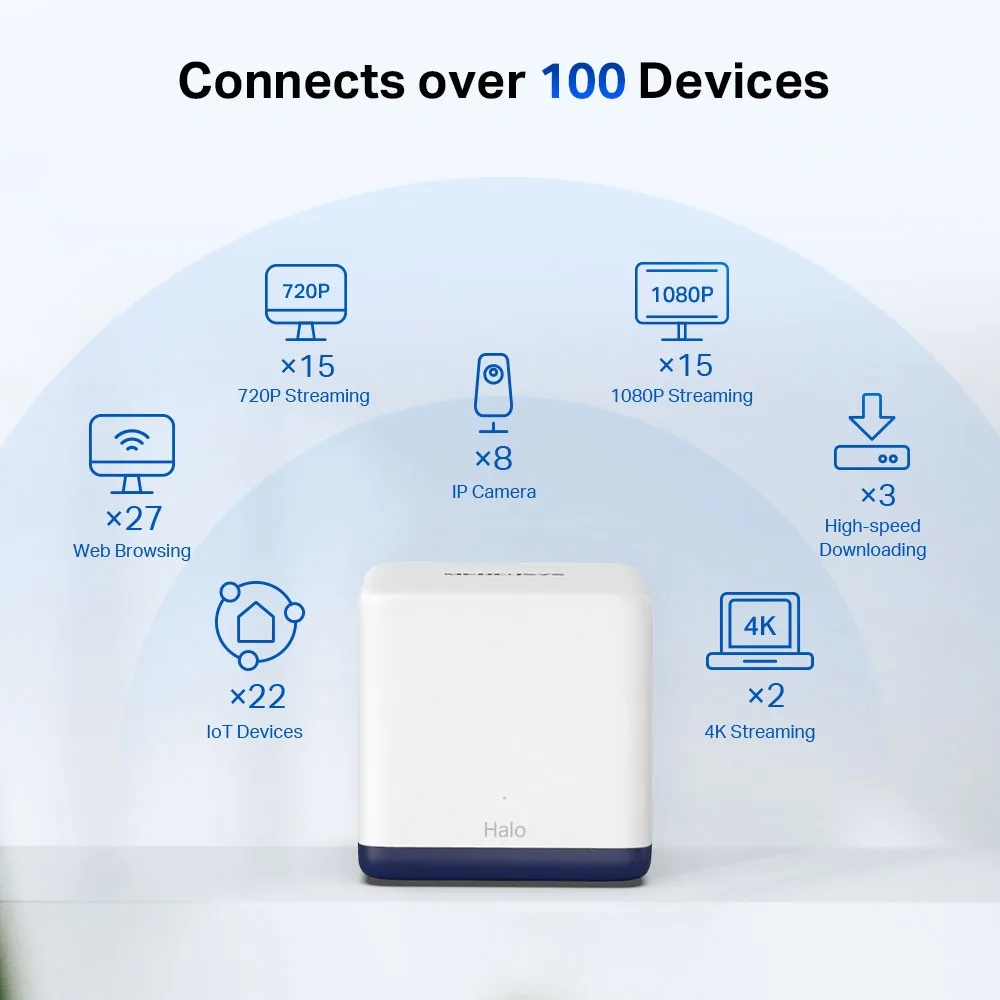
A shared network name and roaming assistance help devices move between nodes. Mercusys specifies 802.11k/v/r support and warns that compatible clients and sometimes additional setup are required. There is no universal promise of sub-100-millisecond transitions or uninterrupted calls. If one device stays attached to a distant node, compare its behavior with another client before concluding that the whole mesh has failed.
Management and security depend on mode and firmware
The Mercusys app provides network status, guest-network settings, device prioritization and parental-control profiles. Assign the relevant devices to each family profile and check the actual filtering and time controls offered in your firmware. These features complement household rules; they do not control a separate cellular connection.
For a home already using a dedicated router, access-point mode lets that router handle addressing and routing. Mercusys’s mode comparison says Halo parental controls, QoS, port forwarding and address reservation are unavailable in AP mode. Choose the operating mode with those tradeoffs in mind, rather than expecting every router feature to remain available.
The original datasheet lists WPA/WPA2. Check the matching hardware and regional firmware page for later security changes: the EU version 1 release notes include an encryption addition in the 2025 update. If WPA3 is a purchase requirement, confirm that the exact unit and installed firmware expose the required setting. Do not assume every old H50G has identical security options. Our WPA2 versus WPA3 guide explains why the choice matters.
Expansion and our buying view
Mercusys explicitly states that Halo H-series and S-series units cannot form the same mesh. The H50G datasheet identifies compatibility with other H-series units, so verify the proposed expansion model before buying a spare node. Adding a newer unit also does not upgrade the H50G’s own Wi-Fi radio or Gigabit sockets.
We still regard H50G as a solid budget choice for improving everyday coverage. For a new purchase, compare a similarly priced Wi-Fi 6 kit, especially if you have many compatible active devices or expect heavier local file transfers. An existing H50G installation that meets your needs does not require replacement simply because a newer standard exists. Check placement, backhaul and firmware first, then decide whether its actual limits justify spending more.
See the official Mercusys Halo H50G page for the available pack options.