Slow transfers, dropped calls and unreliable Wi-Fi can have several causes. Everyday appliances and nearby radios sometimes contribute, but a busy internet connection or a weak path through walls can produce similar symptoms. Identifying which problem you have is more useful than replacing the router immediately.
This guide explains common sources of Wi-Fi interference, the separate effect of physical obstructions and a practical way to test changes. There is no universal severity ranking: distance, operating frequency, shielding, traffic and the capabilities of your own devices determine the outcome.
Common Sources to Check
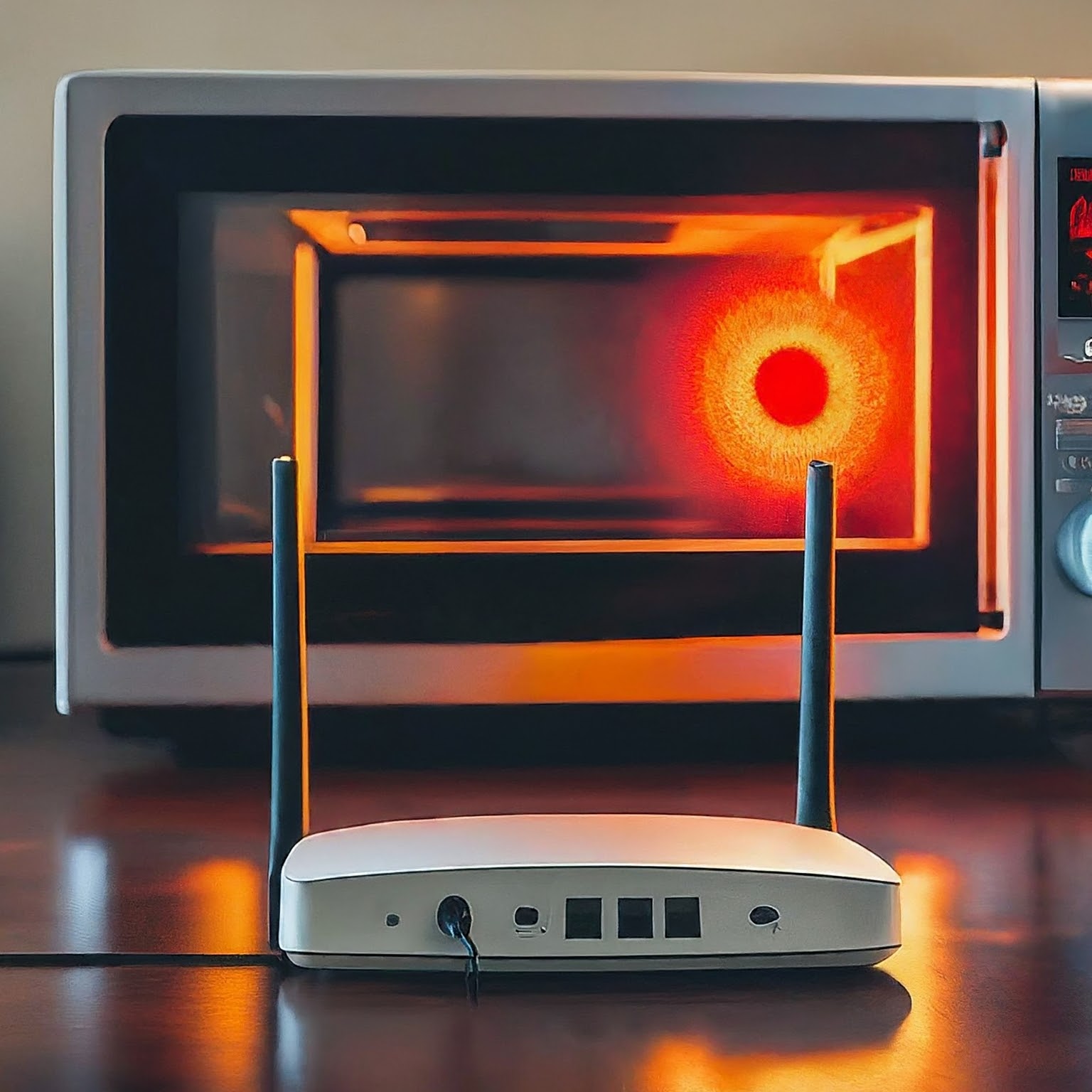
1. Microwave Ovens
A running microwave can introduce noise around the 2.4 GHz band used by Wi-Fi. The effect varies; having a microwave in the house does not prove it causes every slowdown. Compare the same client's connection at the same location with the appliance operating normally and with it off.
Move the router or client away from the appliance where practical. A compatible client's 5 GHz connection can avoid this particular 2.4 GHz source, although it may still face other interference or obstacles. Do not open or modify the microwave as a networking fix.
2. Cordless Phones
Some cordless phones use frequencies that overlap Wi-Fi, while others use different bands. Check the model's operating frequency rather than assuming all old phones interfere or all new phones are harmless. If trouble coincides with calls, compare normal use with a test where the base and router are separated.
3. Baby Monitors and Wireless Cameras
Monitors and cameras may use Wi-Fi or their own radio links. Digital is not a synonym for a different frequency: a digital product can still operate at 2.4 GHz. Check its specification and avoid putting its transmitter directly beside a Wi-Fi access point.
Keep monitoring equipment functional while testing. For a Wi-Fi camera, heavy video traffic may consume airtime rather than acting as an unrelated radio-noise source. Those are different problems and may need different remedies, such as supported settings or a wired connection.
4. Bluetooth Devices
Bluetooth and 2.4 GHz Wi-Fi share spectrum. Bluetooth uses frequency hopping, including adaptive techniques that avoid unsuitable channels during connected communication, to reduce collisions. This helps coexistence, but it does not guarantee that interference never occurs.
For stuttering audio or a jumpy wireless mouse, examine the nearby receiver, computer and USB devices as well as the router. Test a compatible Wi-Fi client's 5 GHz connection or move the affected receiver. Do not assume that disabling every Bluetooth device is required simply because several are present.
5. Metal and Other Obstructions
A metal cabinet, large appliance or reinforced floor can obstruct or alter the signal path. That is attenuation or reflection rather than necessarily a transmitter generating noise. The router's designed enclosure is part of its antenna system; a metal component does not automatically mean the product itself is badly designed.
Try moving an access point out of a cabinet and into an open position. Compare useful locations before installing extra units. In a mesh system, both the client-to-node path and the node's upstream connection matter.
Why Wall-Loss Tables Cannot Predict Your Speed
Building materials affect radio propagation, but thickness, moisture, metal reinforcement, angle and construction differ between houses. A fixed dB value for every brick wall or window is not a reliable buying rule. A reinforced concrete floor may be a difficult path without making every 5 GHz or 6 GHz link through concrete impossible.
Decibels describe a ratio: approximately 3 dB of power loss halves the power, and 10 dB leaves one tenth. Neither means the download speed must fall by the same proportion. Noise, signal-to-noise ratio, modulation, retransmissions, channel width and the upstream connection also affect application performance.
Use a before-and-after comparison at the same location instead. A strong signal reading with poor performance can point towards contention, interference or another bottleneck, while a consistently weak reading can justify better placement or a closer access point. Signal bars alone do not establish the cause.
USB 3 Devices Can Affect Nearby 2.4 GHz Receivers
Intel's USB 3.0 interference paper documents broadband emissions from some devices, cables and connectors that can affect nearby receivers in the 2.4 GHz band. USB 3.0's 5 Gbps data rate is not the same thing as a 5 GHz Wi-Fi channel or a universal single interference frequency.
Intel's tests show why receiver placement and shielding matter. The paper does not establish that every external drive disrupts every Wi-Fi connection, nor a universal minimum separation distance. If problems track a connected drive or hub, compare with it safely disconnected or inactive, then try moving it away and using a suitable high-quality shielded cable.
A supported extension can move a small wireless receiver away from an active USB 3 connector. Preserve the peripheral's required power and USB capabilities: a USB 2-only extension is not automatically suitable for a high-speed Wi-Fi adapter or storage drive. Changing supported USB modes is an optional diagnostic tradeoff, not a compulsory fix for everyone.
Busy Channels and Overlapping Channels
Nearby Wi-Fi networks can share a channel. Devices attempt to coordinate access, but that does not guarantee collision-free communication: hidden transmitters and retransmissions can still affect performance. More networks on the same channel can also mean less airtime available to your own devices.
Partly overlapping channels can interfere as well. For 20 MHz Wi-Fi on 2.4 GHz, channels 1, 6 and 11 are a commonly used non-overlapping plan. Respect the channels allowed in your country and the capabilities of the router. The useful choice depends on the actual environment, so an automatic setting can be preferable to blindly locking every installation to one fixed channel.
Apple's router guidance recommends 20 MHz on 2.4 GHz and Auto or supported widths on 5 GHz and 6 GHz. Wider channels take more spectrum and can be less helpful in crowded surroundings. Check what your equipment exposes; consumer mesh products do not all provide manual channel selection.
A Practical Troubleshooting Sequence
- Define the symptom: note the affected client, room, time, band and activity. Check whether one device or the whole network suffers.
- Separate Wi-Fi from internet performance: compare a wired client and, where possible, a local transfer. An ISP or remote-server bottleneck can remain when wireless reception is excellent.
- Change one thing: compare appliance activity, placement or a supported band without changing several settings at once.
- Inspect the right evidence: an ordinary Wi-Fi scanning app shows discoverable networks and channel information. It does not identify every microwave or other non-Wi-Fi emission; a real RF spectrum analyser uses suitable hardware.
- Improve the path: update supported firmware, keep equipment in an open location and check a mesh satellite's upstream signal. An extender placed in the existing dead zone may simply repeat a poor connection.
- Retest normal use: try the actual video call, stream or file transfer, then keep the change only if it helps consistently.
Our guide to optimising mesh Wi-Fi provides further placement advice. For supporting references, see Apple's interference troubleshooting, Bluetooth SIG's frequency-hopping explanation and Cisco's spectrum-analysis documentation.