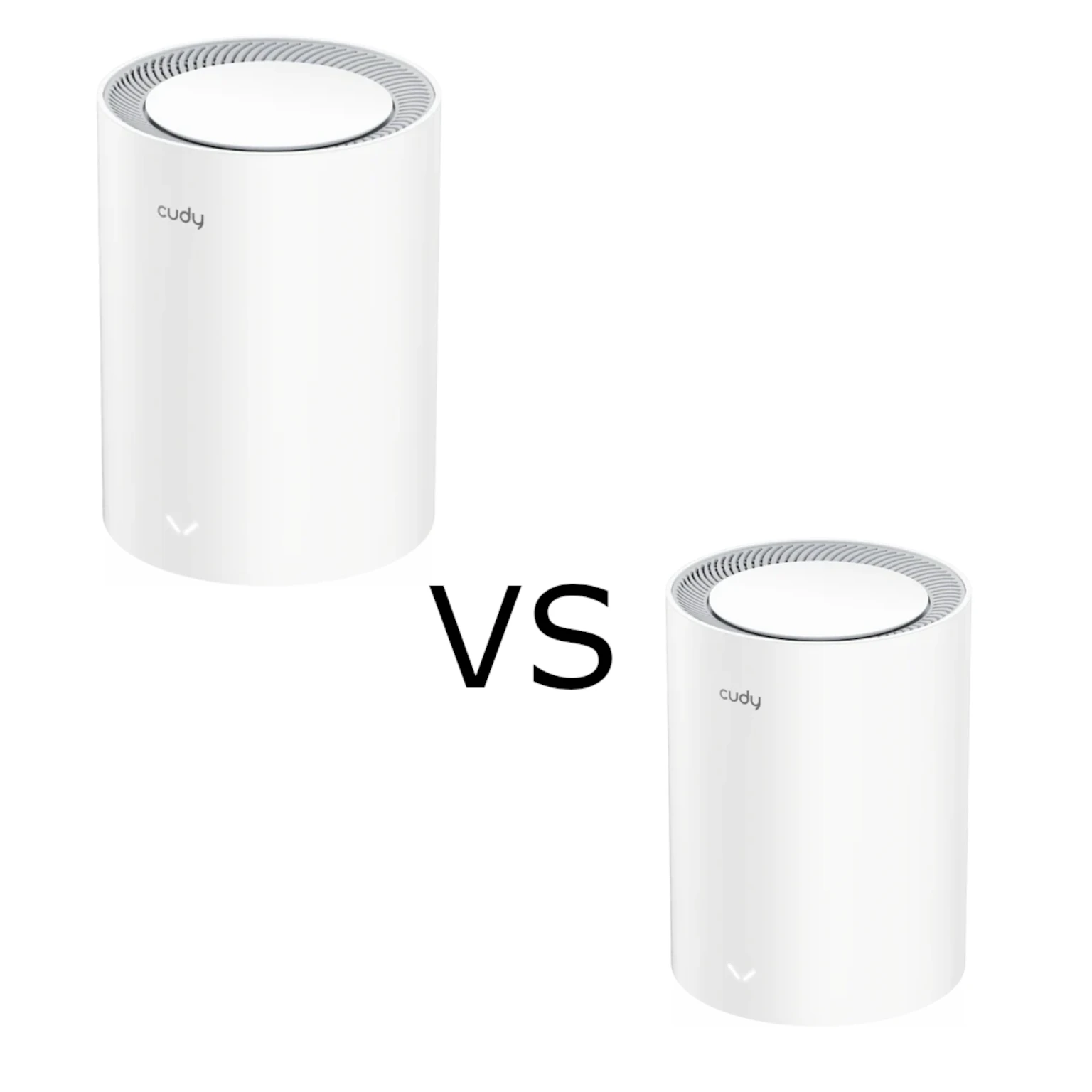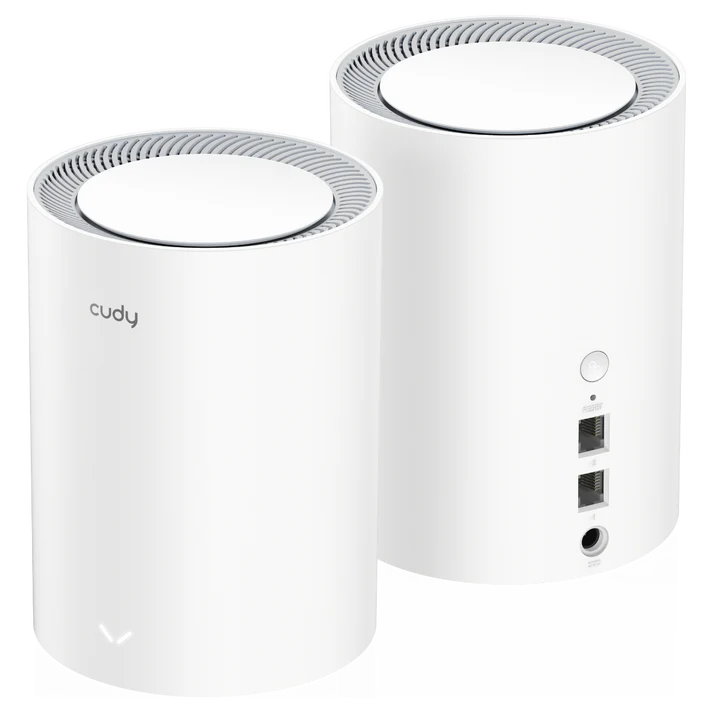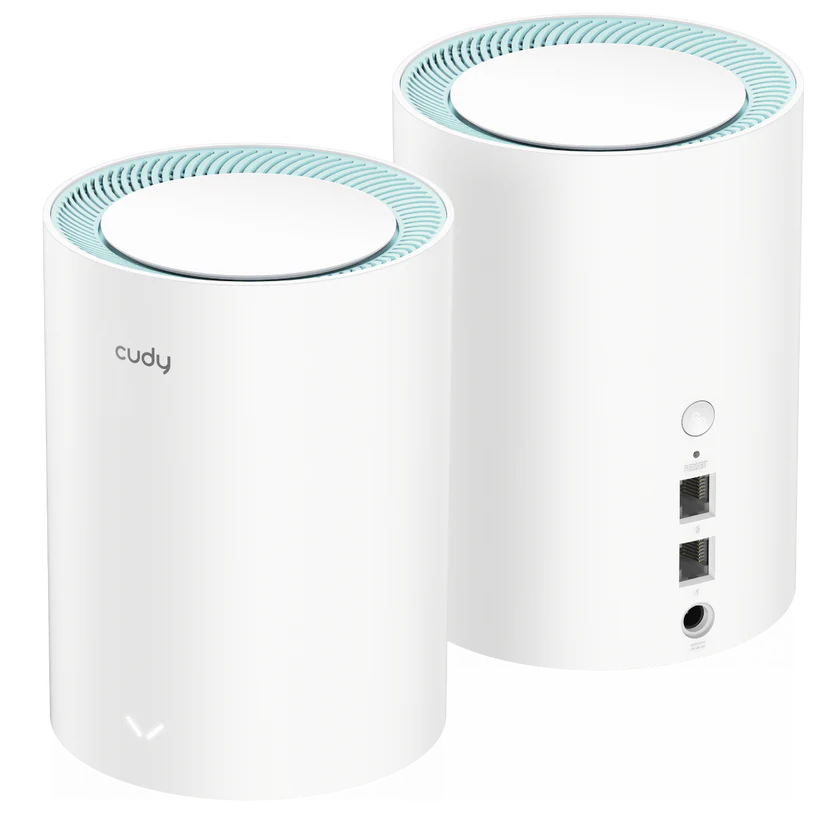
The Cudy M1300 remains an appealing budget mesh option when one router cannot reach the rooms you use. It combines two Wi-Fi bands, coordinated nodes and Gigabit Ethernet. My positive view of its value and straightforward management still depends on the actual price, hardware version and network layout: an inexpensive kit is useful when it solves the coverage problem, rather than merely adding another box.
What Mesh Changes
Think of mesh as a team of coverage points around the house. A main unit connects upstream, and satellites provide Wi-Fi closer to distant clients. The nodes also need a connection to the rest of the network, called backhaul. A phone can show a strong signal from a nearby satellite while that satellite has a weak route to the main unit.
Place a wireless satellite where it still receives a useful upstream connection, then test the room beyond it. Dense walls, floors, cabinets and neighbouring networks affect the result. A shared network name is convenient, but clients influence roaming decisions; it does not guarantee that every moving call remains uninterrupted or that a device always selects the strongest node.
Identify the Hardware Version
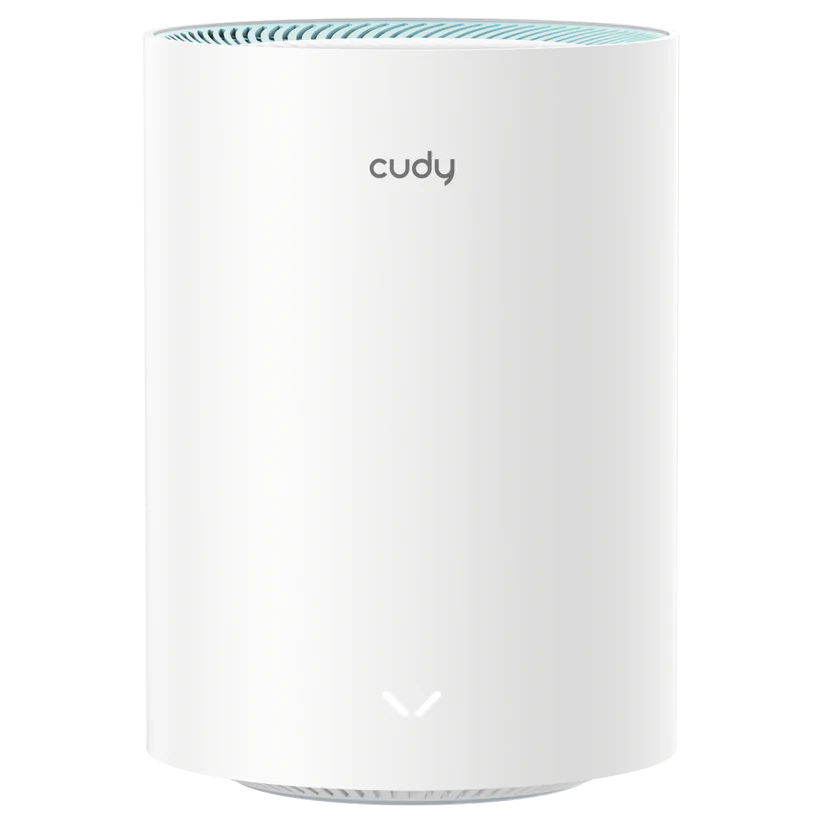
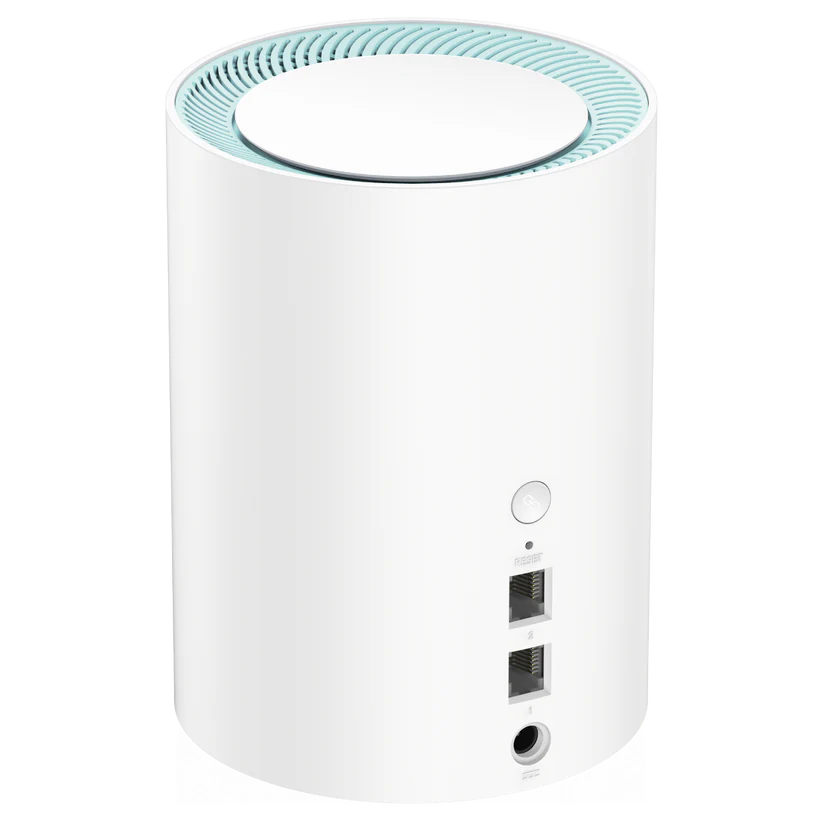
The following figures describe Cudy's M1300 2.0 specification. Check the bottom label and matching support entry before buying or updating another revision. The original photographs remain useful illustrations of the M1300 enclosure, but do not identify the firmware revision by themselves.
| Feature | M1300 2.0 |
|---|---|
| Wireless | Dual-band AC1200: 867 Mbps on 5 GHz and 300 Mbps on 2.4 GHz. |
| Streams and antennas | Two spatial streams on each band; four internal antennas. |
| Ethernet | Two Gigabit ports per unit; port 1 is WAN by default, with both LAN in satellite mode. |
| Security and management | WPA/WPA2/WPA3 listed; browser and Cudy app management. |
| Current coverage references | Two-pack: 160 m² / 1,700 ft²; three-pack: 220 m² / 2,400 ft², under Cudy's stated placement conditions. |
| Client recommendation | 50 recommended upper limit; this is not 50 guaranteed simultaneous high-speed streams. |
AC1200 adds the two bands' physical link ratings and rounds the class name. It is not a 1.2 Gbps transfer to one laptop. Wi-Fi 5 refers to 802.11ac on 5 GHz here; the 2.4 GHz link uses the older compatible radio mode. A generation label does not guarantee improved range or that adding clients never reduces available capacity.
Why Gigabit Ports Matter
The Gigabit interfaces avoid the 100 Mbps physical-port ceiling of some basic mesh systems. That is useful for a broadband handoff above 100 Mbps and for local wired connections. It does not establish a measured 200–500 Mbps wireless result or mean every satellite delivers Gigabit application throughput.
In the usual router arrangement, the main unit uses one socket upstream, leaving one for a computer or downstream switch. Several wired satellites and clients may require that switch. Include its cost and cables when comparing pack prices. A satellite's cabled uplink also consumes one of its two sockets.
Trace the complete transfer path. An internet test includes the provider connection, main router, backhaul and client link. A local file copy also depends on its endpoints and storage. A fast Ethernet socket cannot repair a poor wireless hop, and a faster Wi-Fi kit cannot exceed a slower internet subscription for external downloads.
Backhaul and Operating Mode
M1300 2.0 lists wired and wireless Cudy Mesh backhaul. Its dual-band design has no separate third radio. Wireless relaying and client traffic compete for radio resources; suitable Ethernet can be helpful between floors or across difficult walls, even when the internet plan itself is modest.
Decide which device should route the network. If keeping an existing gateway, check the supported access-point arrangement and the features available in that mode. Cudy's network guide distinguishes router and AP controls and warns that port-switching options are not universal. Do not assume a generic menu gives every revision the same configuration.
For smart-home separation, verify the actual guest access and routing restrictions. A different network name or a second mesh kit does not automatically isolate cameras and plugs from the main LAN. Provider IPTV/VLAN settings also do not by themselves establish arbitrary VLAN trunk support. Confirm the specific requirement before selecting this system for a more involved homelab design.
Setup and Useful Diagnostics
The M1300 guide links to separate procedures for creating a network and adding another unit. Its shared quick-start guide uses M1200 as the illustrated example, so follow the labels and interface for your actual device. Browser and app setup are documented; app-only setup is not the whole picture.
Have the provider's connection details available, including any required credentials. Pair additional units near the main unit before moving them. Confirm ordinary internet access first, then adjust placement. Keep the old working gateway available until the rooms and services you need have been checked.
Cudy's status information distinguishes internet, WAN, LAN, wireless and mesh state. If a room is slow, compare a wired baseline at the main unit with the same wireless client near each node. Record the band and backhaul along with the result. Repeat with normal household traffic; a brief best-case download does not describe every evening's workload.
If only one client struggles, inspect its driver and security compatibility before resetting the entire network. If several clients near one satellite struggle, try improving its upstream position or checking its cable. These are diagnostic suggestions, not measurements from an installation tested for this article.
Security and Maintenance
Use the strongest supported setting compatible with your devices, a unique wireless passphrase and a separate administrator password. WPA3 is useful where supported, but it does not replace updates or secure an already compromised computer. For wireless security background, see WPA2 vs WPA3 comparison.
The Cudy firmware guide explicitly lists local updates for M1300 and advises configuration backups and uninterrupted power during updating. Its separate central satellite-update list names other models; do not promise the same one-click procedure for every M1300. Check each unit's actual supported update method and revision.
The current M1300 2.0 product page is marked EOL and points to a newer version. That is a reason to check local stock, firmware availability and supplier support, not proof that a working unit immediately stops functioning. Avoid selecting remaining stock on a promise of indefinite updates.
A Sensible Budget Choice
My recommendation remains favourable when the M1300's price, managed coverage and Gigabit connections fit your needs. Browsing, streaming, smart devices and a home office can all benefit from a better layout, but no kit guarantees buffer-free video or lag-free gaming throughout every building. A collection of idle sensors creates a different workload from several uploading cameras.
Compare equal pack sizes with suitable Wi-Fi 6 alternatives, current warranty and a useful return window. An existing satisfactory network may need no replacement. Start with the rooms that need improvement, plan the backhaul and spare sockets, and evaluate the devices you actually use. That preserves the M1300's appeal as a practical value option without assuming that its radio class alone decides the result.