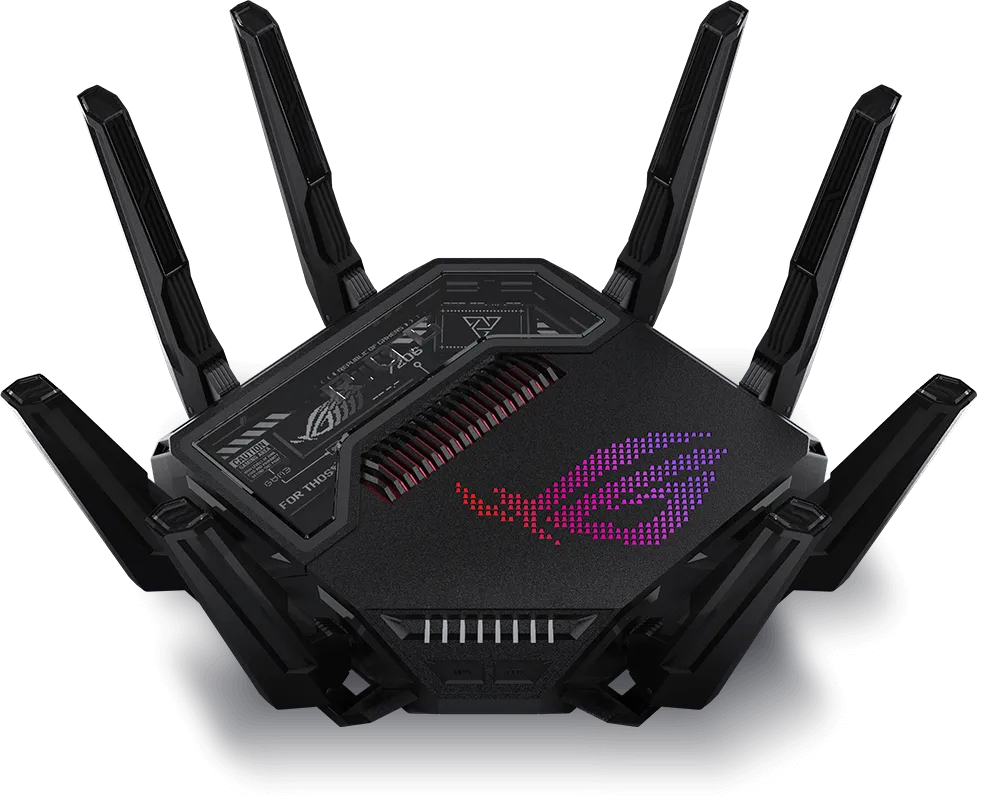
Wi‑Fi technology has come a long way from its early days, and with every new version, it promises faster speeds, better reliability, and improved performance. We have looked at previous versions of Wi-Fi, and we have even looked at multiple network units with the latest and greatest Wi-Fi technology, but not at the actual technology. Today, we’re diving into Wi‑Fi 7—a significant upgrade from previous generations like Wi‑Fi 5 and Wi‑Fi 6. In this post, we’ll explore the differences between these versions, explain the exciting new features of Wi‑Fi 7 (including multi‑link operation and 320 MHz channels), and offer practical considerations for anyone thinking about upgrading their home network.
Understanding the Evolution: Wi‑Fi 5, Wi‑Fi 6, and Wi‑Fi 7
Wi‑Fi 5 (802.11ac)
Wi‑Fi 5 brought significant improvements over older wireless standards. It introduced faster speeds and improved reliability compared to previous versions. However, as our homes became filled with more connected devices, the limitations of Wi‑Fi 5 started to show, particularly in busy networks.
Wi‑Fi 6 (802.11ax)
Wi‑Fi 6 built on these improvements by enhancing network efficiency and performance in crowded environments. It introduced technologies that allowed multiple devices to share the same network more effectively. In simple terms, Wi‑Fi 6 is like a more capable traffic manager: it can schedule compatible devices more efficiently, but does not guarantee equal bandwidth or eliminate congestion.
Wi‑Fi 7 (802.11be)
Now, Wi‑Fi 7 takes these advancements even further. It aims to provide even faster speeds, lower latency (the delay before data starts transferring), and improved performance in crowded networks. With Wi‑Fi 7, your home network can handle more simultaneous data streams, making it ideal for applications like 4K/8K video streaming, online gaming, and even virtual reality.
What’s New in Wi‑Fi 7?
Wi‑Fi 7 comes packed with new features designed to make your wireless experience smoother and more efficient:
- Increased Data Speeds: With improvements in technology, Wi‑Fi 7 can handle much larger amounts of data than its predecessors. This means faster downloads, smoother streaming, and a better overall experience when multiple devices are connected.
- Reduced Latency: For activities that need instant responses—like gaming or video calls—Wi‑Fi 7 can reduce wireless delay under suitable conditions. Internet routing, server response time and congestion elsewhere still affect the result.
- Enhanced Efficiency: With smarter ways to manage data traffic, Wi‑Fi 7 can improve airtime efficiency for compatible devices; capacity still has to be shared.
Multi‑Link Operation: A New Way to Connect
One of the standout features of Wi‑Fi 7 is multi‑link operation. This technology establishes multiple links as part of one logical connection. Depending on the supported mode, a client may use links concurrently or switch between them. Think of it as having multiple lanes open on a highway:
- Better Performance: Compatible multi-radio implementations can use several links concurrently, potentially improving aggregate throughput.
- More Reliable Connections: If one channel experiences interference or congestion, the device can still rely on the other channels, ensuring a smoother connection even in busy environments.
In everyday terms, multi‑link operation makes your wireless connection more robust, potentially improving resilience for streaming, gaming and video conferencing. It cannot guarantee interruption-free service.
The Benefits of 320 MHz Channels
Another exciting upgrade in Wi‑Fi 7 is the support for wider channels, specifically 320 MHz channels in the 6 GHz band, where local spectrum rules and both devices permit them. Not every Wi‑Fi 7 product includes 6 GHz or supports 320 MHz.
- Wider Lanes for Data: A wider channel means there’s more “room” for data to travel. Imagine upgrading from a two‑lane road to a four‑lane highway—more cars can travel at the same time, reducing traffic jams.
- Higher Speeds: With these wider channels, your network can transfer data at much faster rates, which is especially beneficial when multiple devices are using the network simultaneously.
- Enhanced Performance in Crowded Environments: A wider channel uses more spectrum, so in a crowded apartment a narrower setting may be more consistent. Select channel width for the actual environment, rather than automatically choosing the largest number.
Upgrading to Wi‑Fi 7: What You Need to Know
Before you rush out to upgrade your network, consider a few important points:
- Device Compatibility: To take full advantage of Wi‑Fi 7, both your router and your devices (like smartphones, laptops, and smart home gadgets) need to support the new standard. Many older devices won’t be able to use all the advanced features of Wi‑Fi 7.
- Network Requirements: Wi‑Fi 7 is designed for high-performance scenarios. If your current internet plan or network environment is already limited, you might not notice the full benefits immediately.
- Cost Considerations: Upgrading to Wi‑Fi 7 might involve replacing or upgrading several devices. It’s a good idea to assess your current needs and determine if the benefits justify the investment right now.
Backwards Compatibility: Using Your Old Devices with Wi‑Fi 7
Worried that your older gadgets might become obsolete? Don’t be. Wi‑Fi 7 is designed with backwards compatibility in mind:
- Works with Older Standards: Even if your device only supports Wi‑Fi 5 or Wi‑Fi 6, it can normally connect on a compatible 2.4 or 5 GHz network with supported security settings. It cannot gain 6 GHz, MLO or other new features through the router alone.
- Seamless Integration: This means you don’t have to replace all your devices at once. You can enjoy the benefits of Wi‑Fi 7 on new devices while keeping your existing ones connected.
This approach ensures a smooth transition, allowing you to upgrade your network gradually over time without a sudden overhaul of all your equipment.
Conclusion
Wi‑Fi 7 represents a major leap forward in wireless technology. Compared to Wi‑Fi 5 and Wi‑Fi 6, it offers faster speeds, lower latency, and smarter ways to manage data—even in crowded networks. With features like multi‑link operation and 320 MHz channels, Wi‑Fi 7 paves the way for a more efficient and reliable internet experience. While upgrading requires consideration of device compatibility and cost, the prospect of a more capable network means that investing in Wi‑Fi 7 is an exciting prospect for anyone looking to keep pace with our increasingly connected world. Whether you’re a tech enthusiast or simply someone who enjoys seamless streaming and gaming, understanding these advancements can help you make informed decisions about your home network upgrade.
Understanding the Technical Features
Channel Width and Client Limits
A 320 MHz channel is twice as wide as a 160 MHz channel, but width alone does not predict a real download speed. Signal quality, spatial streams, modulation, contention and protocol overhead matter. Intel lists up to 5.8 Gbps for certain two-stream Wi‑Fi 7 adapters under their supported 320 MHz/4096-QAM conditions; that is a maximum capability, not a universal TCP benchmark.
Device specifications are more informative than the generation badge. For example, Apple's deployment specifications list the iPhone 16 family, including the Pro models, with 160 MHz maximum channel width and 2400 Mbps maximum PHY rate on 5 and 6 GHz. Buying a 320 MHz router does not turn those phones into 5.8 Gbps clients.
4096-QAM and Signal Quality
1024-QAM represents ten bits per modulation symbol, while 4096-QAM represents twelve. That is 20% more bits per symbol at that modulation level, rather than an automatic 20% speed increase for every user. Higher modulation needs a cleaner, stronger signal and compatible radios; a client across several walls may negotiate a lower rate instead.
MLO Modes
STR, or simultaneous transmit and receive, uses capable radios to operate independently across links. Enhanced multi-link single-radio operation, EMLSR, can monitor link opportunities and select a link for a transmission; it does not promise simultaneous payload aggregation on all bands. The router, client, firmware and driver must support the combination. MLO is also different from ordinary band steering, where a client associates to a single band.
The available links need not always be 5 GHz plus 6 GHz, and MLO does not inherently bond every 2.4, 5 and 6 GHz radio. A mesh vendor may use it for node backhaul, client access or both. Check that product's documentation rather than assuming all Wi‑Fi 7 kits behave identically.
Puncturing and Multiple Resource Units
Preamble puncturing can exclude an occupied portion of a wide channel while using permitted remaining portions. It is not a guarantee that any arbitrary 20 MHz slice can be removed in every mode, or that radar obligations can be ignored. Multiple resource units let a compatible scheduler allocate more than one OFDMA resource unit to a user. These are related efficiency features, but they are not the same operation.
Generation Comparison
| Generation | Standard and bands | Useful distinction |
|---|---|---|
| Wi‑Fi 5 | 802.11ac on 5 GHz. | Wider channels and higher rates than previous generations; dual-band products also use older standards on 2.4 GHz. |
| Wi‑Fi 6 | 802.11ax on 2.4 and 5 GHz. | Efficiency features including OFDMA for compatible devices. |
| Wi‑Fi 6E | 802.11ax extended to 6 GHz. | Additional spectrum where permitted; compatible clients required. |
| Wi‑Fi 7 | 802.11be; products can use 2.4, 5 and 6 GHz. | MLO, higher modulation and optional/product-dependent wider-channel capabilities. |
Checking an Upgrade Before Buying
Find the bottleneck first. Compare an Ethernet internet test with a local transfer between the wireless client and a wired machine. A faster wireless link cannot raise a slow internet subscription, storage drive or server above its own limit. Check WAN/LAN port speeds and the mesh backhaul as well as the client radio.
Confirm the exact client model, operating system, driver and router firmware. Intel's Windows guidance requires Windows 11 24H2 or later for Wi‑Fi 7 functionality, together with a compatible router; simply installing an adapter does not establish every feature. For other platforms, use the manufacturer's current compatibility guidance.
After an upgrade, repeat tests from the rooms you use, with normal household traffic and the same client. Record throughput, latency and dropouts, then change one setting at a time. Wi‑Fi 7 is an exciting development, but the best upgrade is one that improves the problem you actually have.