If you're wondering why your Wi-Fi speed seems to change from one minute to the next, you’re not alone. Many people experience inconsistent Wi-Fi speed at home. You may notice your link speed—often measured as something like 866/866 Mbps—dropping to 433/433 Mbps or even lower. But what’s causing this? And how can you fix it? Let’s dive into some simple explanations and solutions.
Understanding the Difference Between Wi-Fi and Internet Speed
Before diving into Wi-Fi speed issues, it's important to clarify the difference between Wi-Fi speed and Internet speed.
- Internet Speed: This refers to the speed at which your Internet Service Provider (ISP) delivers data to your home or office. It's typically measured in megabits per second (Mbps).
- Wi-Fi Speed: This is the speed at which your devices connect to your Wi-Fi network. It's also measured in Mbps but can be influenced by various factors within your home or office.
This article focuses on Wi-Fi speed—your local connection between your device and the router—because inconsistent speed here is what you often experience when you notice a drop in performance between rooms or devices.
Inconsistent Wi-Fi Speed: A Common Problem
Many users experience frustrating fluctuations in their Wi-Fi speed. You might notice that your connection suddenly slows down, even though your Internet speed remains consistent. This inconsistency can significantly impact your online experience, leading to buffering videos, slow downloads, and laggy gaming.
Checking Your Wi-Fi Link Speed
One way to identify Wi-Fi speed issues is to check your link speed. This is a reported negotiated physical-layer rate between the device and access point, not the download speed an application is guaranteed to receive. Transmit and receive rates may differ; 866/866 Mbps does not mean a 1,732 Mbps full-duplex connection. You can usually find this information in your device's Wi-Fi settings. Rates can change normally as radio conditions and power states change. Investigate when a change coincides with repeatable slow transfers, increased latency or disconnections, rather than diagnosing a fault from the number alone.
Why Does Wi-Fi Speed Fluctuate?
You might notice your Wi-Fi link speed going from a high of 866 Mbps to 433 Mbps, and this can impact streaming, gaming, or just general browsing. Several factors can cause this inconsistency:
1. Distance from the Router
The further away you are from the router, the weaker your Wi-Fi signal becomes. Wi-Fi signals weaken with distance, causing speeds to drop as you move farther away or into different rooms.
2. Obstructions
Walls, furniture, and even large appliances like refrigerators can interfere with Wi-Fi signals. Signals may need to pass through several walls, and materials like concrete can seriously reduce the quality of the connection, leading to slower speeds.
3. Interference from Other Devices
Other electronic devices—microwaves, cordless phones, baby monitors—can cause interference, especially if they’re using the same frequency band (usually 2.4 GHz). Even your neighbors' Wi-Fi networks can interfere with your signal if you live in an apartment building.
4. Wi-Fi Band (2.4 GHz vs. 5 GHz)
Many modern routers operate on two bands: 2.4 GHz and 5 GHz. The 2.4 GHz band has better range but is slower, while 5 GHz is faster but doesn’t travel as far. If your device switches between these bands automatically, you might notice inconsistent speeds.
5. Device Hardware
The quality of your device's Wi-Fi adapter can influence its speed. Older devices may not support the latest Wi-Fi standards (such as Wi-Fi 6) and may experience slower speeds, while newer devices may support higher rates. Antenna design, supported bands, spatial streams, channel width and drivers matter as much as the age of the device.
6. Wi-Fi Congestion
If multiple devices are connected to the same Wi-Fi network and using a lot of bandwidth, it can cause a drop in speeds. For example, if someone is streaming 4K video in one room while another person is gaming online, your Wi-Fi speed may slow down.
Why Does It Happen to One Device and Not Another?
The reason why one device might experience inconsistent Wi-Fi speed while another remains unaffected can vary. It could be due to:
- Device Capabilities: Not all devices have the same Wi-Fi capabilities. For example, a newer smartphone may support faster Wi-Fi connections than an older laptop.
- Placement: One device may be in a better location relative to the router, with fewer walls or interference to contend with.
- Wi-Fi Standards: A newer standard can offer useful capabilities, but both ends must support them and environmental conditions still matter. A nearby older client can perform better than a newer client behind several walls.
- Interference: Devices like Bluetooth headphones, smart home devices, or even microwaves might interfere more with some devices than others depending on their location.
How to Fix Inconsistent Wi-Fi Speed
If your Wi-Fi speed keeps changing, here are a few things you can try to stabilize your connection.
1. Check Your Wi-Fi Link Speed
Most devices allow you to check your Wi-Fi link speed. The following Settings path applies to the Windows 10 interface:
- Open the "Settings" app
- Go to Network & Internet > Status
- Click on Properties under your Wi-Fi connection to view the link speed.
On Windows, another route is to press Windows + R, enter ncpa.cpl, then right-click the Wi-Fi connection and choose Status. Interface labels vary by Windows version. Compare the displayed rate while actively transferring data, and record the band or access point if your software exposes them; an idle rate alone is not a speed test.
2. Move Closer to the Router
Distance is often the biggest factor in Wi-Fi performance. Try moving closer to your router to see if the speed improves. If this helps, you may want to consider changing the placement of your router to a more central location in your home.
3. Switch to 5 GHz
If your router supports dual-band Wi-Fi, switching your device to the 5 GHz band can help reduce interference and increase speed. The 5 GHz band is less crowded and offers faster speeds, although its range is more limited.
This is straightforward when the router gives each band a separate network name. With a combined name, the client and router influence band selection; not every device lets you force a band. A supported adapter may expose a Preferred Band option, but labels and available choices depend on its driver. Record the previous value before testing a change.
4. Reduce Interference
- Avoid placing your router near other electronics like microwaves or cordless phones.
- If possible, reduce the number of walls or large obstructions between your router and devices.
- Some routers have settings to switch to less congested channels automatically. You can also log into your router’s admin panel and manually switch channels if necessary.
5. Update Your Router’s Firmware
Just like your phone or computer, your router has software called firmware that occasionally needs updating. Manufacturers release updates to fix bugs, improve performance, and add new features. Check your router’s settings to see if a firmware update is available.
6. Use a Mesh Wi-Fi System
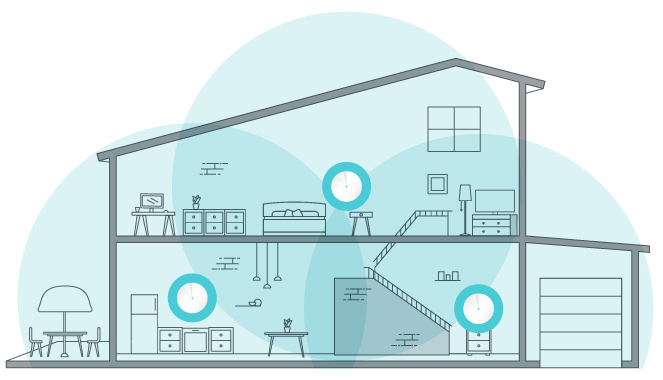
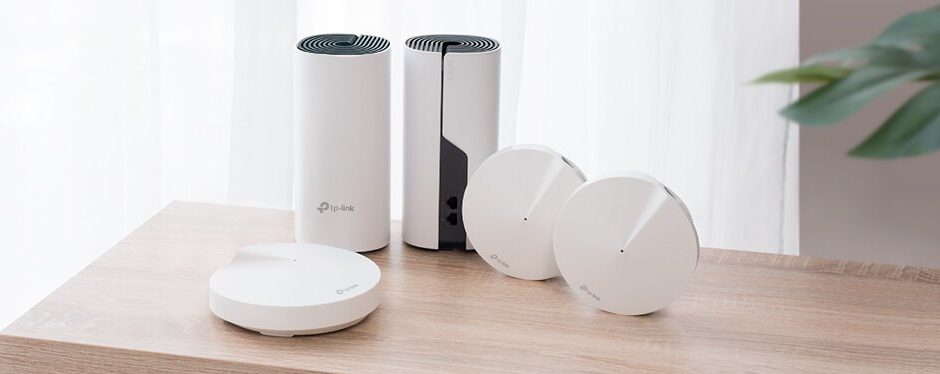
If your home is large or has multiple floors, a mesh Wi-Fi system can improve coverage when nodes are placed well. Check the connection between nodes as well as the client signal: a strong connection to a satellite with weak wireless backhaul can still be slow. Wired backhaul can help if the system supports it and the cable and ports work correctly. Also have a look at more information on Mesh Networks and we have a broad range of Mesh Wi-Fi product specifications as well as a guide on Setting up a mesh network. Also look at the Mesh System vs. Multiple Hotspots for an in-depth look at the differences.
7. Limit Bandwidth-Hogging Devices
If too many devices are using Wi-Fi at the same time, you can experience slower speeds. Try limiting high-bandwidth activities like streaming or gaming on multiple devices at once. Some routers even have Quality of Service (QoS) settings that allow you to prioritize certain devices or activities.
8. Avoid Power-Saving Modes
Power-saving behavior is actually one of the most common culprits we have seen thus far. It might be as simple as putting a laptop or desktop in Performance or Standard mode instead of power-saving mode. Test temporarily while plugged into power, compare the same transfer, and restore the previous setting if it does not help. Power-management options depend on the adapter and operating system; disabling savings permanently can reduce battery life and does not guarantee a stable connection.
Good Practices for Stable Wi-Fi Connections
- Secure Your Network: Use an appropriate secure Wi-Fi configuration and a strong password to prevent unauthorized use. A password does not prevent radio interference from nearby networks or appliances.
- Limit Connected Devices: Check active transfers and airtime use rather than counting connected devices alone. A few busy clients can matter more than many idle devices.
- Regularly Restart Your Router: A restart may temporarily clear a software problem. Record logs first where possible, and investigate repeated failures rather than relying on scheduled restarts to hide them.
- Monitor Network Usage: Keep an eye on your network usage and bandwidth consumption to identify potential bottlenecks.
- Place the router centrally: Position your router in a central location to ensure even coverage.
- Use the latest Wi-Fi standards: Before upgrading, confirm which bands and features your clients support. A newer router cannot remove a slow ISP connection, a weak mesh uplink or every source of interference.
- Minimize interference: Keep your router away from other electronics and physical obstructions.
- Check your device’s capabilities: Make sure your devices are compatible with your router’s Wi-Fi standard to avoid speed mismatches.
Final Thoughts
Inconsistent Wi-Fi speeds can be frustrating, but understanding the factors behind them can help you take the right steps to improve your connection. By ensuring your router is properly positioned, minimizing interference, and using the right equipment, you can enjoy smoother, more reliable Wi-Fi throughout your home.
Three Radio Events Worth Checking
A sudden drop may have several causes, so use evidence from the affected device and router before choosing a fix.
Band or Access Point Changes
With a combined network name, a device may move to another band or mesh node. Compare the connected band and access point before and during the slowdown. A different connection can explain a changed link rate, but the exact numbers depend on both radios. Test near the primary router and then near the satellite; do not assume that a band switch was accidental or that it is the only explanation.
Rate Adaptation
Wi-Fi changes modulation and coding to suit radio conditions. Signal strength, noise, interference and retries all matter, and receive and transmit behavior can differ. RSSI measures received signal strength; SNR compares signal with noise. You cannot infer a universal SNR, MCS index or application throughput from an RSSI number alone. A published speed chart is meaningful only with its stated Wi-Fi generation, channel width, spatial streams and guard interval, and even then it is a physical rate rather than a measured file-transfer result.
DFS Channel Changes
Some 5 GHz channels require Dynamic Frequency Selection to protect radar services. If the access point detects radar, it must leave the affected channel; clients may experience an interruption while it changes channel or checks a replacement. Look for radar or channel-change messages in the router logs at the time of the problem. Available channels and requirements depend on the country and device, and an Auto setting does not prove the router is using DFS.
If logs point to DFS events, compare a locally permitted non-DFS channel and a narrower channel width. This may reduce interruptions or contention at the expense of peak link rate. It cannot promise completely consistent speeds, and living near an airport is a reason to investigate rather than proof of the cause.
A Repeatable Troubleshooting Sequence
- Separate the internet from the local network: Compare a wired internet test with a local transfer to a wired computer or NAS. A local test helps isolate Wi-Fi, although the server’s storage, Ethernet port and other activity can also limit it.
- Keep the comparison fair: Use the same device, location, test file and power state. Pause your own large downloads or cloud backups temporarily. Repeat at the time the slowdown normally happens.
- Record the path: Note the connected band, access point, displayed link rate and observed throughput or latency. If only a mesh satellite is affected, check its backhaul and any Ethernet uplink.
- Change one thing: Test placement, a supported driver or firmware update, band preference or channel settings individually. Back up router settings and retain the previous values so you can undo a change.
- Check the result: Repeat the same test and look for reduced interruptions or latency as well as higher throughput. If a change only improves the displayed link number, it may not solve the actual problem.
When requesting support, include the router and client models, firmware and driver versions, the affected location and your repeated observations. This is more useful than a single speed-test screenshot or an assumption that all lower link rates indicate faulty hardware.