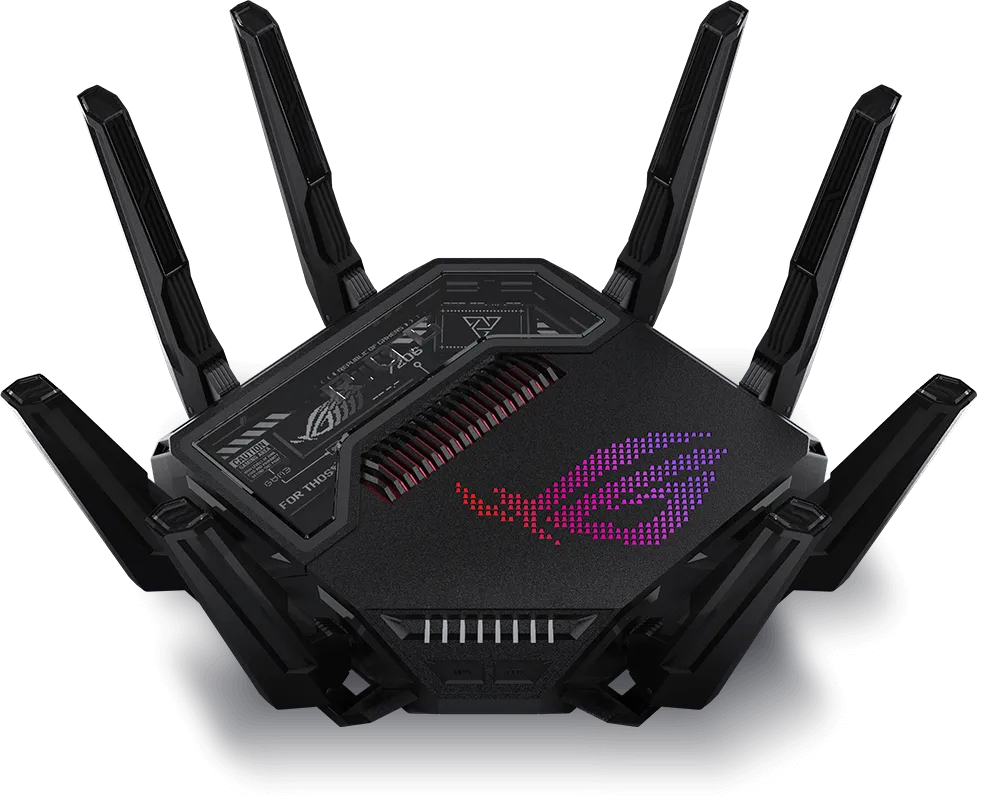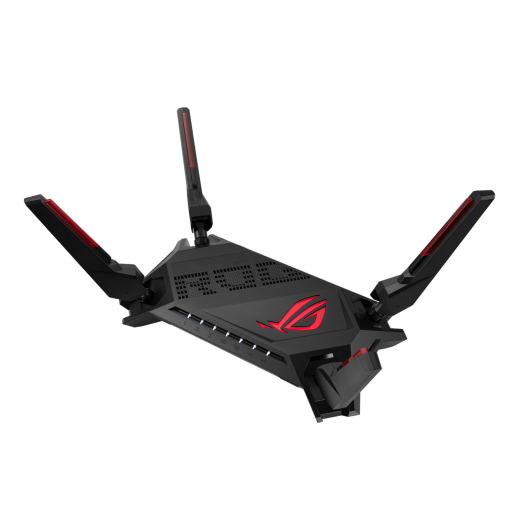
The ASUS ROG Rapture GT-AX6000 combines dual-band Wi-Fi 6, two 2.5GbE ports and AiMesh support. Its gaming features can help manage traffic at home, but they cannot guarantee a lag-free game or control every part of the route to a remote server. Start with the connection you need to improve, then check whether the router addresses that bottleneck.
What is Mesh Wifi and Why is it Better?
Mesh systems coordinate multiple wireless access points under common management. Wireless backhaul still consumes radio airtime; Ethernet backhaul can avoid that wireless hop. An extender also relays network traffic rather than merely amplifying radio energy. The useful distinction is how the nodes connect and how well that connection serves the rooms you use.
GT-AX6000 is a router, not a complete multi-node kit by itself. To use AiMesh coverage in another part of the house, you need an additional compatible node and a workable backhaul path. Place a wireless node where it receives a good upstream signal, then test the destination room.
Unleash the Power of GT-AX6000
| Feature | Specification |
|---|---|
| Networking Standard | Wi-Fi 6 (802.11ax) |
| Wi-Fi Speed | Up to 6000 Mbps (combined) |
| Processor | 2.0 GHz Quad-Core CPU |
| RAM | 1 GB |
| LAN Ports | 1 x 2.5G WAN, 1 x 2.5G LAN, 4 x Gigabit LAN |
| USB Ports | 1 x USB 3.2 Gen 1, 1 x USB 2.0 |
| AiMesh | Supported |
Who Needs the GT-AX6000?
This router is perfect for:
- Gamers: Prioritize selected traffic when household downloads compete for the connection.
- Large Households: Manage several active devices while allowing for ISP, client and airtime limits.
- Smart Home Enthusiasts: Connect all your smart home devices to a reliable and robust network.
Pros and Cons of the ASUS ROG Rapture GT-AX6000 AiMesh Router
Pros:
- Ultra-fast Wi-Fi 6 Speeds: Use compatible Wi-Fi 6 clients; internet speed also depends on the service and traffic path.
- AiMesh Support: Add compatible nodes and check backhaul and roaming with your clients.
- Gaming Features: Prioritize gaming traffic and optimize your online gaming experience.
- Powerful Hardware: Hardware capacity is useful, but performance still depends on enabled features and traffic.
Cons:
- Price: The GT-AX6000 is a premium router and comes with a premium price tag.
- Size: This is a large router that may not be ideal for small spaces.
Standing Out from the Crowd
The ASUS ROG Rapture GT-AX6000 goes beyond just offering fast speeds. Here's what truly sets it apart:
- Triple-Level Game Acceleration: Offers traffic-priority options; external internet congestion remains outside the router’s control.
- ASUS Aura RGB Lighting: Customize the lighting effects to match your gaming setup.
- Free Lifetime AiProtection Pro: Adds network-security functions subject to current terms and firmware; it does not replace endpoint updates and safe account practices.
These features can be useful when their configuration matches a real household need. A gaming label, RGB lighting or a higher aggregate speed class is not evidence of lower latency on your specific connection. Compare the useful ports, node compatibility and management features with the alternatives available to you.
Plan the Multi-Gigabit Traffic Path
The official specifications list a 2.0 GHz quad-core processor, 1 GB RAM, one 2.5GbE WAN/LAN port, one 2.5GbE LAN port and four Gigabit LAN ports. Both radio bands are 4×4, with advertised rates of 4,804 Mbps on 5 GHz and 1,148 Mbps on 2.4 GHz. AX6000 is a combined physical-rate class, not a single-client throughput measurement. There is no 6 GHz radio.
For example, a multi-gigabit internet service can use the 2.5GbE WAN connection while a compatible PC or switch uses the 2.5GbE LAN connection. A device connected to a Gigabit port still has that link's limit. Check the negotiated speeds, cable condition, client NIC and server storage before attributing a slow transfer to Wi-Fi.
The product overview describes WAN and LAN aggregation. Both ends must support the chosen aggregation arrangement; it is not a setting that makes an ordinary single-port modem faster. Aggregated capacity also does not guarantee that one transfer can use every member link. Verify the ISP or NAS requirements and actual port assignments before configuring it.
Traffic Priority, Firmware and AiMesh
Use the current ASUS interface and documentation to select the priority feature that suits your firmware. Do not assume Gigabit LAN1 has a special priority merely because a different ASUS model has a labelled gaming port. Priority can help with local competition, but it cannot shorten physical distance to a game server or repair congestion elsewhere.
Asuswrt-Merlin lists GT-AX6000 among its supported models. It is a third-party project, not ASUS factory firmware. Match the exact model, branch and release instructions, keep recovery information and check any feature limitations before installing it. Custom firmware is optional, not a prerequisite for the router's basic Wi-Fi or AiMesh operation.
The Merlin changelog documents CAKE QoS and compatibility boundaries. Traffic shaping trades processing capacity and configured bandwidth for queue control; it does not promise to eliminate all latency. Use measured upload/download capacity and retest after enabling it. Avoid assuming every VPN, guest-network or VLAN function applies identically across all firmware branches.
For AiMesh expansion, the existing links to ZenWiFi XD5 and ZenWiFi XT8 are retained. Check the selected nodes' support and backhaul arrangement. A dual-band GT-AX6000 does not acquire a third radio just by pairing with a tri-band node.
Choose by the Problem You Need to Solve
Instead of an unverified chipset comparison with RT-AX86U Pro and RT-AX88U Pro, compare the exact regional specifications and current support of each candidate. Count useful WAN/LAN ports, check where the router will fit and confirm whether existing nodes can be reused. Include any switch or extra-node cost in the decision.
A Gaming Connection Check
- Use the same client and game or remote endpoint throughout the test. Start with a wired connection while other household traffic is quiet.
- Record ordinary latency and interruptions, then repeat while another device uploads or downloads. Keep the load similar between comparisons.
- Repeat over Wi-Fi at the gaming location. If only this result worsens, investigate signal, channel conditions or backhaul before changing WAN priority.
- Enable one relevant priority or shaping feature and repeat the busy-link test. Compare latency as well as throughput; lower download speed may be part of a shaping configuration.
- Keep the earlier settings so you can revert a change that makes the result worse. Check calls, streaming and other household devices afterward.
These are proposed diagnostic checks, not a claim of a measured 2.35 Gbps transfer or guaranteed through-wall improvement. They help separate local contention, wireless conditions and the internet path instead of crediting every improvement to the router's gaming branding.
Finally, keep firmware current for the exact model, use a unique administrator password and save a configuration backup before major changes. Check guest access from an actual guest client. A useful router upgrade is one that improves the connection you measured and remains manageable for the people using it.