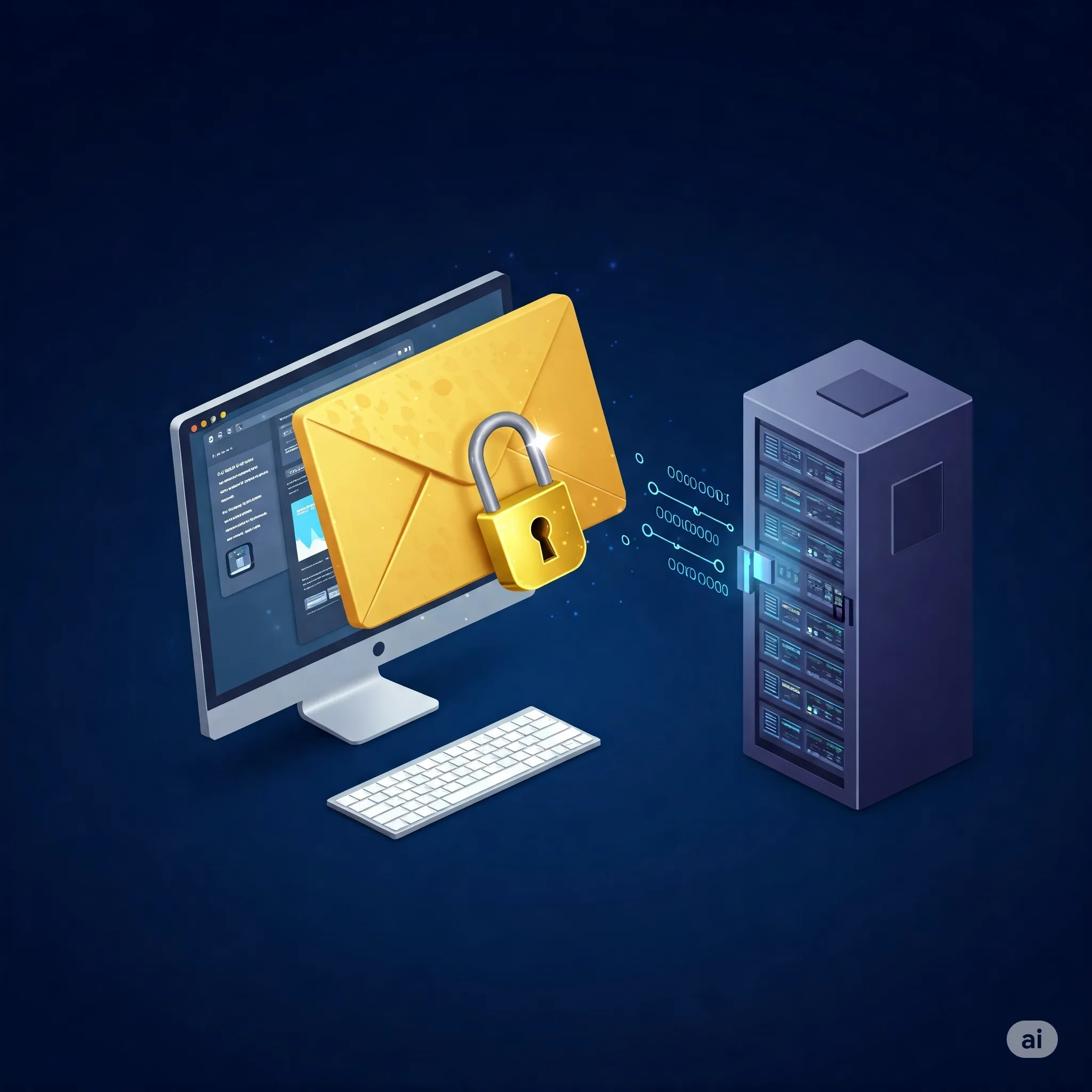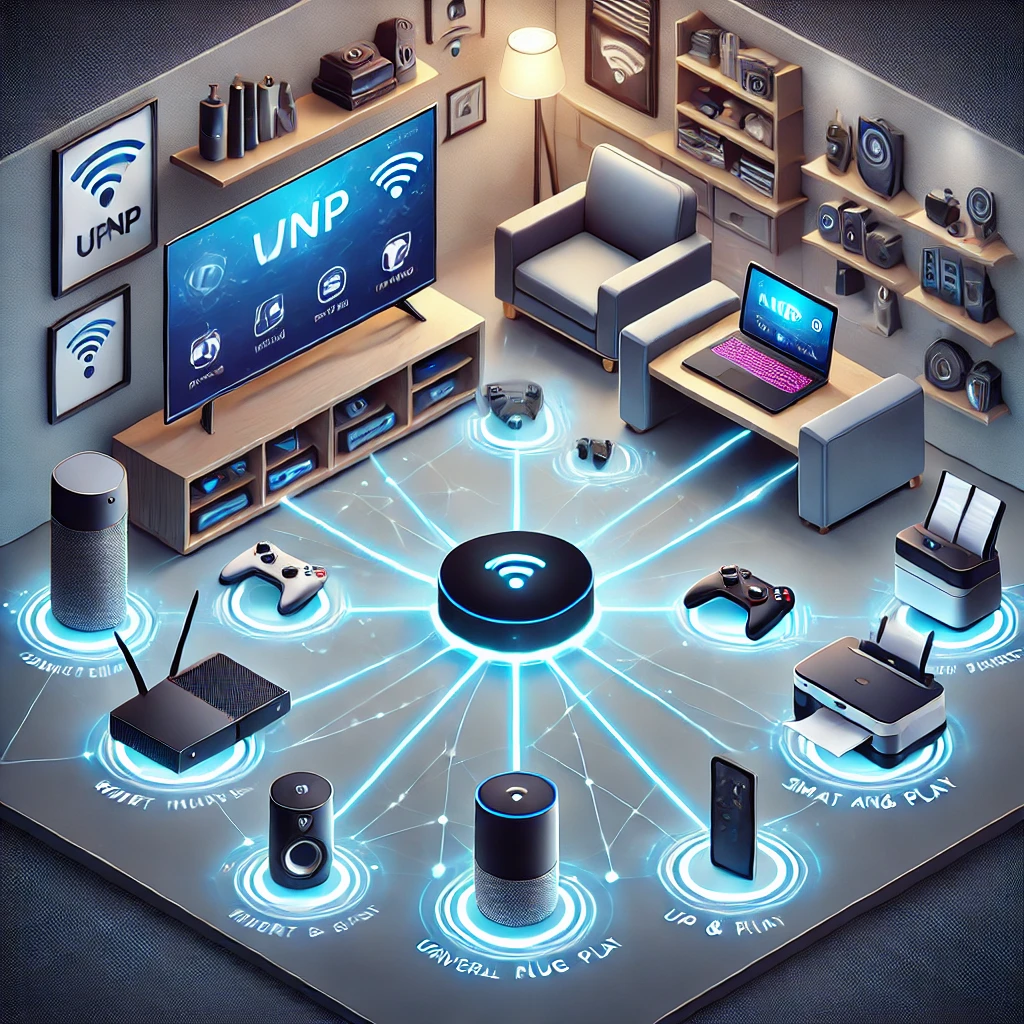
Finding a media server or letting a game console request an incoming connection can involve several network steps. UPnP, or Universal Plug and Play, helps compatible devices discover services and control them automatically. It is useful to think of it as a shared language for supported services, rather than a translator that makes every device or video format compatible.
Two different uses are often mixed together: local discovery and media control, and a router's Internet Gateway Device (IGD) port-mapping service. Turning off router port mapping does not automatically switch off every UPnP media device on the LAN.
What is UPnP?
UPnP stands for Universal Plug and Play. It’s a set of networking protocols that allows devices on the same network to discover and communicate with each other automatically. Think of it as a way for your devices to say, “Hi, I’m here! Let’s work together!” without requiring manual configuration.
A compatible media player can discover an advertised media server after it has joined the network. Joining Wi-Fi, entering its password and obtaining an IP address are separate operations. Other casting systems may use different discovery protocols, and the player still needs support for the media format.
What Problems Does UPnP Solve?
Before UPnP, setting up devices on a network was often complicated and required technical knowledge. You might have needed to configure ports manually or know specific IP addresses. UPnP solves these issues by:
- Automating Device Setup: Compatible devices advertise services and can discover them without manually entering every address. Initial network access and application-specific setup can still be required.
- Simplifying Port Forwarding: An application using the router's IGD service can request an inbound mapping when needed and permitted. Ordinary web browsing and many streams do not require a new inbound port forward.
- Enabling Seamless Communication: UPnP-enabled services can advertise capabilities and accept defined actions. Device support, network reachability and compatible service profiles still determine whether they work together.
How Does UPnP Work?
UPnP operates in the background and uses your home network to allow devices to discover each other. Here’s how it works:
- Device Discovery: When a UPnP-enabled device joins your network, it announces its presence.
- Service Advertisement: The device tells other devices what it can do. For instance, a smart printer might say, “I can print documents.”
- Control and Communication: Devices communicate with each other to share information or send requests. The advertised service defines the actions a controller can request. Discovery alone does not install a printer driver or configure every application.
- Port Mapping: If a local application requests an IGD mapping and the router permits it, the router can create an inbound NAT/firewall rule. This is different from the ordinary outbound connection a device uses to access the internet.
Risks of UPnP
While UPnP makes life easier, it’s not without its risks. Here are some potential issues:
- Security Vulnerabilities: Common deployments trust local requests rather than requiring an interactive administrator login for every action. A compromised permitted device can request unwanted mappings. Newer IGD specifications describe access-control requirements, but actual implementation and configuration matter.
- Unnecessary Port Exposure: Since UPnP opens ports automatically, it can leave your network vulnerable to attacks if not properly managed.
- Older Devices: Some older devices with UPnP support may have unpatched security flaws, increasing your risk.
How to Turn Off UPnP
If you’re concerned about security, you can disable UPnP on your router. Here’s how:
- Access Your Router Settings: Open a web browser and type your router’s IP address (usually something like 192.168.1.1 or 192.168.0.1).
- Log In: Enter your username and password. Use the administrator credentials established for your router. A Wi-Fi password on a sticker is not necessarily its current administrator password.
- Find UPnP Settings: Look for the UPnP option in the settings menu (often under “Advanced” or “Network” settings).
- Turn It Off: Disable the router's IGD/automatic port-mapping service if that is the intended change, save it, then inspect active mappings and retest applications. Depending on the implementation, existing mappings or another enabled mapping protocol may need separate attention.
Why Would You Turn Off UPnP?
You might want to turn off UPnP if:
- You’re worried about network security.
- You don’t use devices that require UPnP.
- You prefer to manually manage network configurations.
Keep in mind that turning off UPnP can make certain tasks more complicated, like setting up online gaming or streaming.
Pros and Cons of UPnP
Here’s a quick summary:
Pros:
- Easy to use.
- Simplifies device setup.
- Ideal for home networks with many connected devices.
Cons:
- Potential security risks.
- May expose your network to vulnerabilities.
- Some devices may behave unpredictably if UPnP is misconfigured.
Conclusion
UPnP is a powerful tool that makes connecting and using devices on your home network easy and convenient. However, its simplicity comes with some security trade-offs. By understanding how UPnP works, its benefits, and its risks, you can make an informed decision about whether to use it. If you value convenience and have a secure network setup, UPnP can be a great asset. On the other hand, if you’re security-conscious or don’t use many connected devices, disabling unneeded router port mapping might be the better choice.
The key is to balance convenience and security based on your needs. Now that you know the ins and outs of UPnP, you’re better equipped to manage your home network effectively.
Discovery, Control and Port Mapping Are Different Stages
| Mechanism | Role | Important distinction |
|---|---|---|
| SSDP | Advertises and discovers UPnP services; commonly uses UDP 1900 on a local network | Discovery does not itself create a WAN mapping |
| Descriptions and control | Devices describe services and expose HTTP/SOAP control endpoints | The advertised endpoint determines the address and port; there is no universal TCP 5000 control port |
| UPnP IGD | A supported gateway service can add or remove requested mappings | A firewall/NAT policy operation, not every UPnP device's behavior |
| NAT-PMP and PCP | Separate port-mapping protocols; PCP is a successor with NAT-PMP compatibility in supported implementations | They are not components of the UPnP architecture |
| UPnP media services | Local media discovery/control through supported profiles | Local playback need not create an internet-facing port |
SSDP announcements and search responses help a controller find a device description. The controller can then discover the supported services and their control URLs. Those actions depend on the device profile; a media-renderer action and a gateway mapping action are different requests.
Local multicast discovery generally does not cross isolated guest networks or routed VLANs automatically. A device may be reachable by IP while its discovery messages are blocked. Investigate the particular discovery protocol and network boundary before enabling internet-facing mappings as a supposed fix for local casting.
Security Lessons from CallStranger
CERT's 2020 advisory for CVE-2020-12695 describes abuse of the UPnP SUBSCRIBE callback mechanism, including traffic to arbitrary destinations, possible amplified denial of service and data exfiltration. OCF updated the specification, and CERT recommends vendor updates and disabling UPnP on internet-accessible interfaces. This is a historical vulnerability affecting relevant implementations, not evidence that every current device is exploitable.
The practical lesson is to check supported firmware and reachable services. Discovery/control services should not be exposed to the WAN merely for local convenience. Malware on a permitted LAN device is a separate concern: it may use ordinary authorized mapping functionality, without exploiting this particular vulnerability. A firewall's allowed-client policy cannot determine whether every process on an allowed console or PC is trustworthy.
CISA's home-router guide recommends disabling UPnP when it is not needed. That is a useful starting point, but it is more precise than claiming every security framework uniformly requires disabling the whole protocol. Decide whether the mapping service is needed, which clients can reach it and how its rules can be reviewed.
Restrict Mapping Requests Where the Router Supports It
Some firewalls provide client and port access controls. Netgate's current pfSense guide documents a default-deny setting and IPv4 ACL entries for the UPnP IGD/PCP service. The following illustrates its rule format for an example device address, not a universal configuration file for every router:
allow 1024-65535 192.168.1.85/32 1024-65535This permits the specified IPv4 address to request mappings in the stated external and internal port ranges when the service and matching default-deny policy are correctly configured. It is a broad range; narrow it to the application requirements where practical. Give the intended device a stable address and verify the actual rules created. The address is an access criterion, not cryptographic authentication of that device.
Netgate explicitly warns that these ACL entries do not control IPv6 clients. Apply the appropriate interface and IPv6 rules separately, and check which other port-mapping protocols remain enabled. Do not assume one pair of IPv4 rules establishes zero-trust security, blocks every device/protocol or guarantees an Open NAT result for several consoles.
Verify the Actual Mapping and Network Path
Review the router's dynamic-mapping status page and logs, including internal destination, protocol, ports and lifetime. A dynamic rule may be listed separately from manually configured forwards. Record why a mapping is needed and remove unnecessary exposure according to the router's documented behavior.
A local mapping does not automatically solve double NAT or carrier-grade NAT. The upstream gateway and public-address path must allow incoming traffic as well. Likewise, changing port mappings cannot fix Wi-Fi signal strength, DNS failures or a media codec mismatch.
When testing a change, separate ordinary browsing, local discovery and the application that needs inbound reachability. Test from the relevant network path and retain a recovery plan for router settings. These checks help balance the convenience that makes UPnP appealing with control over which services become reachable.