The internet is an amazing tool that connects us to information, entertainment, and loved ones all over the world. But just like the real world, there are dangers lurking online. Cybercriminals are constantly looking for ways to steal our personal information, money, or even identities.
The good news is, there are simple steps we can all take to protect ourselves online. Here are the top 10 cybersecurity tips to keep you safe in the digital age:
1. Be a Password Pro:
- Unique Passwords: Think of passwords like keys to your online accounts. Don't use the same key for every door! Create strong, unique passwords for every account.
- Strong Passwords: Use a long, unique generated password or a sufficiently long unpredictable passphrase. Follow the service’s requirements, but do not assume a short password becomes strong simply by adding a capital letter and symbol. Avoid common phrases, personal information and reused passwords.
- Password Manager: Remembering unique passwords for everything can be tough. Consider using a password manager, which securely stores your passwords and can even generate strong passwords for you.
2. Fight the Phish:
Phishing emails and websites try to trick you into giving up your personal information. Here's how to spot them:
- Suspicious Emails: Don't click on links or attachments in emails from unknown senders, even if they look official. Treat unexpected requests for passwords, payments or verification codes cautiously. Open the organisation’s known app or website independently, or call a trusted number instead of using contact details in the message.
- Check Sender Address: Look closely at the sender's email address. Check the full address and destination, but remember that convincing messages can have correct spelling or arrive from a compromised real account.
- Too Good to Be True? It Probably Is. Be wary of emails or websites offering amazing deals or urgent warnings. If it sounds too good to be true, it probably is.
3. Software Updates: Your Digital Armor
Just like your phone needs new software updates to fix bugs and security holes, so do your computer's operating system and other programs.
- Enable Automatic Updates: Whenever possible, enable automatic updates for your operating system, web browser, and other software. This helps install available security patches promptly. Check that updates succeed, restart when required and replace unsupported software or devices.
4. Public Wi-Fi: Friend or Foe?
Public Wi-Fi networks, like those at coffee shops or airports, are convenient, but they can be insecure. Here's how to use them safely:
- Avoid Sensitive Activities: Check the intended network name and use the service’s legitimate HTTPS website or app. Modern encrypted connections protect traffic in transit, but a fake website can also use HTTPS. Never ignore a certificate warning; use mobile data if the network or situation concerns you.
- Consider a VPN: A VPN encrypts traffic between your device and the VPN service. It shifts trust to that provider and does not make a phishing page, malicious download or compromised device safe.
5. Multi-Factor Authentication: Double the Trouble for Hackers
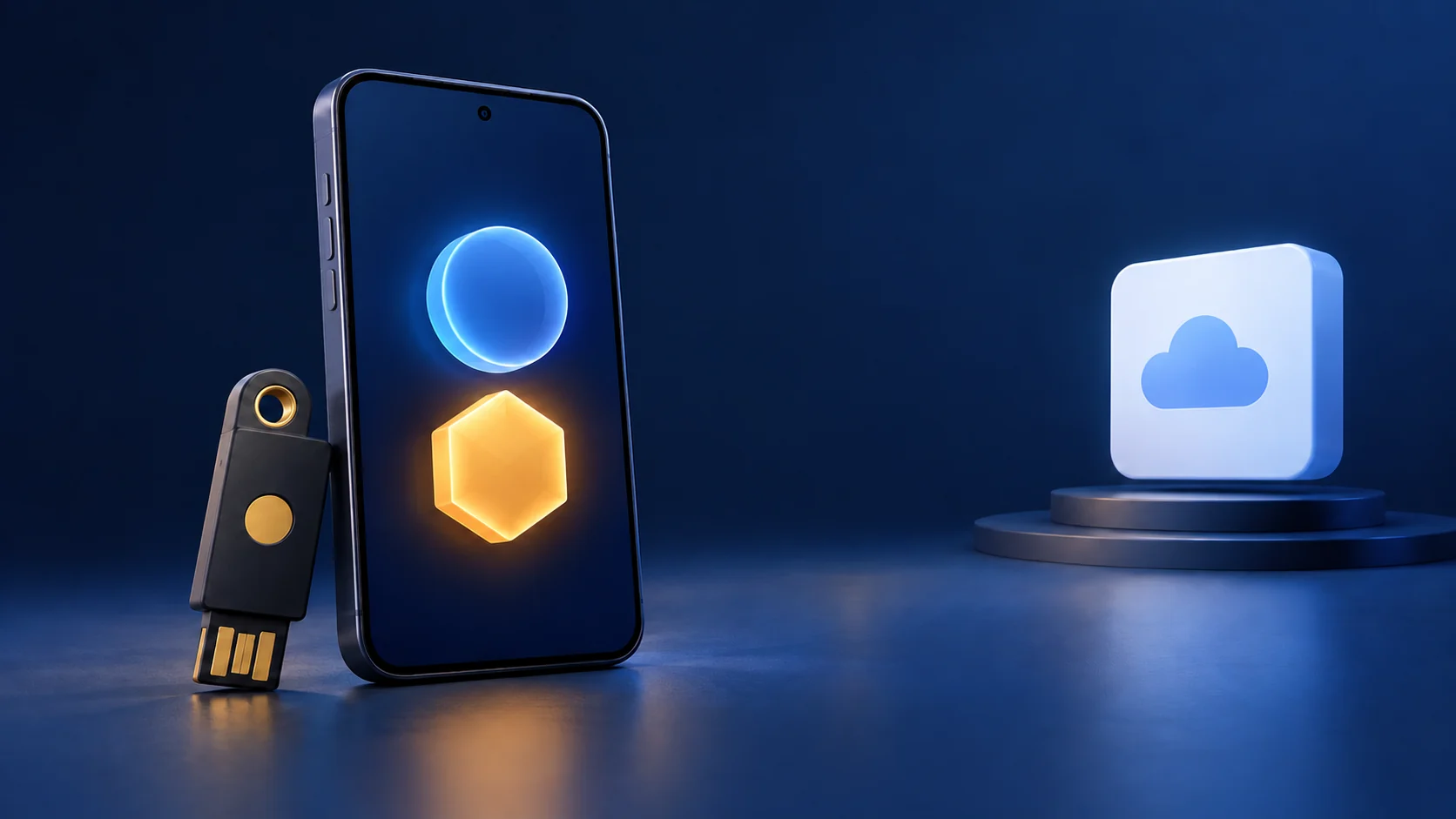
Multi-factor authentication (MFA) adds an extra layer of security to your accounts. It can reduce the risk from a stolen password, but the method matters. One-time codes and approval prompts can still be phished. Prefer a phishing-resistant option such as a supported passkey or security key, and keep a usable recovery method.
- Enable MFA Whenever Possible: Turn on MFA for your email, bank accounts, social media, and any other important online accounts.
6. Check Software Sources and App Permissions
- Stick to Official App Stores: Prefer official app stores or the software publisher’s verified website. Check the publisher, update history and requested permissions. Store review reduces some risks but does not guarantee that every app is trustworthy.
- Read Reviews and Permissions: Before downloading an app, read reviews and check what permissions it asks for. Does a flashlight app really need access to your location?
7. Limit the Personal Information You Share
Social media can be a great way to connect with friends and family, but be careful what you share online.
- Privacy Settings: Review your privacy settings on social media platforms and adjust them to limit who can see your information.
- Think Before You Post: Avoid sharing personal information like your address, birthday, or phone number publicly.
8. Be Wary of Free Deals
A surprise prize, infection warning or “required” download is a reason to stop and verify. Do not call a number or install a scanner promoted by an alarming browser pop-up. If you need software, reach the publisher’s known site independently: a search result or advertisement can also lead to an impersonator.
9. Back It Up: Don't Be a Ransomware Victim
Ransomware is a type of malware that encrypts your files and demands a ransom to decrypt them.
- Regular Backups: Back up your important files regularly to an external hard drive or cloud storage service. Keep an offline or otherwise protected copy that malware on the everyday computer cannot simply overwrite. Test restoring a file and check backup age. A synchronised folder alone may copy unwanted changes, and an untested backup does not guarantee recovery.
10. Stay Informed: Knowledge is Power
Cybersecurity threats are constantly evolving, so it's important to stay informed.
- Security News: Follow reputable cybersecurity news sources to learn about the latest threats and how to protect yourself.
Personal Cybersecurity Priority Matrix
Start with important accounts and recoverable data. The time needed depends on your devices and account setup; avoid rushing a change that could lock you out.
| Priority | Action | Verify afterward |
|---|---|---|
| Primary accounts | Review 2FA and passkeys on email and other important accounts. | Confirm login and recovery before removing an old factor. |
| Reused passwords | Replace reused credentials, especially after a data breach, and use a password manager. | Save the new credential and test it without losing the recovery route. |
| Important files | Maintain separate backups with an offline or protected copy. | Restore a sample file and confirm recent important files are included. |
| Home network | Review router security, updates, administrator access and guest-network settings. | Test device access; WPA3 and disabled convenience features need compatible equipment. |
| DNS choices | Understand encrypted DNS before enabling it. | Encrypted DNS protects the resolver connection; it does not isolate IoT devices or block every malicious site. |
By following these practical habits, you can significantly improve your cybersecurity posture and protect yourself from online threats. Remember, cybersecurity is a marathon, not a sprint. By consistently applying these practices, you can build a strong defense against cybercriminals and keep your digital life safe.
Here are some additional resources that you may find helpful:
- National Institute of Standards and Technology (NIST) Cybersecurity Framework: https://www.nist.gov/cyberframework
- CISA Cybersecurity Resources: https://www.cisa.gov/
- FTC IdentityTheft.gov: https://www.identitytheft.gov/
Let's all work together to create a safer digital world!
Make the changes useful and recoverable
Protect the password manager with a strong master password and the supported additional factor. Keep its recovery information somewhere you can access if your main device fails. Moving passwords into a vault is only the first step: change reused passwords at the actual services rather than merely saving them in a different place.
For account alerts, inspect active sessions and recovery email or phone details through the official account settings. A recovery route that points to an old number can undermine an otherwise careful setup. Deny unexpected sign-in prompts and do not share one-time codes with someone claiming to be support.
For the router, distinguish its administrator password from the Wi-Fi password. A guest network may help restrict visitors’ access, but verify the actual isolation settings rather than assuming a different network name proves separation. Keep a note of changes so a compatibility problem can be diagnosed.
For backups, choose one small document or photograph and restore it to a separate location. Check that it opens and matches the expected version. Keep the independent copy current; the presence of an external drive or cloud account is not evidence that yesterday’s files are recoverable.
If you have already shared sensitive information with a scammer, act through the affected service’s official recovery channel. The existing IdentityTheft.gov resource is intended for US readers; readers elsewhere should use the relevant local reporting and account-recovery services.
These habits work together and reduce risk. None provides a promise that a person or device can never be compromised, so review them periodically and respond to concrete account or device warnings.