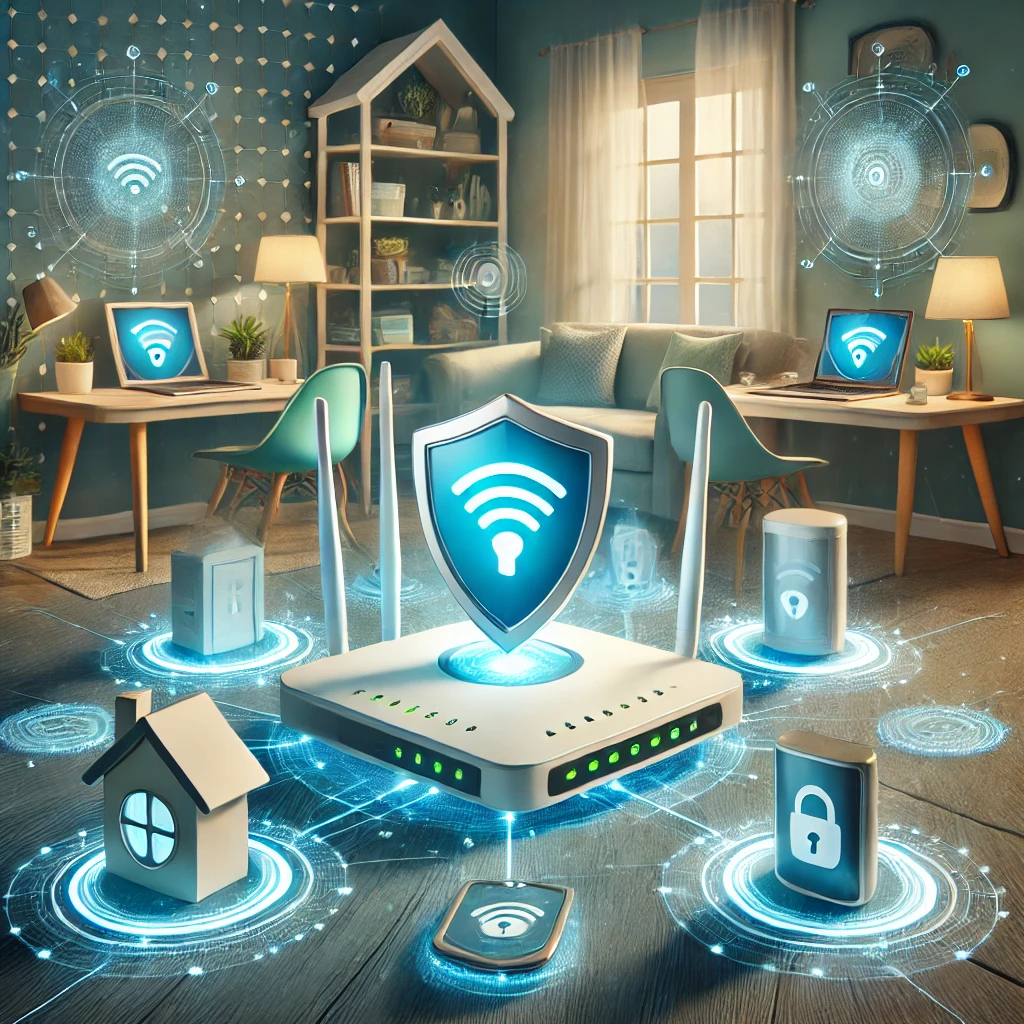
A home network connects our laptops, phones, local servers and smart-home devices. A supported router with deliberate access settings helps protect that shared environment. Factory defaults differ: some modern routers require a new administrator password at setup, while others retain settings you should change. This guide covers the risks to check and eight practical steps, followed by recovery and verification advice.
Why Should You Secure Your Home Network?
On a typical home connection, the router is the gateway between your LAN and the internet. It cannot protect traffic that uses a separate cellular connection, and it is only one part of protecting the devices themselves. Three risks to consider are:
- Credential & Data Interception: Weak Wi-Fi protection can expose unencrypted traffic, and altered DNS settings can misdirect connections. Properly validated HTTPS still protects the connection to the intended domain; do not ignore certificate warnings or assume an encrypted phishing site is legitimate.
- Botnet Recruitment: Exposed management services, vulnerable firmware and weak credentials can give attackers a path to compromise a router or camera and abuse it for activities such as DDoS attacks.
- Lateral Movement From Compromised Gadgets: On a flat LAN, a compromised camera or TV may be able to reach your laptop or file server directly. Separate networks with enforced access rules reduce that opportunity.
The IoT Factor: A Double-Edged Sword
Smart thermostats, robot vacuums, Wi-Fi plugs and IP cameras bring convenience, but their security and support policies vary. Price alone does not establish whether a device is safe. Check for:
- Hardcoded or Default Credentials: Change configurable default passwords and check which local services require authentication. Do not assume every product uses the same factory credentials.
- End-of-Life Firmware: Update policies differ widely; check the manufacturer's stated support period and available firmware rather than assuming an appliance will remain supported indefinitely.
- Cloud Dependencies and Automatic Port Mapping: Review which cloud services a device needs and how remote access works. UPnP-capable applications can request inbound mappings on a supporting router; an outbound cloud connection and an inbound port mapping are different paths.
8 Practical Steps to Harden Your Home Network
- Replace Default Router Admin Credentials & Neutralize Your SSID
- Find the correct management address or official app in your router documentation;
192.168.1.1and192.168.0.1are common examples, not universal addresses. Set a long, unique administrator password within the supported limits and store it in your password manager. - Choose a wireless network name (SSID) that does not reveal your family name or street address. Hiding its broadcast or omitting a model name does not replace supported firmware and Wi-Fi authentication.
- Set a separate long, unique Wi-Fi password, and protect the router's associated cloud account and recovery email with two-factor authentication where offered. Keep recovery codes private and available if your phone is lost. The Wi-Fi password and administrator password have different jobs.
- Find the correct management address or official app in your router documentation;
- Enforce WPA3-Personal (or WPA2/WPA3 Transition Mode)
- Prefer WPA3-Personal where the router and clients support it. For older devices, use WPA2-Personal with AES/CCMP on a suitable restricted network rather than WEP or TKIP. Transition mode retains WPA2 compatibility, so do not treat it as equivalent to WPA3-only protection. Keep client and router firmware patched as well. Read our full WPA2 vs. WPA3 breakdown.
- Disable Unused WPS and Review UPnP
- WPS includes enrollment mechanisms that you may not need; PIN-based implementations have had security weaknesses. Disable unused WPS instead of relying on it for routine device enrollment.
- UPnP (Universal Plug and Play) can let local applications request automatic port mappings without a separate approval prompt for each request. What the router accepts depends on its implementation and policy. Disable it if unused; if a game or service needs it, review the mappings and supported restrictions. A manual forward also exposes a service, so add one only for a defined need and remove it when retired.
- Isolate IoT & Visitor Devices on a Separate Guest Network or VLAN
- Place smart plugs, TVs, cameras, and visiting guests on a dedicated Guest SSID or VLAN with verified isolation from your personal PCs and NAS. Client isolation can also prevent needed communication between wireless devices. A local Home Assistant connection may require a separate, narrowly scoped rule rather than a fully isolated guest network.
- Review DNS Filtering and Encrypted Transport (DoH / DoT)
- If you want Encrypted DNS, configure a supported DoH or DoT transport explicitly. Threat-filtering choices include Quad9 (for example,
9.9.9.9) and Cloudflare 1.1.1.1 for Families (malware filtering at1.1.1.2). Merely entering these IP addresses does not enable encryption. A local Pi-hole or Technitium server needs its own filtering and upstream-transport configuration; installing a resolver is not the whole task.
- If you want Encrypted DNS, configure a supported DoH or DoT transport explicitly. Threat-filtering choices include Quad9 (for example,
- Disable WAN Remote Administration
- Disable unnecessary "Remote Management" / "WAN Web Access" so the web administration interface is not directly exposed on the internet. Check separately for vendor cloud-app management and shared administrator accounts; those can provide another remote path on supported products. If you need remote access while travelling, a properly configured WireGuard VPN is an option. Restrict the VPN user to the required services rather than granting the whole LAN automatically.
- Check that the router's firewall is enabled and review exceptions for both IPv4 and IPv6. A firewall controls traffic that passes through it; it does not replace host protection or block every malicious website. Preserve required network-control traffic rather than disabling IPv6 as a shortcut.
- Keep Router Firmware Updated (and Replace End-of-Life Routers)
- Enable automatic firmware updates or check regularly for security advisories. If the exact router model no longer receives security fixes, plan a supported replacement. Alternative firmware is an option only where that hardware revision is explicitly supported; a router's age alone does not establish its support status.
- Audit Connected Devices & Deploy Active Network Monitoring
- Compare the router's client and DHCP lists with your inventory. A DHCP table may omit devices using manually configured addresses. Tools such as NetAlertX or Pi.Alert can report discovered devices, but coverage and notification delay depend on scan methods, reachable networks, schedules and enabled alerts. Test your notification route with your own device; discovery is not vulnerability assessment.
Make Changes in an Order You Can Recover From
Before editing the router, record its current management address, WAN settings and Wi-Fi names. Save a configuration backup if the device supports one and keep it private. If possible, use a wired connection for changes that could disconnect Wi-Fi. Change one setting at a time and retain the credentials needed to reverse it.
Start with supported firmware, administrator access and unnecessary WAN exposure. Then separate less-trusted devices and refine access. This order addresses basic maintenance before optional filtering products. A subscription cannot compensate for an administration page reachable from the internet with a reused password.
Entering a DNS Address Does Not Enable DNS Encryption
Putting 9.9.9.9 into a router's ordinary DNS-server field may still send queries over unencrypted port 53. Quad9 lists separate transport options, including the DoT authentication name dns.quad9.net and DoH URL https://dns.quad9.net/dns-query. The router or resolver must support and explicitly use the encrypted transport.
Cloudflare likewise distinguishes DoT and DoH. Encryption protects the query path to the chosen resolver; malware-domain filtering is a separate policy offered by particular services. Neither option makes a new phishing domain impossible to visit. If the router cannot provide encrypted forwarding, check supported device-level settings or a local resolver rather than claiming that an IP-address change enabled it.
For Cloudflare’s malware-filtering service, use the documented DoT name security.cloudflare-dns.com or DoH URL https://security.cloudflare-dns.com/dns-query, not the unfiltered service endpoint by accident. Review both IPv4 and IPv6 DNS configuration and any browser-level resolver override. Confirm that intended filtering works using the provider’s harmless test page, and check local hostname resolution before relying on the new arrangement.
Verify Isolation with a Harmless Local Service
Join the guest or IoT network with a device you control and try to reach a harmless test page on your trusted network. The intended result depends on your policy, but a visitor-only network normally should not reach private management pages or file shares. Repeat the intended check for IPv6 if it is enabled; IPv4-only isolation does not describe every possible path.
Test casting, printers and smart-home controls separately. If a function breaks, identify its required direction and service rather than bridging the entire guest network back into the trusted LAN. The Deco guest-network documentation, for example, shows that Router and AP modes have different local-access settings. Verify your own model's behavior.
A Small Maintenance Routine
Keep a list of devices, owners and firmware support sources. Remove obsolete port forwards and accounts when a service is retired. Review new-device alerts against that list, recognizing that phones can use private MAC addresses. An unfamiliar entry is worth identifying before treating it as an attacker.
After a major router or firmware change, repeat the internet, local-service and isolation checks and confirm backups are still usable. Ask whether someone else in the household could restore connectivity using your notes if you were unavailable. A secure network that can be maintained and recovered is more useful than a checklist of features whose actual behavior nobody has tested.
Home Router Hardening Quick-Reference Checklist
| Router Setting | Setting to Inspect | Recommended Secure Setting | Why It Matters |
|---|---|---|---|
| Wi-Fi Security Mode | Current Wi-Fi encryption | WPA3-Personal; compatible transition mode or WPA2-Personal AES where required | WPA3 offers stronger authentication where supported; keep WPA2 compatibility separate from that protection. |
| WPS (Wi-Fi Protected Setup) | Check whether enabled | Disabled if unused | Removes an unnecessary enrollment path. |
| UPnP (Universal Plug & Play) | Check whether enabled | Disabled if unused | Removes unused automatic port-mapping requests; review existing manual forwards separately. |
| WAN Remote Management | Verify the actual WAN setting | Disabled | Removes direct WAN web administration; assess cloud management separately. |
| DNS Servers | Current resolver, filtering policy and query transport | A suitable resolver with explicitly configured DoT/DoH where supported | Filtering and encryption are separate options; configure a supported encrypted transport explicitly. |
| Guest / IoT Network | Verify subnet and client-access rules | Enabled with tested isolation | Limits paths from less-trusted devices according to the tested rules; exceptions still matter. |
Conclusion
Securing your home network is a worthwhile part of protecting your household, and it does not require an enterprise budget. Start with supported firmware, unique passwords, account protection and deliberate firewall access. Add compatible Wi-Fi encryption, verified guest or IoT separation and optional DNS filtering or encryption where they address your needs. Keep the recovery notes and repeat the checks after changes: these measures reduce risk, while devices and online accounts still need their own care.