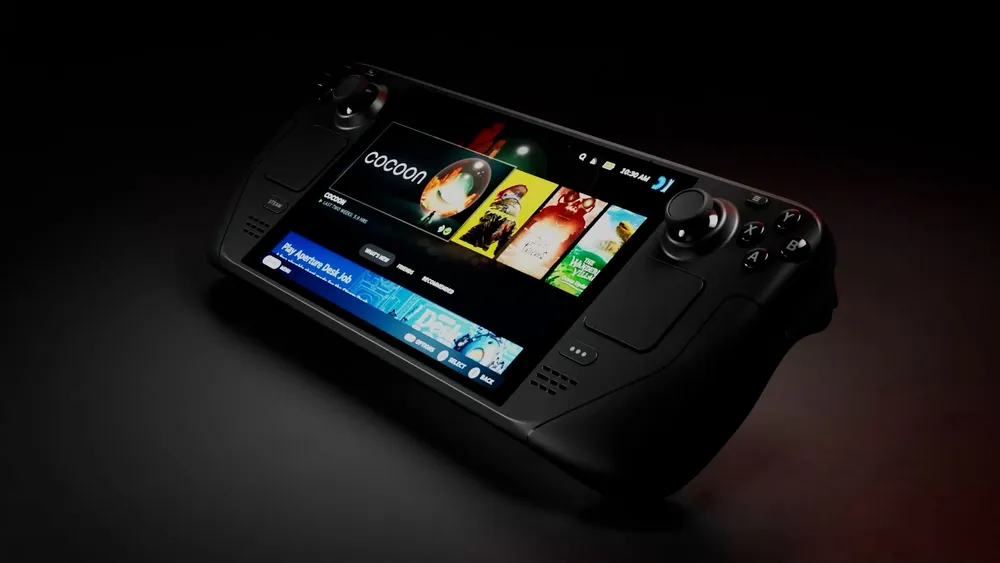
The Steam Deck is Valve's portable gaming PC, bringing a Steam library to a handheld format with built-in controls. It combines some of the convenience of a console with the flexibility of a PC, but the important question is whether your games and habits suit a small screen, battery-powered hardware and SteamOS.
A PC Library in a Handheld
The Deck has an AMD processor, thumbsticks, triggers, trackpads and a touchscreen. It can suit PC gamers who want to play away from a desk, travellers who prepare games in advance, and enthusiasts who enjoy a device with desktop capabilities. It does not turn every PC game into a console-like experience.
Compared with a laptop, its built-in controls and handheld shape may be more convenient for some games. A laptop may better suit keyboard-heavy work or games needing more performance, depending on the actual model. Compared with a console, the Deck offers a different library and software environment rather than access to every console exclusive. Choose by the games you want to play, not a general claim that one device is more powerful than every alternative.
LCD and OLED Models
The following comparison covers the 256 GB LCD, 512 GB OLED and 1 TB OLED configurations discussed here. Check current regional stock, seller terms and condition before buying, especially for older or used units. Valve's LCD specifications and OLED specifications are the reference for these hardware differences.
| Feature | 256 GB LCD | 512 GB OLED | 1 TB OLED |
|---|---|---|---|
| Storage | 256 GB NVMe SSD | 512 GB NVMe SSD | 1 TB NVMe SSD |
| Display | 7-inch LCD, 1280 x 800, 60 Hz | 7.4-inch HDR OLED, 1280 x 800, up to 90 Hz | Same OLED size/resolution, with anti-glare etched glass |
| Battery | 40 Wh | 50 Wh | 50 Wh |
| Valve gameplay estimate | 2–8 hours, content-dependent | 3–12 hours, content-dependent | 3–12 hours, content-dependent |
| Wi-Fi | Wi-Fi 5 | Wi-Fi 6E | Wi-Fi 6E |
| RAM | 16 GB LPDDR5, 5,500 MT/s | 16 GB LPDDR5, 6,400 MT/s | 16 GB LPDDR5, 6,400 MT/s |
We would really recommend one of the two OLED versions if you are considering buying a Steam Deck. The larger OLED display and battery are appealing improvements. That preference does not mean a good-value LCD unit has no place: weigh the actual price difference against the games you play and the condition of the unit.
What OLED Changes—and What It Does Not
Both variants use a four-core, eight-thread Zen 2 CPU and eight RDNA 2 graphics compute units. OLED uses a 6 nm APU compared with LCD's 7 nm design and has faster specified memory. It is a refinement of the platform, not a promise that every demanding game now runs at 90 frames per second.
Refresh rate is the display's capability, while frame rate depends on the game, settings and hardware load. Valve specifies OLED brightness as 1,000 nits peak in HDR and 600 nits in SDR. The peak figure is not the brightness of every full-screen image. Valve's OLED comparison lists the 1 TB anti-glare glass and other configuration differences.
Wi-Fi 6E gives OLED access to a compatible 6 GHz network where supported, but download speed also depends on the access point, internet service and connection quality. A faster radio is not a guaranteed multiplier for every download. The battery estimates are likewise broad, content-dependent ranges; they are not measurements from our own testing.
Check Compatibility Before Buying Games
SteamOS is Linux-based, and many Windows games run through Proton. Valve describes Proton as a compatibility tool using Wine and additional components. It is not a universal substitute for Windows: game launchers, middleware, anti-cheat requirements and updates can affect whether a title works.
Valve's Deck compatibility programme uses four categories. Verified means the title meets its Deck criteria; Playable may need manual adjustments; Unsupported identifies a current compatibility problem; Unknown means it has not been checked. Open the compatibility details, because a launcher needing the touchscreen is a different inconvenience from a game that cannot run.
Text size, controller navigation and the game's defaults matter alongside launching successfully. A badge does not promise maximum graphics settings or your preferred frame rate. Check the current store details for the exact edition you want, particularly when an online game is central to your purchase.
For further reports, keep https://www.protondb.com/ handy. Community experiences can help identify settings or problems, but compare the date, device and software version and read them alongside the official compatibility details.
Games to Consider
Our suggestions remain Hades, The Witcher 3: Wild Hunt, Hollow Knight, Stardew Valley and DOOM Eternal. They offer different styles of play, so start with the ones that appeal to you rather than buying a collection purely for a handheld. These are editorial recommendations, not a claim that we benchmarked each game on every Deck configuration.
For your shortlist, check controller handling, text legibility, installation size and online requirements. Try the default settings before changing several options at once. If performance is inconsistent, adjust a demanding setting or choose a frame-rate target the game can maintain; prioritise a comfortable experience over reaching the screen's maximum refresh rate.
Prepare for Travel and Manage Storage
Download and launch the games you intend to use before leaving. Valve's FAQ says installed games can work offline unless they require an internet connection. Test that condition for your chosen titles, including their launchers, rather than discovering it on a flight. Confirm saves have synchronised before switching away from another computer.
The Deck includes microSD expansion. Valve specifies UHS-I and formats its game cards as ext4 with casefolding. Use the Deck's supported formatting workflow and copy important existing card contents elsewhere first, because formatting erases them. A card adds space; it does not add RAM or increase the processor's performance.
Allow room for game updates as well as the advertised installation size. An internal SSD replacement involves more than checking its capacity: physical compatibility, service instructions and safe handling matter. MicroSD expansion may be the simpler choice if you want more room without opening the device.
Desktop Mode and Docking
The Deck offers a KDE Plasma desktop within SteamOS. That flexibility is useful for supported applications and peripherals, but it is still a Linux environment. Check the application you need before treating it as a replacement for a work laptop or expecting every Windows utility to run.
A compatible dock or hub can connect a screen and other peripherals. Check display support, power delivery and required ports instead of assuming any USB-C accessory provides every feature. Valve explicitly says docking does not increase the Deck's computing performance. A high-resolution display may require more modest game settings than the built-in screen.
Is Steam Deck Right for You?
The Deck is an appealing way to enjoy a PC library on the go, and our preference remains OLED when the budget allows. Before buying, review your most important games, comfort with its controls, storage needs and charging opportunities. For an imported or used unit, include warranty, support and battery condition in the decision.
A gaming laptop, a console suited to its own library, or supported remote/cloud play may fit different needs. Streaming depends on the host or service and a suitable network, so check its current regional availability and game catalogue. The Deck's strongest case is a library and routine that suit local handheld play, with realistic expectations about compatibility and power.