We have a few previous articles on NAS solutions and today we will look at one more. The open-source solution openmediavault can transform your home or small business storage into a secure and efficient storage hub. Let's look at its uses, pros and cons and dive into how it works. But first, let's refresh our knowledge on what a NAS is.
What is a NAS?
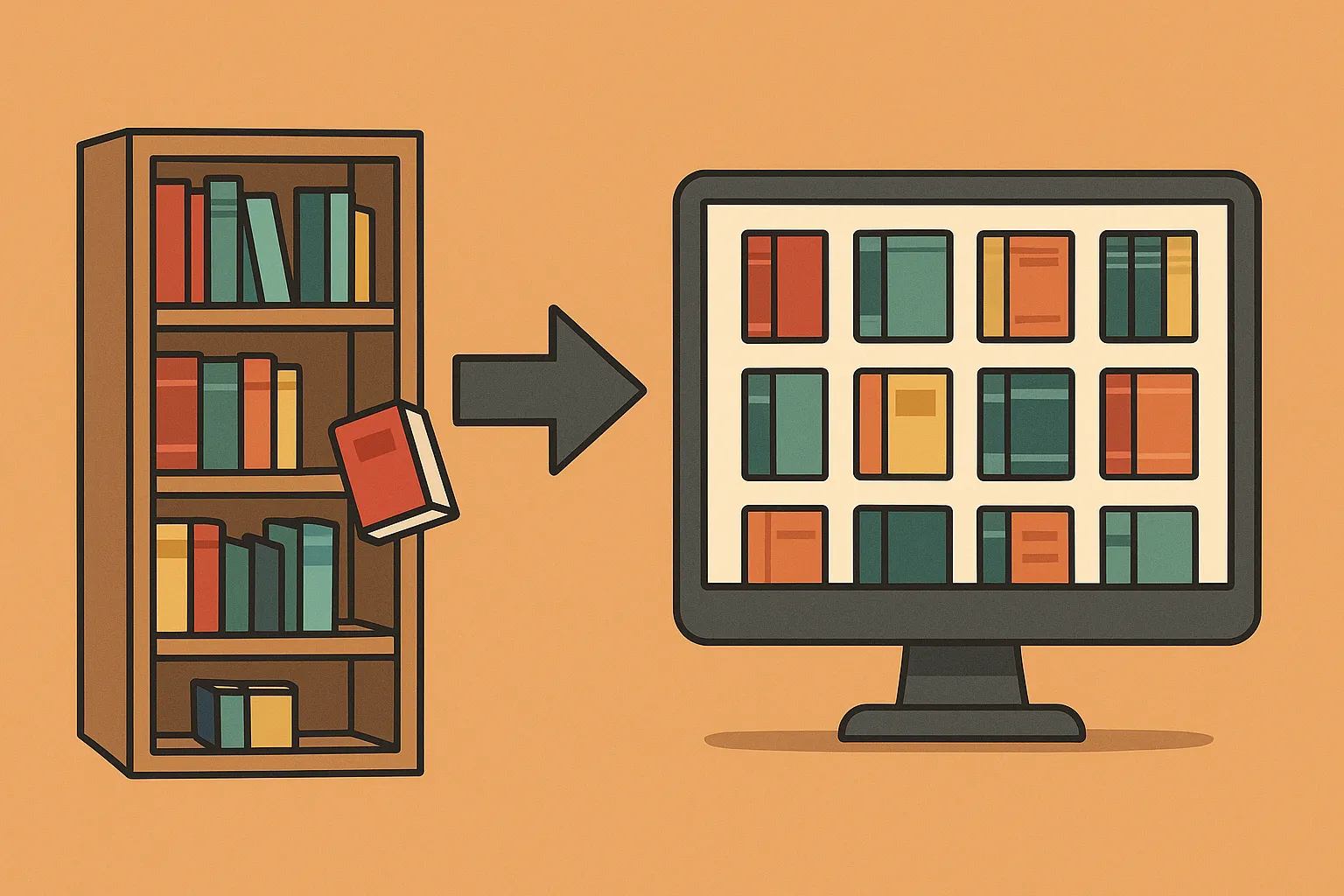
A NAS (Network-Attached Storage) is a device that connects to your network and allows multiple users to store and access files from a central location. It provides central network storage; remote access, client backup jobs and recovery still need their own configuration.
Examples of NAS Uses
- File Storage and Sharing: Easily save, access, and share documents, photos, and videos across your home or office network.
- Media Streaming: Stream movies, music, or photos to smart TVs, laptops, or mobile devices.
- Data Backup: Provide a destination for configured backup jobs; verify restoration and keep another copy away from the NAS.
- Hosting Services: Run applications like Plex for media or even small websites.
Common NAS Devices
- Synology DiskStation: A user-friendly NAS option for homes and businesses.
- QNAP Systems: Offers advanced features like AI-based photo tagging.
- DIY NAS: Building your own NAS using software like openmediavault.
What Is OpenMediaVault?
openmediavault (OMV) is an open-source NAS software that transforms regular hardware—such as an old PC or Raspberry Pi—into a functional NAS device. Designed for home and small office use, OMV provides a robust and flexible solution for network storage management.
How openmediavault Works
- Installation: OMV is installed on a device, such as a computer with connected storage drives.
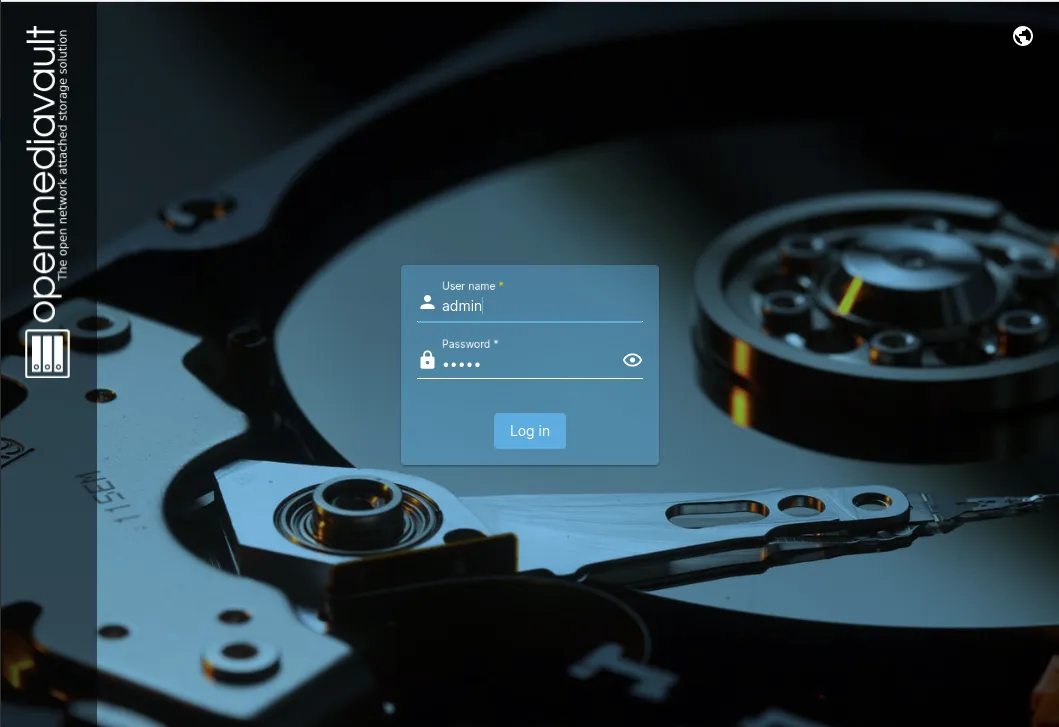
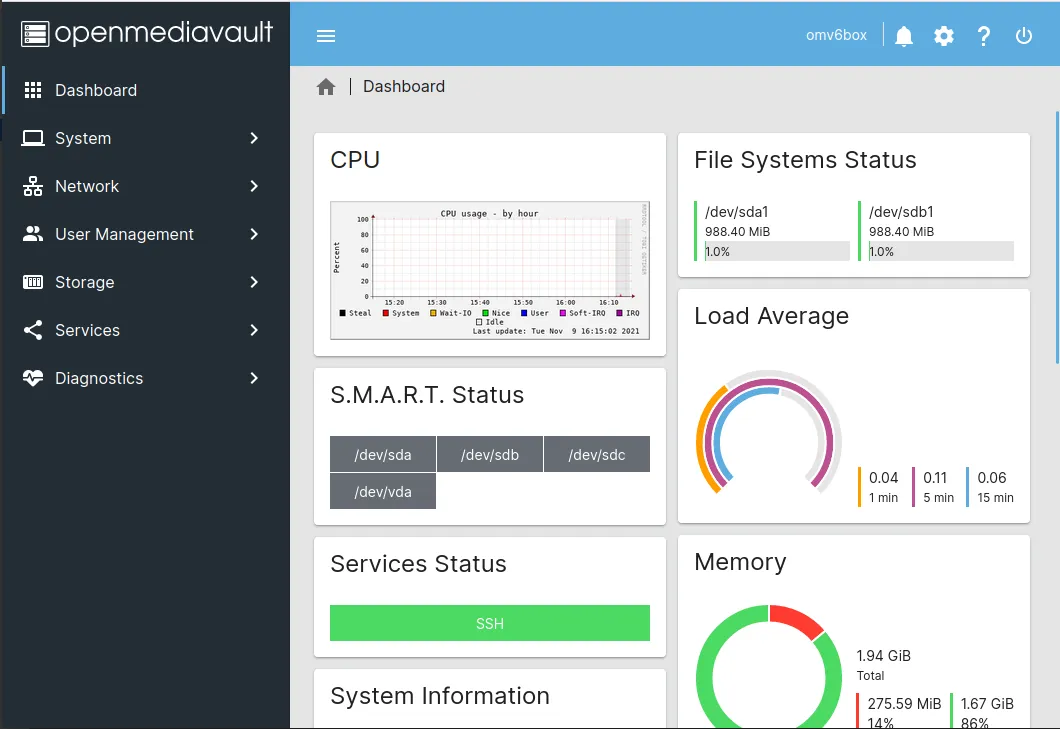
- Setup: After installation, it provides an intuitive web-based interface to configure and manage the NAS.
- Accessibility: Users can then access files, manage backups, or stream media over the network.
Features of openmediavault
openmediavault is packed with features that make it a popular choice:
- Easy-to-Use Interface: Its web-based dashboard is simple to navigate, even for beginners.
- File System Support: The supported-filesystem list distinguishes creation from mounting existing filesystems. Choose storage with the permissions and workload support you require; mounting NTFS or FAT does not make it equivalent to a native Linux filesystem.
- User and Group Management: Assign permissions to users and groups for secure file access.
- Plugins: Extend functionality with version-compatible plugins and optional container services; distinguish community additions from the core installation.
- Remote Access: Configure a supported private remote-access method separately. Do not expose the NAS administration interface or file-sharing ports directly merely to make them reachable.
- Power Management: Energy-saving options to reduce power consumption.
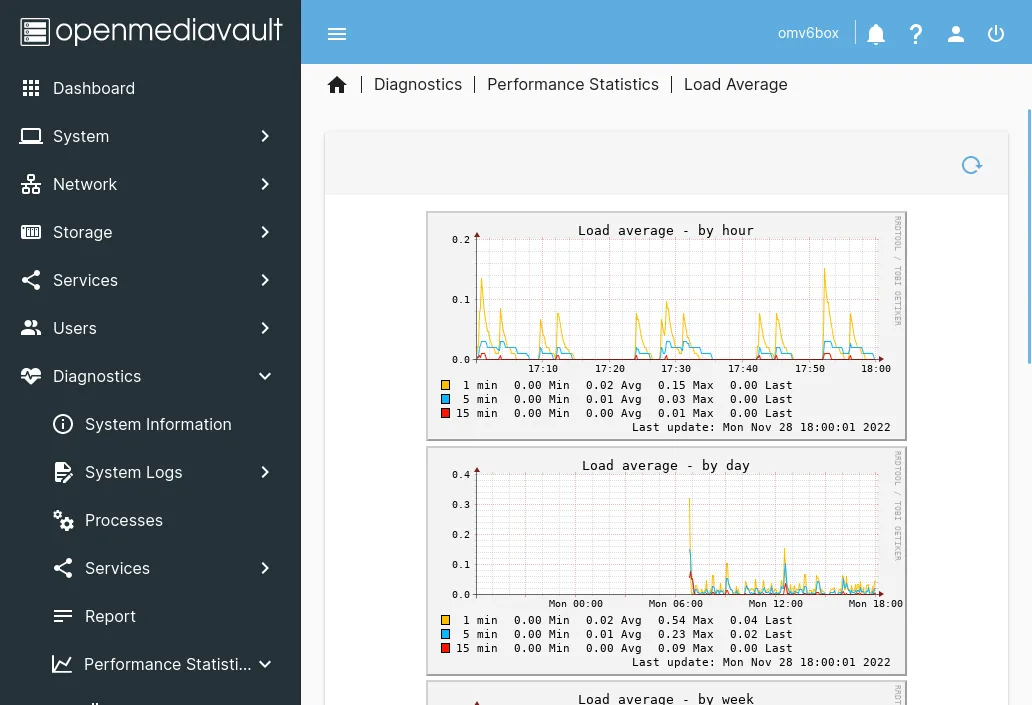
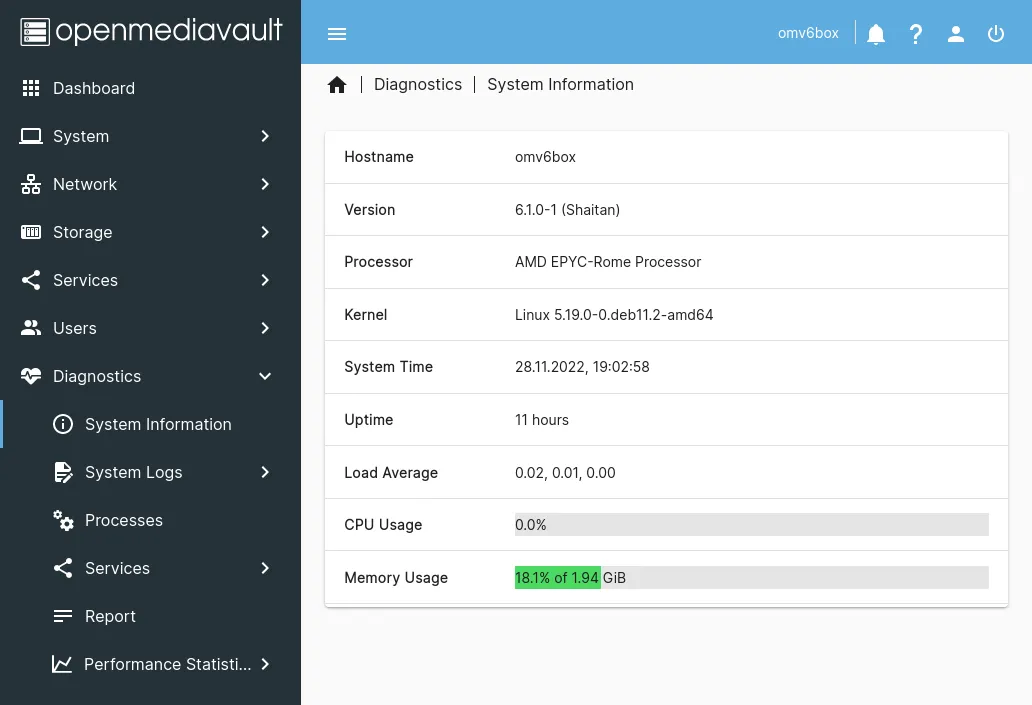
- Monitoring and Alerts: Built-in tools to monitor system health and send notifications.
Alternatives to openmediavault
If OMV isn’t the right fit for you, there are several alternatives:
- TrueNAS: Another open-source solution, great for more advanced users. (Read our full article on TrueNAS)
- Unraid: A paid option that offers flexible storage and virtualization features. (Read our full article on Unraid)
- Historical names: FreeNAS became part of the TrueNAS naming history; do not count it as a separate current product. Check the maintained release and hardware requirements of any alternative.
- Rockstor: Open-source and designed for personal cloud storage.
Considerations When Choosing openmediavault
Why Choose openmediavault?
- Open-Source Advantage:
- Cost-Effective: OMV is free to use.
- Community Support: A vibrant community of developers and users offers help and updates.
- Customizability: Modify the software to fit your unique needs.
Pros and Cons of Open Source
Pros:
- No licensing fees.
- Constantly evolving through community contributions.
- Published code allows inspection; it does not guarantee an absence of vulnerabilities, backdoors or privacy concerns.
Cons:
- Requires more setup knowledge compared to plug-and-play solutions.
- Support relies on forums and community guides rather than a dedicated helpdesk.
Hardware Considerations
- Ensure the device you plan to use has enough storage capacity and processing power for your needs.
- Low-power devices like the Raspberry Pi are great for basic setups but may struggle with intensive tasks like media transcoding.
Current Release and Optional Plugins
The release history lists OMV 8 Synchrony on Debian 13 as stable and OMV 7 Sandworm on Debian 12 as end of life. The original screenshots are retained as an interface reference, not a promise that current menus look identical. Match the installation and plugin guidance to your actual release.
Use the official installation routes and supported prerequisites. Plan the operating-system drive separately from the data drives, identify disks by their actual model/serial and preserve existing data before any wipe or filesystem creation. An introductory article is not a reason to run an installer over a populated NAS.
OMV-Extras supplies community-maintained plugins. Review the matching repository and instructions before adding it; it is not a core feature automatically enabled on every OMV installation. Add one required plugin at a time and keep recovery information before changing the system.
Containers, Pooling and Parity Are Different Jobs
The Compose-plugin guide describes container storage and path requirements. Keep Docker's own data on a supported filesystem and deliberate absolute path. Do not put Docker's internal storage in a mergerfs pool or assume NTFS is a suitable equivalent. Back up each application's database and attachments as required; a Compose file alone is not its data.
mergerfs combines underlying directory paths into a common view. It does not add RAID parity, duplicate every file or serve as a backup by itself. Its placement policies and member filesystems matter. Decide where application databases belong before treating a pooled directory as interchangeable storage.
SnapRAID provides scheduled parity/checksum protection with a recovery state based on synchronisation. Its configured parity level determines the failure protection; installing the plugin does not automatically provide six-drive tolerance. Files added after the last successful sync may not be recoverable from that state. Keep independent backups for important data and test the selected recovery procedure.
For ZFS, follow the matching plugin and kernel guidance. The Proxmox kernel is one deployment route, not a universal prerequisite for all ZFS installations. Confirm the supported architecture, kernel and module versions before choosing it. Neither ZFS nor a parity plugin makes a full backup unnecessary.
Build and Test One Private Share
Before adding several services, create one harmless test share on an identified mounted filesystem through the OMV interface. Create a regular user for it rather than routinely using the administrator account for file access. Enable only the required sharing protocol and apply the configuration deliberately.
The Samba documentation distinguishes share permissions from underlying filesystem permissions. A user allowed to log in can still be unable to write to a restricted directory. Troubleshoot the account, share setting and file ownership separately instead of making the entire path writable by everyone.
- Connect from a client with the intended user and create a small test file.
- Read it back and compare it with the original. Test rename and deletion only on the harmless sample.
- Use a second account without permission and confirm the private share is inaccessible.
- Restart as planned and check that the filesystem, share and account still work.
- Restore a backed-up sample to a different location and verify the contents.
Use the filesystem manager for mounts that OMV should manage. Manual changes to configuration generated by the interface can be overwritten when settings are deployed. Preserve a recovery copy and understand the ownership of a setting before editing it elsewhere.
Monitor and Recover Before Expanding
Configure disk-health and capacity notifications, then use the notification test rather than assuming delivery. A healthy status does not guarantee a drive cannot fail. Keep space available for application data, snapshots or parity operations, and investigate recurring errors before adding more services.
Separate system recovery from data recovery. Record the installed release, storage layout, users/shares and optional plugins, and keep the required configuration and application secrets protected. Test a restore without overwriting the working NAS. If you migrate releases, retain the earlier data and configuration until shares and applications have been checked.
Conclusion
openmediavault is a fantastic choice for anyone looking to set up a reliable, customizable, and cost-effective NAS solution. It’s perfect for tech enthusiasts who enjoy tweaking their systems and for budget-conscious users who want powerful features without a hefty price tag. While it does require some technical know-how, the active community and wealth of guides make it accessible to most users.
Whether you’re streaming media, backing up data, or simply sharing files, openmediavault has you covered. With the power of open-source software at its core, it’s a testament to what a dedicated community can achieve.
So, if you’re ready to take control of your storage, give openmediavault a try—you might be surprised at just how powerful it can be!