One of the most important services in a homelab, be it to take control of your data or save money, would be a solution to save, store and share your files. One of the most popular solutions is Nextcloud. If you are like us, and have a Proxmox machine idling at home in your homelab, we have guides on installing Nextcloud in Proxmox, but it can run on a machine as small as a Raspberry Pi. It can even be run inside a FreedomBox instance running on a Raspberry Pi. That said, and even though Nextcloud is an amazing solution, it does not offer the type of features of a specialised app, like comparing Nextcloud to Immich for syncing your photos from your mobile phone. When backing up and syncing files, we sometimes need something more focused, lightweight, and modern.
Enter OpenCloud, a promising open-source, self-hosted file-sharing solution built with performance, simplicity, and security at its core. If you're looking for a clean, fast, and no-fuss platform to manage your files, it's time to give OpenCloud a spin in your lab.
What Exactly is OpenCloud?
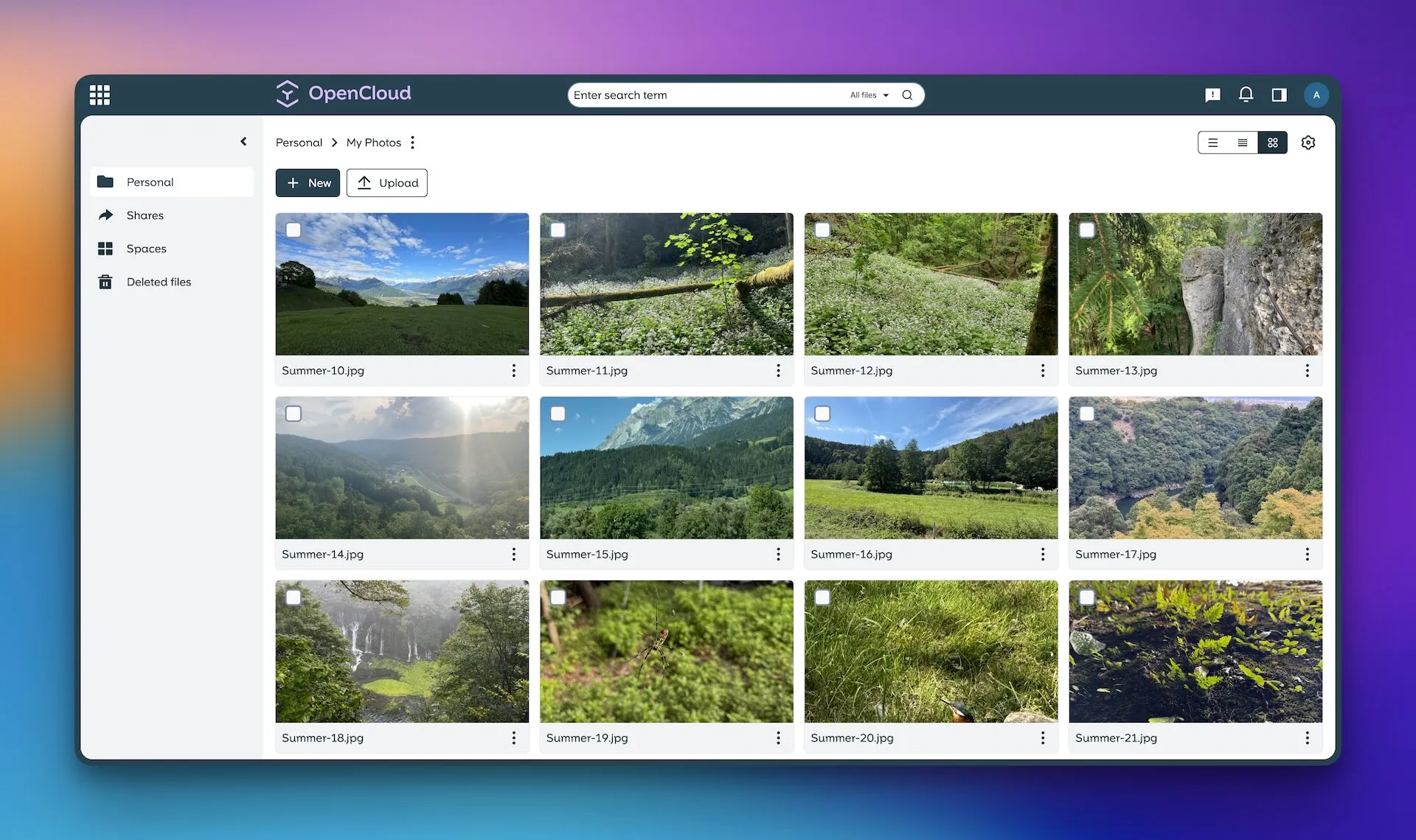
At its heart, OpenCloud is a self-hosted platform that allows you to store, manage, and share your files on your own server. Think of it as your personal Dropbox or Google Drive, while choosing your own hosting, access rules and storage. Self-hosting reduces dependence on a hosted provider, but does not eliminate privacy risks or administration costs. It's built for individuals, families, and small teams who want a straightforward and secure file-sharing experience.
OpenCloud’s backend is written in Go and does not require a relational database for its own file storage. Its service-based architecture differs from the PHP/database stack used by Nextcloud. Resource use still depends on the file collection, active clients and optional services. You can check out the entire project and its code on its official GitHub repository.
How Does It Work?
For the self-hosting enthusiast, the setup is familiar and flexible. OpenCloud runs as a web application on a server you control. The most common deployment methods are:
- Docker: The easiest and most recommended method for most homelabbers. The project provides a
docker-compose.ymlfile, with modular files for the core service and optional proxy, office or identity components. Configure persistent storage, hostnames and credentials before starting it. This isolates the application and its dependencies, making management a breeze. - Bare Metal/VM: You can also install it directly on a Linux virtual machine or server. Use the documented OpenCloud server binary/service installation for your platform. It does not involve installing a PHP application into an Apache document root.
Once deployed, users interact with OpenCloud through a clean and intuitive web interface. The container deployment separates persistent configuration and data, commonly mounted at /etc/opencloud and /var/lib/opencloud. The actual host locations depend on your Compose volumes. Keep file contents, metadata, service state and configuration together in the recovery plan.
The Feature Set: What Can OpenCloud Do?
OpenCloud focuses on doing one thing and doing it well: file sharing. Here’s a breakdown of its core features:
Core File Management
It covers all the essentials you'd expect:
- Upload and Download: Easily upload single files, multiple files, or entire folders through the drag-and-drop web interface.
- File & Folder Operations: Create folders, rename, move, and delete files and directories to keep your cloud organised.
Powerful Sharing Capabilities
This is where OpenCloud truly shines. You have granular control over how you share your data.
- User-to-User Sharing: Share files and folders directly with other registered users on your OpenCloud instance.
- Public Link Sharing: Generate a unique public link to share with anyone, even if they don’t have an account.
- Link Security: Enhance the security of your public shares by adding a password, preventing unauthorised access.
- Expiration Dates: Set an expiry date for a share link. After this date, the link automatically becomes invalid—perfect for time-sensitive file sharing.
Robust Administration and Security
- Admin Dashboard: Administrative features depend on your role. User/Space management, service configuration and operational logs are distinct tasks; not every setting is edited from the file browser.
- User Management: As an admin, you can easily create, edit, and delete users. Crucially, you can set storage quotas for each user to ensure fair resource allocation.
- Two-Factor Authentication (2FA): A critical security feature! MFA is enforced through a configured identity provider, such as Keycloak. It is not an automatic TOTP toggle provided by every default standalone setup.
- REST API: For the developers and power users, OpenCloud provides a REST API, opening the door for integrations, automation, and custom scripts.
Customisation
Branding options and supported customization depend on the deployment and support package. Check the documentation for your version before assuming every UI customization is included.
Considerations and Potential Cons
No application is perfect for every use case. Here are a few things to consider before committing to OpenCloud:
- Maturity and Community: OpenCloud is a newer player compared to veterans like Nextcloud or ownCloud. This means its community is smaller, and you might find fewer tutorials or forum threads for troubleshooting. You should be comfortable reading the official documentation.
- Feature Scope: OpenCloud is intentionally focused on file sharing. It does not have the massive "App Store" or the same broad application ecosystem as Nextcloud. Optional Collabora office editing and Radicale calendar/contact integrations exist, so file-focused does not mean office collaboration is unavailable. If you need an all-in-one collaboration suite, OpenCloud might not be the right fit. However, if you want a fast, dedicated file manager, this focus is a significant advantage.
- Client Ecosystem: OpenCloud provides desktop clients for Windows, macOS and Linux, plus Android and iOS apps. Test the particular functions you need, including offline files, selective sync, on-demand downloads and phone uploads; app availability does not establish identical behavior on every platform.
A Quick Reminder on Self-Hosting Best Practices
Deploying any service, including OpenCloud, comes with responsibilities. Always remember:
- Security is Paramount: You are the admin. Keep your server's operating system, Docker, and OpenCloud itself updated. Use a reverse proxy like Nginx Proxy Manager or Traefik to easily manage SSL certificates (HTTPS). Use strong credentials and enforce MFA through your selected identity provider.
- Backups are Non-Negotiable: Implement a solid backup strategy, like the 3-2-1 rule (3 copies, 2 different media, 1 off-site). For OpenCloud, you need to back up all required components: configuration, service state, metadata and file contents, including any separately mounted user storage or S3 bucket. Preserve extended attributes and permissions when copying filesystem data.
- Reliable Access: To access your cloud from outside your home, choose an appropriate access method. A hostname and Dynamic DNS can help with a changing reachable IP, but do not solve CGNAT or firewall restrictions; a private VPN may suit a household better.
Conclusion: Is OpenCloud for You?
OpenCloud presents a compelling case for the modern homelabber. It’s a lightweight, fast, and secure file-sharing platform that excels at its core mission. It strips away the bloat of larger suites, offering a focused and pleasant user experience.
If you are looking for a simple and performant self-hosted alternative to Dropbox or Google Drive and don't need the extensive groupware features of its larger cousins, OpenCloud is an excellent choice. It’s a perfect weekend project to get running in a Docker container and a fantastic way to take one more step towards full data sovereignty.
Head over to the GitHub page, give the docker-compose.yml a try, and see if your next cloud is an OpenCloud.
Storage Architecture and Compatibility
The OpenCloud server repository describes the Go backend and its filesystem-based data model. A deployment can still include services with their own storage requirements: an external identity provider or office service does not become database-free merely because OpenCloud itself is.
The current PosixFS driver stores a recognizable folder tree and uses extended attributes for metadata, with separate metadata files when required. Use a fully compatible filesystem and the permissions documented for your deployment. In the normal non-collaborative mode, do not independently edit that tree while OpenCloud is running. The collaborative mode has additional conditions and monitoring overhead; it is not a blanket licence to manipulate files through arbitrary other services.
An older DecomposedFS installation is not automatically converted to PosixFS by changing an environment variable. The publisher documents migration through copying data into a new installation. Plan a tested transfer with space for both copies, and check shares and user access afterward.
A Reliable Compose Deployment Workflow
Start with the official deployment choices. Use integrated Traefik if you want the supplied proxy setup, or the external-proxy guide if you already have a reverse proxy. Do not combine both recipes without understanding their ports, domains and TLS handling.
- Read the deployment guide for a stable release and obtain its matching Compose files and environment template. Review the image versions, storage mounts and optional services before editing anything.
- Set a real hostname, persistent data locations and a strong initial administrator password. The Compose repository uses
INITIAL_ADMIN_PASSWORDfor the built-in identity directory; after initialization, changing that environment value is not the password-reset procedure. - Review certificate settings. Development templates can include test domains and disabled certificate validation; configure valid TLS and the production settings for your chosen proxy path.
- Confirm the effective Compose configuration locally, then start the stack and inspect service health/logs. Do not conceal initialization failures with a command that ignores every error.
docker compose config --quiet
docker compose up -d
docker compose ps
docker compose logs --tail=100 opencloud
These commands assume the complete chosen recipe and environment are already configured. Logs can contain operational information, so avoid sharing them publicly without review. Keep secrets out of source control. This is a deployment checklist rather than a promise that one abbreviated YAML file covers your identity, proxy and storage needs.
Choosing a File Platform by Its Workflow
OpenCloud's focused file-sharing approach is the reason we find it compelling. If you rely heavily on a broader collaboration suite, examine the relevant Nextcloud applications and your existing workflow. Seafile or FileBrowser may also be worth evaluating for their particular sync or file-management roles. Use the same sample collection and clients when comparing them; programming language and database design alone do not establish a speed winner.
Begin with non-critical files. Upload a folder, download it from a second client, test a password-protected public link in a private browser session and confirm its expiry/access permissions. Try an offline edit followed by reconnection and examine how conflicts are handled. If office editing matters, test saving a real document through the configured office integration.
Backup and Restore Before Migration
OpenCloud's backup guide requires stopping the instance for a consistent backup of its configuration, state, metadata and contents. Preserve all separately stored components, including any object-storage bucket. Keep the matching binary or container version and configuration so that recovery does not depend on a later incompatible image.
Copy snapshots or backups to independent storage, and test a restoration into an isolated instance before moving your main library. Check actual files, users and shares after restore; a successful archive command is not enough. Synchronization can propagate deletion or damage across clients, so it complements backups rather than replacing them. With that maintenance plan, OpenCloud remains an appealing route toward controlling your own file service.