
Frigate is an open-source network video recorder with local object detection. It can record camera streams, organize review events and integrate with a smart-home controller. Its usefulness depends on camera placement, stream quality, retention and a tested installation, rather than on an AI label alone.
Separate Recording, Decoding and Detection
A camera provides compressed video. Frigate decodes frames for analysis and uses a detector to identify supported objects. Recording, video decoding and object inference are different workloads. A detector accelerator does not eliminate video decoding, and a GPU decoding configuration is not automatically the correct object-detector configuration.
The detector documentation describes supported hardware and models. A Coral, GPU or Raspberry Pi AI Kit needs its matching configuration and host support. Avoid universal frame-rate or power claims: camera count, resolution, frame rate and hardware affect the result. Start with one camera and measure your actual load before sizing a larger system.
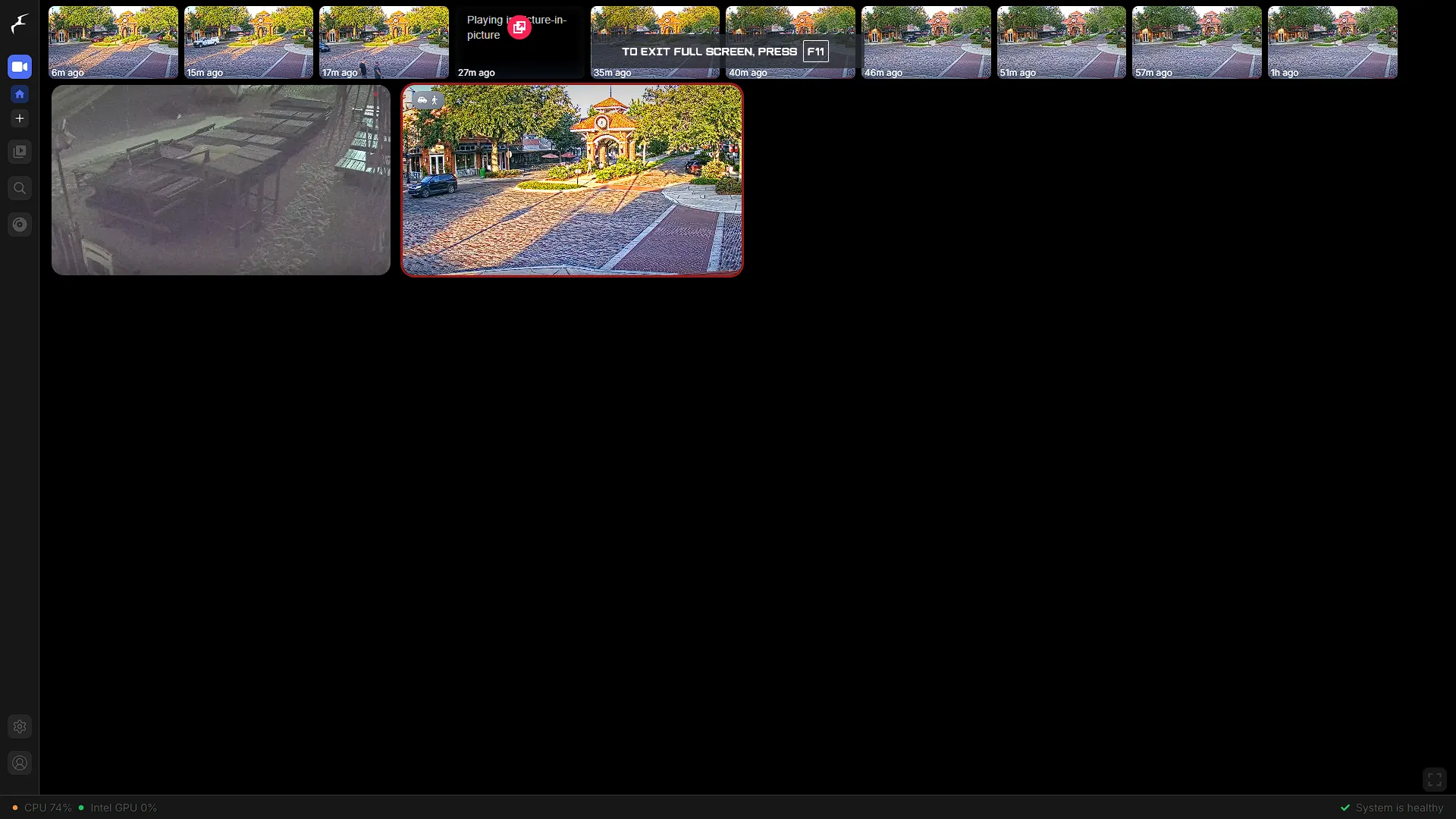
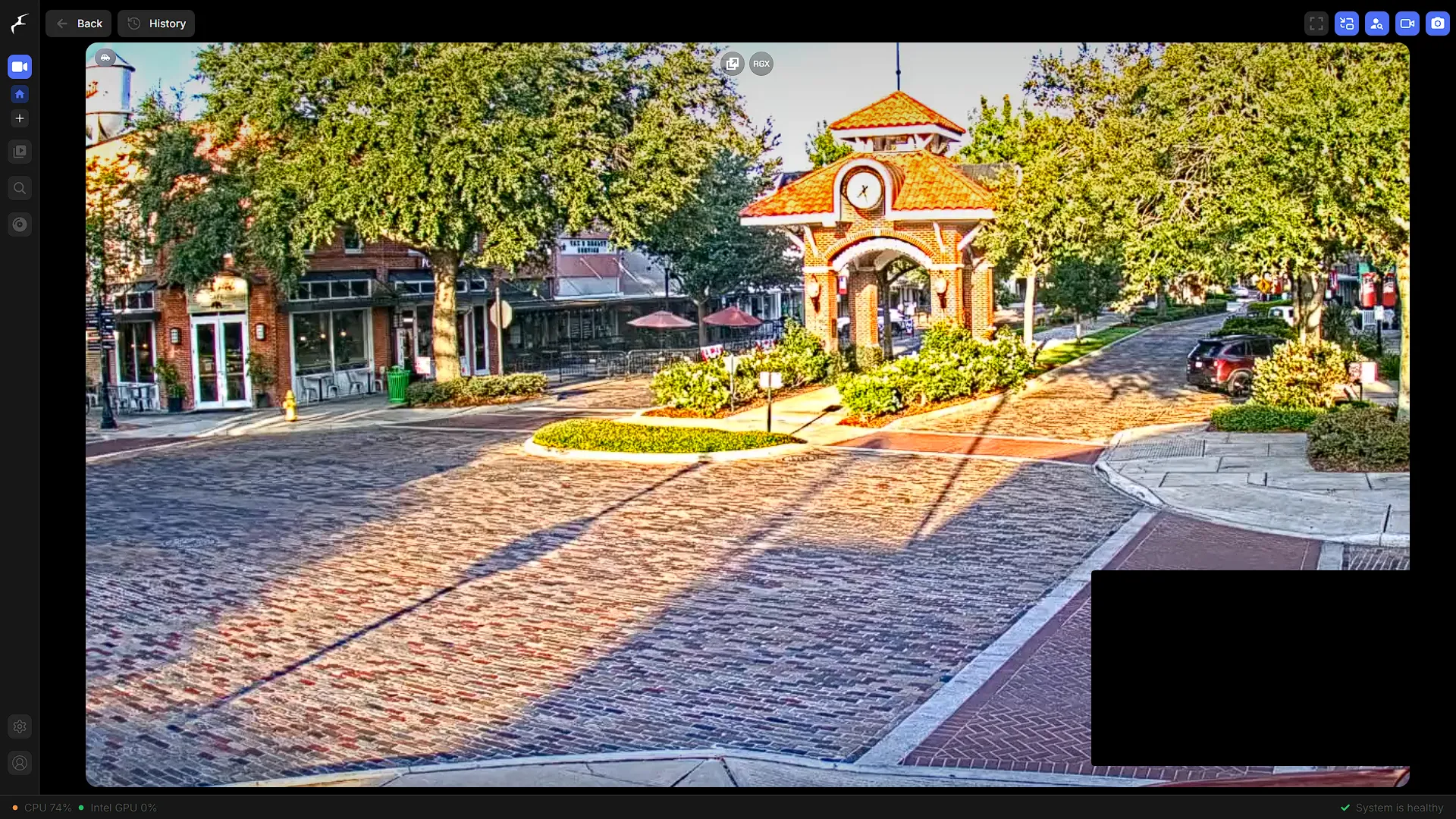
The screenshots below retain the original interface examples. Menus can differ by release; use them to understand the viewing workflow rather than to infer that every option has the same position in current versions.
Build a One-Camera Baseline
This fresh-install example targets Frigate 0.17.2, an upstream release. Use a Linux host with Docker Engine and Compose. A VM needs appropriate network access, and optional accelerator passthrough is a separate task. LXC device mappings and permissions differ again; this recipe is not a promise that arbitrary nested-container setups work unchanged.
In a dedicated directory, create config and storage subdirectories. Obtain the camera's real RTSP URL from its manual and test it privately. Manufacturer stream paths and credential formats differ. Give Frigate a camera account with only the access it needs and protect the URL because it can contain a password.
Save the real URL as FRIGATE_CAMERA_URL in a protected .env file beside compose.yaml. Do not publish that file. Then save this Compose definition. It exposes only the authenticated interface on the host's loopback address; port 5000 is the unauthenticated internal interface and is intentionally not published.
services:
  frigate:
    image: ghcr.io/blakeblackshear/frigate:0.17.2
    restart: unless-stopped
    shm_size: "256mb"
    ports:
      - "127.0.0.1:8971:8971"
    environment:
      FRIGATE_CAMERA_URL: ${FRIGATE_CAMERA_URL:?Set the actual camera RTSP URL}
    volumes:
      - ./config:/config
      - ./storage:/media/frigate
Save this as config/config.yml. Detection is initially disabled while you verify stream access and recording. The input declares both roles so you can enable detection later. Explicit continuous retention keeps two days of recording in this example. The older events-based recording example should not be mixed with the 0.17 configuration schema.
mqtt:
  enabled: false
cameras:
  entrance:
    ffmpeg:
      inputs:
        - path: "{FRIGATE_CAMERA_URL}"
          roles:
            - record
            - detect
    detect:
      enabled: false
      fps: 5
    record:
      enabled: true
      continuous:
        days: 2
mkdir -p config storage
chmod 600 .env
docker compose config --quiet
docker compose pull
docker compose up -d
docker compose logs --tail=150 frigateUse authorized Docker access or sudo consistently. The shared-memory value is an initial allocation, not a sizing guarantee; consult the installation guide and watch for shared-memory errors. No generic privileged mode, USB-bus mount or guessed graphics-device path is needed for this basic test.
Verify the Interface and Recording
Frigate's TLS documentation describes its default self-signed certificate on port 8971. Access https://127.0.0.1:8971 on the host, or forward that port through an authenticated SSH tunnel. Confirm you are connecting to your own server before handling the expected initial certificate warning. For shared access, configure trusted certificates or a correctly secured proxy instead of disabling certificate checks everywhere.
Find the initial administrator credentials in startup logs and change them according to the authentication guide. Protect logs containing credentials. Check that logged-out access requires authentication and that the camera stream appears. Validate the application configuration in Frigate's own editor; a successful YAML parse alone cannot detect unsupported application settings.
- Make a short harmless test recording and locate it on the timeline.
- Export that interval, open the downloaded file and confirm the expected camera and timestamp.
- Restart Frigate and confirm configuration, account access and recorded history survive.
- Disconnect the camera briefly during a controlled test and verify that the failure is visible.
- Check free space and actual recording growth over a representative period.
Enable and Tune Object Detection Deliberately
After recording works, choose a supported detector and follow its version-specific instructions. Changing detect.enabled to true activates the analysis path, but a suitable model, device access and adequate resources still matter. The default CPU detector can help with a small functional test; the project does not recommend it as the normal production choice. Measure inference and missed detections before expanding camera count.
Use a lower-resolution detection substream when the camera provides one, while retaining a suitable recording stream. Follow the camera configuration guidance for separate inputs. For hardware decoding, use the matching decoding preset and actual device access. Do not paste a render-device path from another machine.
Test people approaching and leaving the monitored area in daylight and at night. Review false positives caused by reflections, shadows or vegetation before changing thresholds. Define zones around meaningful areas and avoid masking places where you need to detect movement. A green detection counter cannot prove that a person at the edge of the image will be recognized.
Plan Retention, Privacy and Recovery
Storage estimates should use measured stream bitrate. As an illustrative calculation, a steady 4 megabit-per-second stream produces about 43.2 decimal GB per day before additional overhead: divide by eight to obtain megabytes per second, then multiply by 86,400 seconds. Four such continuously recorded streams would need about 172.8 GB per day. These are assumptions for planning, not camera benchmarks.
The recording documentation separates continuous, motion and event retention. Longer retention for selected events can change the storage requirement. Check the actual policy and verify expired footage is reclaimed; do not count every configured retention period as a separate duplicate copy or assume the entire disk can safely be filled.
Local recording gives you control over Frigate's storage, but does not guarantee cameras never contact vendor services. Review camera firmware settings and network egress separately. Protect footage, limit viewers and export important incidents to another protected location before normal retention removes them.
Before updates, preserve configuration, the database and required media consistently, retain the current version and read migration notes. Test recovery in isolation and verify an exported clip, not just the login page. The Frigate project is the reference for supported integrations and release-specific behavior as the installation grows.