The Universal Serial Bus (USB) has become an indispensable part of our digital lives. It's how we connect peripherals like keyboards, mice, external drives, smartphones, and countless other devices to our computers. But with so many versions and confusing naming conventions (USB 2.0, 3.0, 3.1, 3.2...), it's easy to get lost in the USB jungle.
This guide will be your roadmap, explaining how USB works, the differences between various versions, and their ideal uses.
How USB Works
USB connects a host, such as a computer, to peripherals such as a keyboard or storage device. The host controller identifies connected devices and manages communication through ports and hubs. “Serial” describes the way signals carry data; it does not mean every modern USB mode uses only one lane or that a device's assigned bus address is a permanent globally unique identity.
For shopping and troubleshooting, keep three questions separate: what connector fits, which data protocol and rate are supported, and how much power can be negotiated? The answer to one does not establish the other two. A cable can charge a laptop very well while carrying data only at USB 2.0 speeds.
Physical USB Connector Types
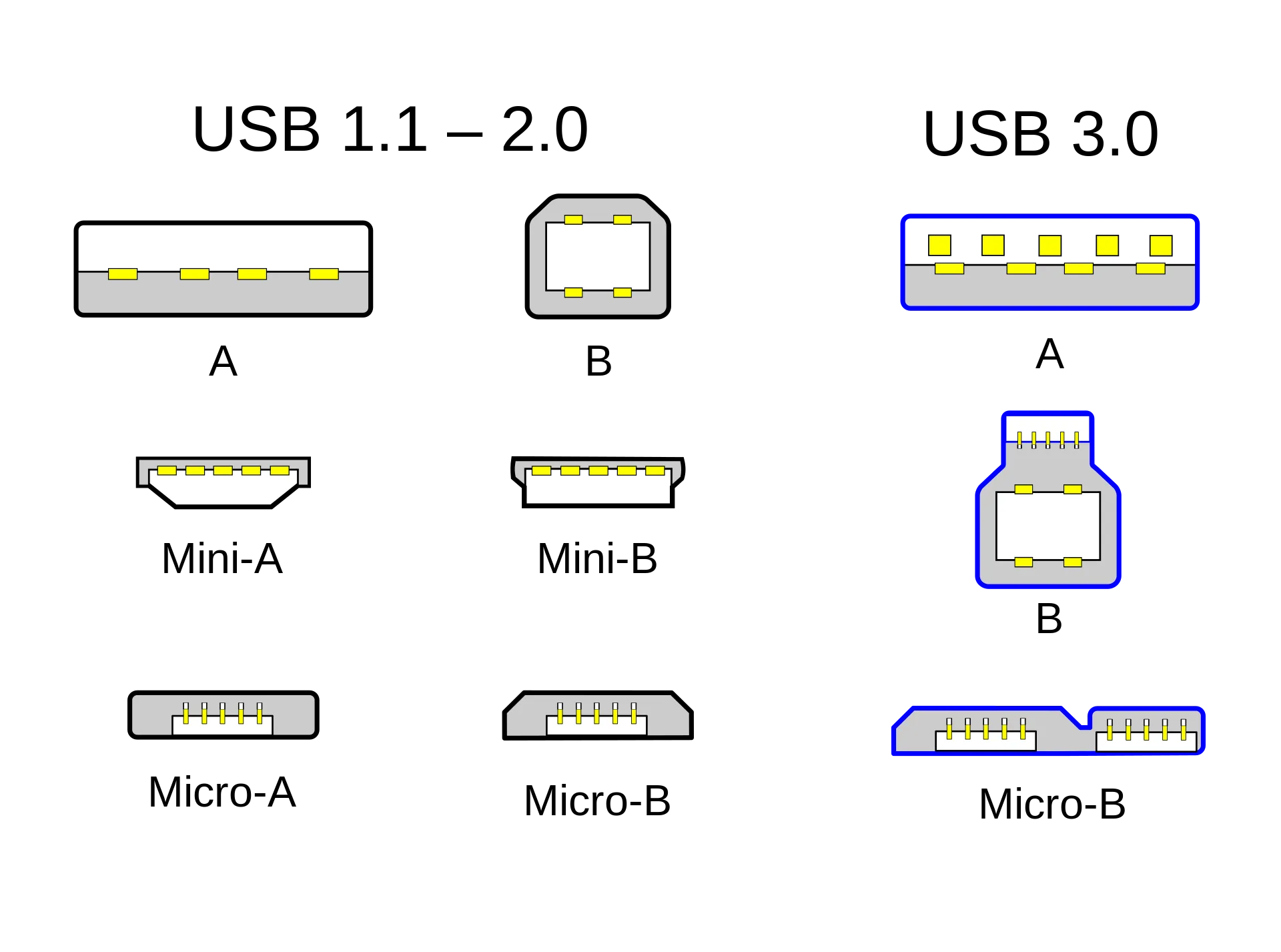
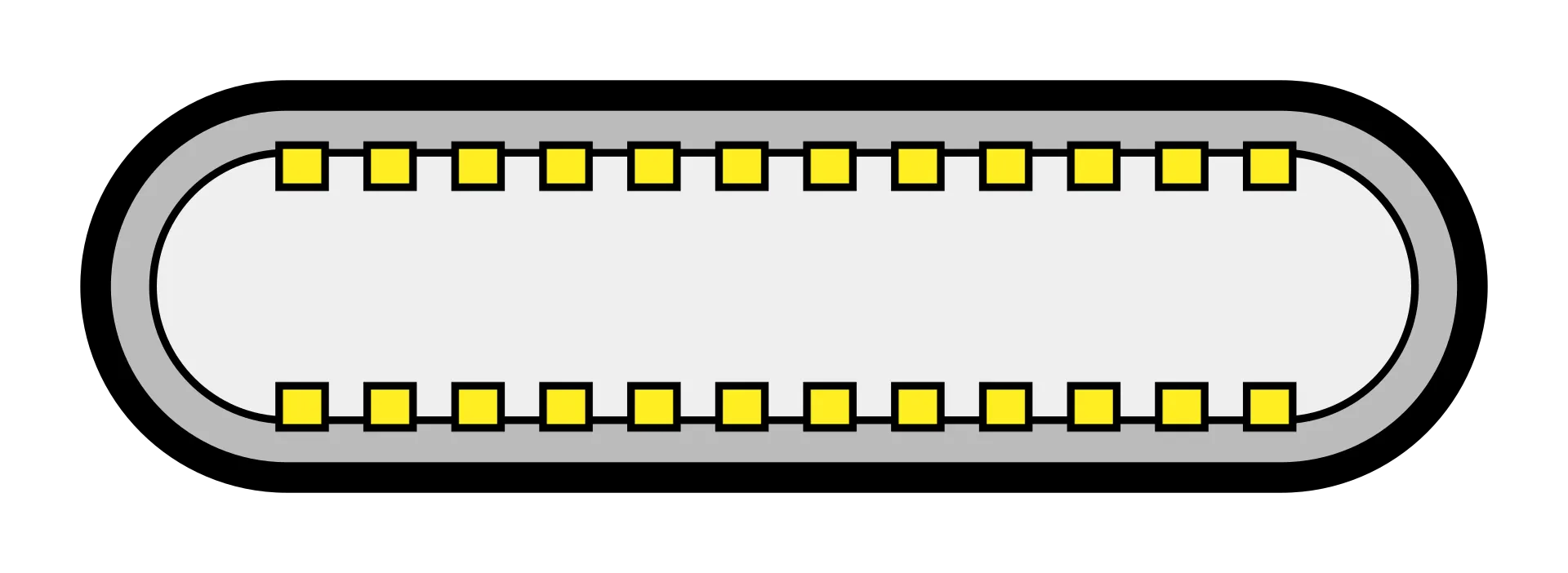
Images credit Wikipedia
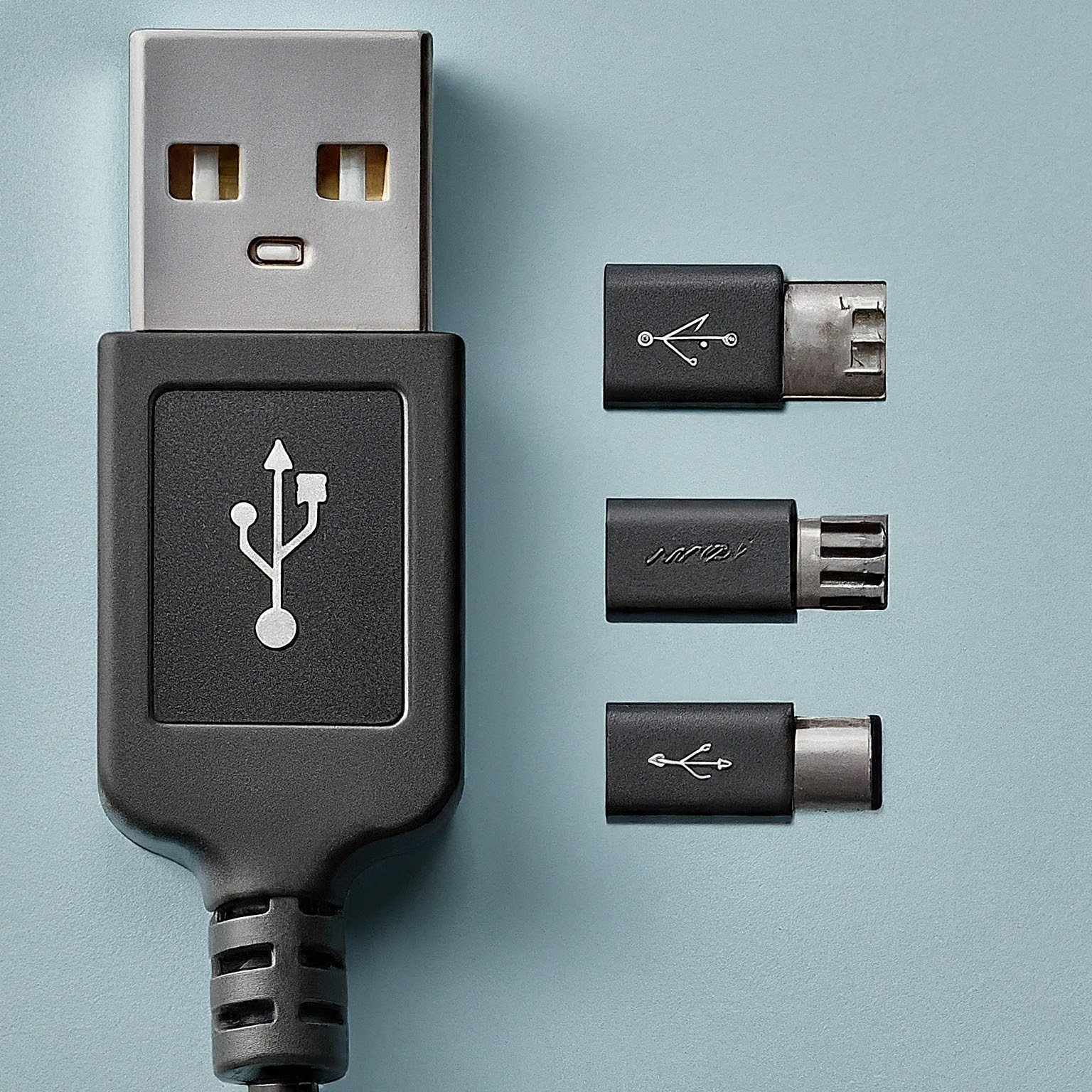
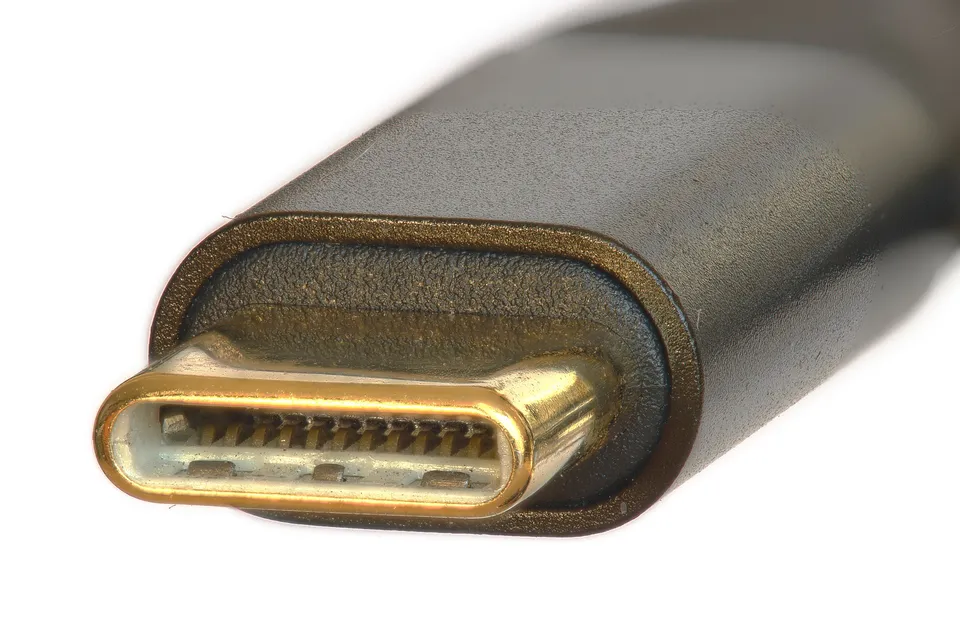
Type-A is the familiar rectangular shape; Type-B and its smaller variants appear on printers and older peripherals. USB Type-C is the reversible connector shown separately above. Blue inserts are common on some USB 3 ports, but colour is not a reliable substitute for the port's specification. A connector photo cannot establish data rate, charging power or display support.
USB Versions and Signal Rates
| Specification or older name | Maximum signal rate for this mode | What to look for |
|---|---|---|
| USB 1.x Low Speed / Full Speed | 1.5 Mbps / 12 Mbps | Older and low-bandwidth peripherals |
| USB 2.0 High Speed | 480 Mbps | USB 2.0; can also use Type-C |
| USB 3.0 / USB 3.1 Gen 1 / USB 3.2 Gen 1x1 | 5 Gbps | USB 5Gbps |
| USB 3.1 Gen 2 / USB 3.2 Gen 2x1 | 10 Gbps | USB 10Gbps |
| USB 3.2 Gen 2x2 | 20 Gbps | USB 20Gbps with explicit Gen 2x2 support; Type-C |
| USB4 modes | 20 Gbps or 40 Gbps | The actual USB 20Gbps or USB 40Gbps capability; Type-C |
| USB4 Version 2.0 higher-speed mode | 80 Gbps | USB 80Gbps; compatible host, device and cable required |
USB4 Version 2.0 also permits an optional asymmetric arrangement with up to 120 Gbps in one direction and 40 Gbps in the other, intended for uses such as demanding displays. It is not 120 Gbps simultaneously both ways, and does not guarantee that an external drive transfers files at that rate.
Why USB 3 Changed Names
USB 3.1 included the earlier 5 Gbps mode as Gen 1 and added a 10 Gbps Gen 2 mode. USB 3.2 absorbed earlier 3.x modes and added two-lane Gen 2x2 operation at 20 Gbps. Consequently, seeing “USB 3.2” without the generation or performance figure is insufficient to distinguish a 5, 10 or 20 Gbps port.
USB-IF's newer consumer guidance uses performance labels such as USB 5Gbps, USB 10Gbps and USB 20Gbps. Older boxes can still show SuperSpeed branding and specification names. Ask for the supported rate and mode rather than assuming a larger version number automatically means a faster individual product.
Signal Rate Versus File Transfer Speed
USB rates are usually given in bits per second, while file-copy tools commonly show bytes per second. Eight bits make one byte. Dividing 480 Mbps by eight gives 60 MB/s in decimal units; 40 MB/s is not the mathematical conversion of the USB 2.0 line rate.
Similarly, 5 Gbps divided by eight is 625 MB/s, 10 Gbps is 1250 MB/s and 20 Gbps is 2500 MB/s. Those are raw conversions, not benchmark results. Encoding, protocol overhead, the storage controller, flash performance, thermal limits and the workload reduce the usable transfer rate. Small files can behave very differently from one large sequential copy.
A drive may have a fast interface but slow sustained writes after its cache fills. A shared hub can also carry several devices through one upstream link. Compare the complete path and the kind of work you perform instead of expecting every flash drive to reach its connection's headline speed.
Why a 20 Gbps Drive Can Run More Slowly
USB 3.2 Gen 2x2 uses two 10 Gbps lanes. Both host and device must support that mode, with suitable cabling. A Type-C socket or a USB4/Thunderbolt marketing figure does not by itself promise native Gen 2x2 operation for a USB 3.2 drive.
Kingston's Gen 2x2 guidance specifically warns that such drives can connect at 10 Gbps on systems without the needed mode, including some Thunderbolt/USB4 systems. That does not establish a rule for every current Mac or laptop. Check the exact model and port, not only the computer brand, and avoid confusing USB4's own 20 Gbps mode with USB 3.2 Gen 2x2.
If a drive is slower than expected, connect it directly to a documented suitable host port with its recommended cable. Bypass the dock temporarily, check the negotiated connection where the operating system exposes it, then compare a representative transfer. Changing several parts at once makes the bottleneck harder to identify.
Charging Power and Display Support
USB Power Delivery is a separate capability. The charger, cable and device negotiate supported power; the USB data version does not decide the charging rate. USB PD 3.1 Extended Power Range can provide up to 240 W with compatible equipment. The specified 28 V, 36 V and 48 V levels at 5 A correspond to 140 W, 180 W and 240 W.
A 240 W-rated cable does not force that much power into a phone, and a cable with an electronic marker is not automatically rated for every data speed or voltage. USB-IF's cable programme distinguishes power and data ratings; its current Type-C cable marking requirements use 60 W or 240 W power capabilities alongside applicable performance markings.
DisplayPort Alt Mode is another capability to check separately. A USB-C port may support data and charging without supporting video output. For a monitor or dock, verify the host's video support, the cable and the intended resolution/refresh rate. Some configurations share connection resources between displays and data, so the presence of a compatible plug alone cannot guarantee both at maximum performance.
Choosing the Right Connection
- Keyboard, mouse or ordinary printer: USB 2.0 is generally adequate. Paying for a faster socket will not necessarily change how the device behaves.
- External hard drive or ordinary flash drive: A 5 Gbps connection is a useful everyday option, but the drive can be the limiting part.
- Fast external SSD: Match a documented 10 or 20 Gbps mode across the host, enclosure and cable. Explicit Gen 2x2 support matters for a Gen 2x2 drive.
- USB4 storage or a complex dock: Check the actual USB4 rate and compatible tunnelling/display features for the whole setup, rather than treating 40 or 80 Gbps as a file-copy promise.
- Laptop charging: Choose compatible PD power and a properly rated cable independently of the data rate.
Before Buying a Cable or Dock
Write down the required data mode, charging power and display needs, then compare the product specification with the computer's manual. Check each port individually: different sockets on one machine can have different capabilities. Include cable length and whether an adapter or hub changes the path.
For an existing problem, test with a known compatible direct connection before replacing hardware. A low-speed cable, an unsupported host mode or a dock uplink can explain a disappointing result even when the external device is working properly. Save the exact model numbers and negotiated rate so a support request contains useful information.
Conclusion
Understanding USB versions makes it easier to choose a connection that suits the job. The practical rule is to match connector, data mode, power and display support across the whole path. Faster standards create useful options, but the best purchase is the one your devices and workload can actually use.