Choosing SSDs or HDDs for a NAS is a decision about the work you want the storage to do. Hard drives remain a sensible starting point when affordable capacity matters most. SSDs are attractive for responsive applications, virtual-machine disks and quiet operation. Neither medium guarantees a particular network speed, lifespan or recovery time.
Start with the workload, usable capacity and budget rather than assuming the fastest advertised drive is always the best purchase. The basic trade-off is straightforward: bulk files and backups often favour HDD capacity, while active data can justify paying for flash. A combination can work well, provided you understand how the NAS actually uses each device.
Why the media behave differently
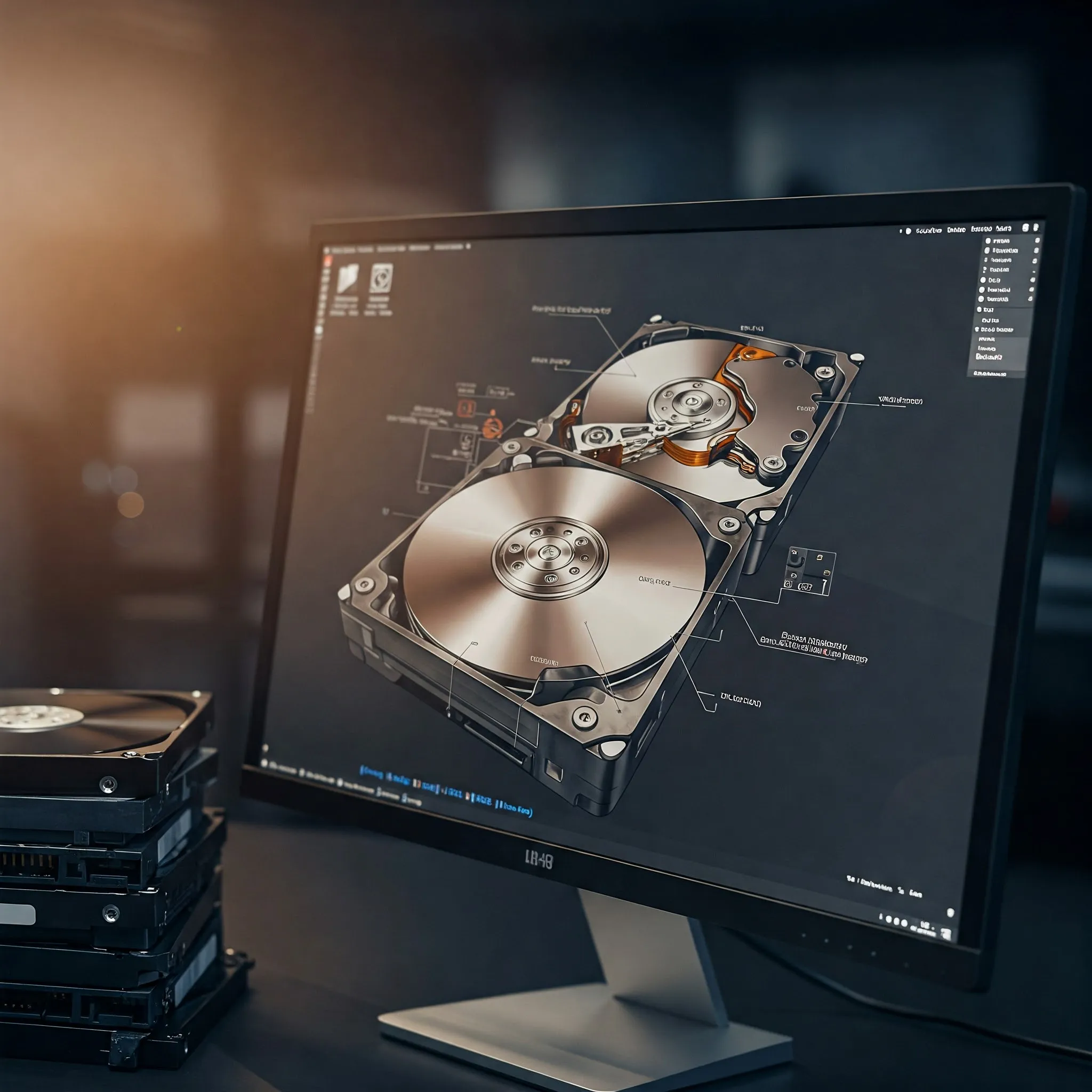
An HDD stores data on spinning magnetic platters. Reading scattered blocks involves moving the heads and waiting for the right location to rotate into position. An SSD stores data in flash memory without that mechanical seek process. This distinction helps explain why flash is useful when many small requests arrive together.
A large sequential copy and thousands of small database requests are different tests. A drive's maximum sequential read figure does not tell you the latency of a single application request or its sustained write behaviour. Compare specifications for the exact capacity and workload, including the test's queue depth, rather than transferring one headline number to every NAS task.
Which workload points toward which medium?
| Your main need | What to prioritize |
|---|---|
| Media libraries, archives and backup copies | Usable capacity, cost, redundancy and restore planning; NAS-compatible HDDs are often a practical choice |
| VMs, databases and active application data | Latency and sustained mixed/random I/O; a suitable SSD pool can be valuable |
| Editing large files over the network | The complete drive, pool, network and client path; faster media alone may not solve the bottleneck |
| A NAS near a desk or living area | Drive noise, enclosure fans and cooling; SSDs remove mechanical drive noise, not every system sound |
| Frequently accessed data on a larger HDD pool | Whether the actual workload benefits from the platform's supported cache or tier |
These are selection priorities, not guaranteed benchmark results. For example, Synology's SAT5220-960G specification lists 530 MB/s sustained sequential reads under a stated test setup. That is one drive's manufacturer result, not a promise for a full NAS over your network.
Check the network before buying faster drives
Dividing a link's bit rate by eight gives its theoretical decimal byte-rate ceiling: 1 GbE is 125 MB/s, 2.5 GbE is 312.5 MB/s and 10 GbE is 1,250 MB/s. Protocol overhead reduces useful payload, and other parts of the path can limit it further. These are calculations, not measured transfer rates.
A fast SSD cannot exceed a slower Ethernet hop during a single transfer through that hop. Yet SSDs can still improve response times when the NAS serves many small requests, even if a large file copy is network-limited. Check CPU load, encryption, client storage and simultaneous tasks before deciding the drives are the only constraint.
SATA and NVMe also describe different interfaces. M.2 describes a physical format, not a universal promise that a device or slot supports NVMe. Verify the NAS's connector, supported drive types and permitted storage role. A slot intended for cache may not support the volume arrangement you want; consult that exact model and software version.
What a NAS-specific HDD changes
Seagate's IronWolf documentation describes NAS-oriented firmware, CMR recording and multi-bay/continuous-operation use. Those are useful selection details. Check the exact model's workload, bay compatibility and warranty rather than assuming every similarly named drive has identical limits.
NAS firmware and error handling do not make data loss impossible. A suitable drive still needs healthy cooling, appropriate installation and a backup plan. Verify the NAS compatibility list and recording technology before adding a drive to an existing array, particularly if the platform specifies CMR for the intended use.
Read SSD endurance as a limit, not a lifetime promise
TBW describes a stated write-endurance quantity; DWPD relates daily writes to drive capacity over a specified period. Use the exact drive's datasheet and warranty terms. Synology's example above ties warranty coverage to time or endurance usage, whichever is reached first. A large TBW rating does not promise decades of trouble-free service.
As an illustrative calculation, a hypothetical 300 TBW drive receiving 100 GB of host writes daily reaches that quantity after about 3,000 days, or 8.2 years. This does not predict its failure date, extend its warranty or account for every workload difference. Logging, databases and cache use can produce much more writing than the visible size of the files you keep.
Monitor actual writes and health information after deployment. For write-sensitive roles, check sustained performance and documented power-loss protection, not just a short burst score. A consumer drive is not automatically unsuitable for every NAS, but its endurance and protection must match the workload and platform requirements.
Compare usable capacity and full cost
Use current local quotes for the same warranty and usable-capacity target. Prices depend on capacity, region and availability, so fixed dollar-per-terabyte averages can mislead. Count the drives required by your redundancy layout, not just the price of one disk.
For example, two nominal 8 TB drives in a mirror provide roughly one drive's nominal capacity before filesystem overhead and reserved space, rather than 16 TB of independently usable storage. Add growth room, enclosure adapters, cooling, network upgrades and backup storage to the budget. A cheaper configuration can become expensive if it forces another upgrade soon afterward.
Compare energy use for the actual drives and duty cycle. SSDs avoid spinning platters, but power requirements vary by model and active state; a fast NVMe device still needs cooling. An all-flash NAS can retain audible enclosure fans, so avoid interpreting the absence of mechanical drive noise as a measured 0 dBA system.
Hybrid designs are several different tools
Synology's cache explanation distinguishes read-only and read-write caches and notes that recurring small-block access benefits more than one-pass sequential media transfers. Read-write cache can contain data not yet safely stored elsewhere, so follow current redundancy, removal and compatibility guidance for your NAS. Do not unplug it as though it were a disposable read copy.
In ZFS, TrueNAS describes ARC/L2ARC and the separate intent log. L2ARC extends read caching. A SLOG serves synchronous-write logging; it is not a general-purpose write-back SSD that automatically accelerates every file copy. Identify a real workload benefit before adding either.
A special allocation device is different again: it holds metadata and optionally selected small blocks as actual pool storage. The small-block threshold is a configured property, not an automatic 32 KB rule. TrueNAS's archived explanation warns that an unprotected special device can make the pool inaccessible if it fails. Use suitable redundancy and check current topology/version restrictions before adding one.
Separate SSD and HDD pools can be easier to reason about: active applications live on the fast pool and bulk media or backup copies on the capacity pool. Protect each according to the value of its data, and remember that merely placing a second pool in the same NAS does not create an independent off-device backup.
Plan recovery alongside performance
Rebuild or resilver duration depends on layout, used data, drive behaviour and competing load. Do not budget recovery around universal HDD or SSD time ranges. A degraded array has less redundancy; additional failures or errors can exceed what the layout tolerates. Keep health alerts, scrubs and a tested restore path appropriate to your platform.
RAID helps availability but does not protect against every deletion, compromise, enclosure failure or disaster. Keep important data in an independent backup and confirm you can restore it before changing the storage layout.
Choose NAS-compatible HDDs when affordable bulk capacity is the priority. Consider SSDs for active workloads where response time and reduced mechanical noise justify the cost. Choose a hybrid arrangement only when you can name the role of each device and understand its failure consequences. That produces a more useful storage decision than buying a universal performance or longevity claim.