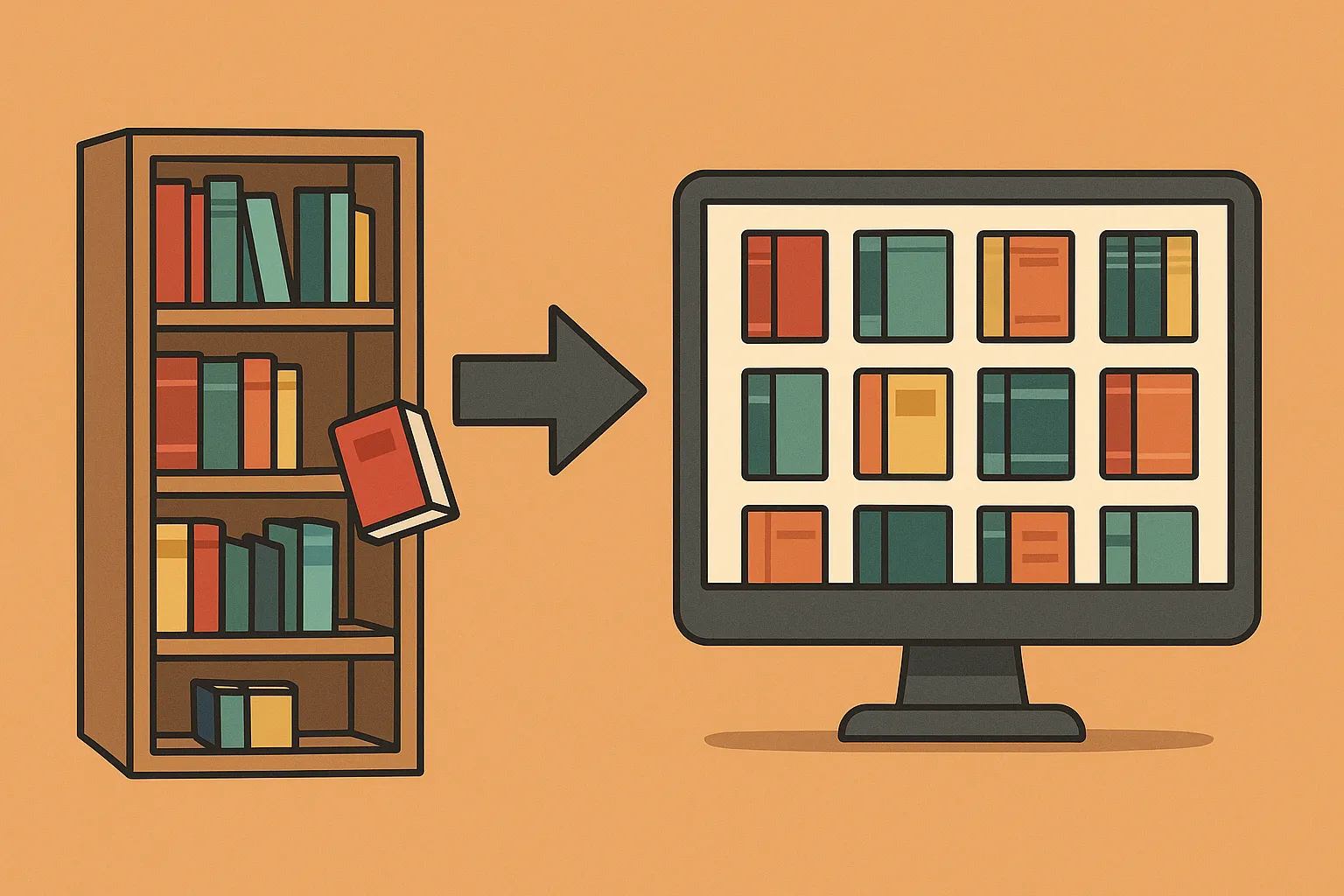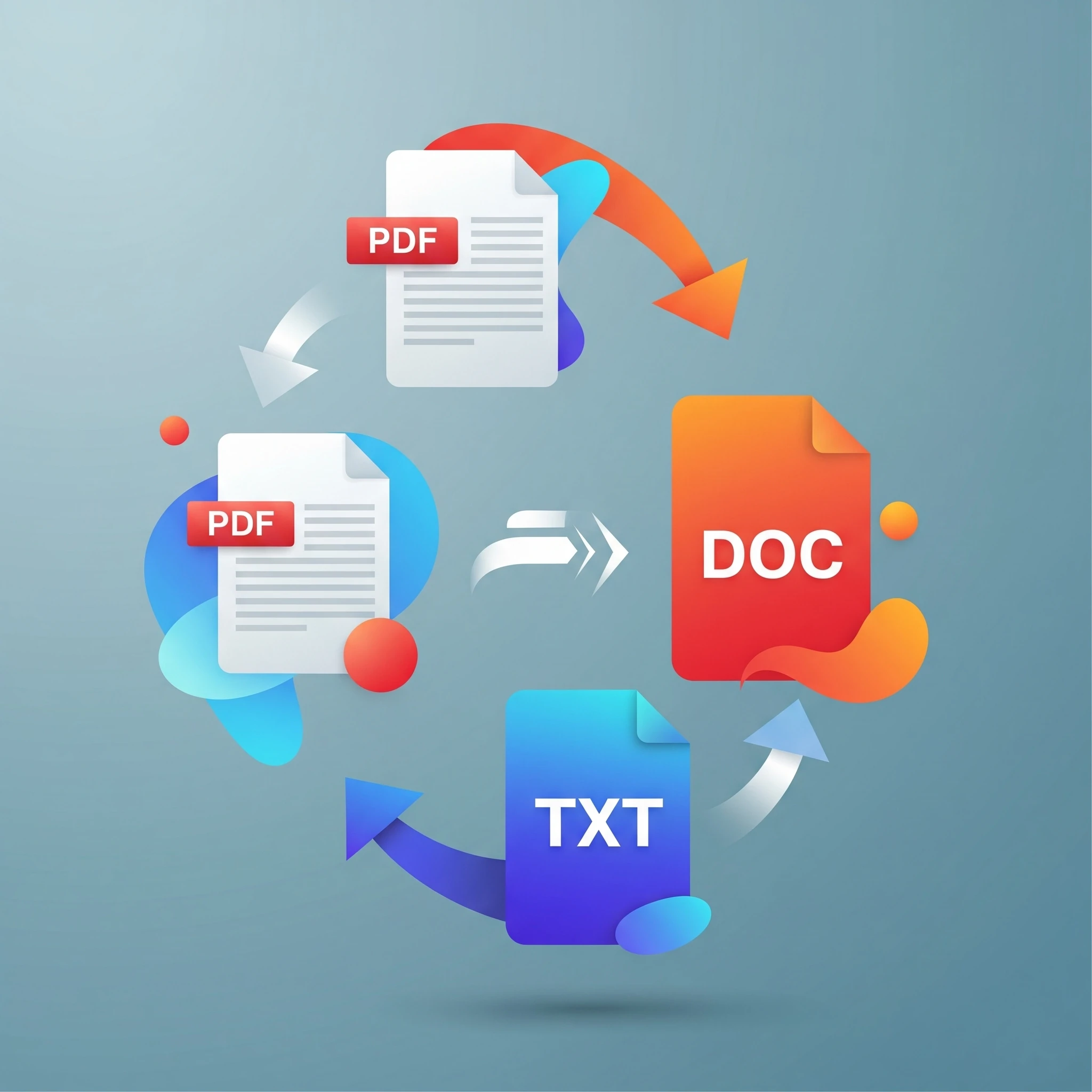
The two most important goals for us to accomplish while building our own homelab are to save money on online services as well as protect our privacy by keeping our data at our own location, not the cloud. Something that most users need quite frequently is the ability to convert a file from one format to another. As an example, I have a video that was taken with a (fairly old) video recorder and the format is not a common format like MP4 or AVI. It would be easy to convert this video file online, but seeing as it includes a very special moment in the life of my child, I really don't want to upload that file to a service that may or may not protect that privacy. Especially with a service that is free, and there are plenty online, one never knows what happens to your files. As such, keeping our data in our own hands is very important when it comes to converting files.
As another example, Stirling-PDF can combine our PDF files, but what if we have a mixture of PDF files and image files? Let's take a look at a tool that can help us convert files to another usable format while keeping our data local.
What is ConvertX?
ConvertX is an open-source, web-based application that allows you to perform a wide array of file conversions directly on your own server. Think of it as your personal, centralized conversion hub. No more uploading sensitive files to online converters or juggling multiple single-purpose desktop applications. With ConvertX, you host the power, ensuring privacy and convenience.
Its intuitive interface makes it easy to upload files and select your desired output format, putting powerful conversion capabilities at your fingertips.
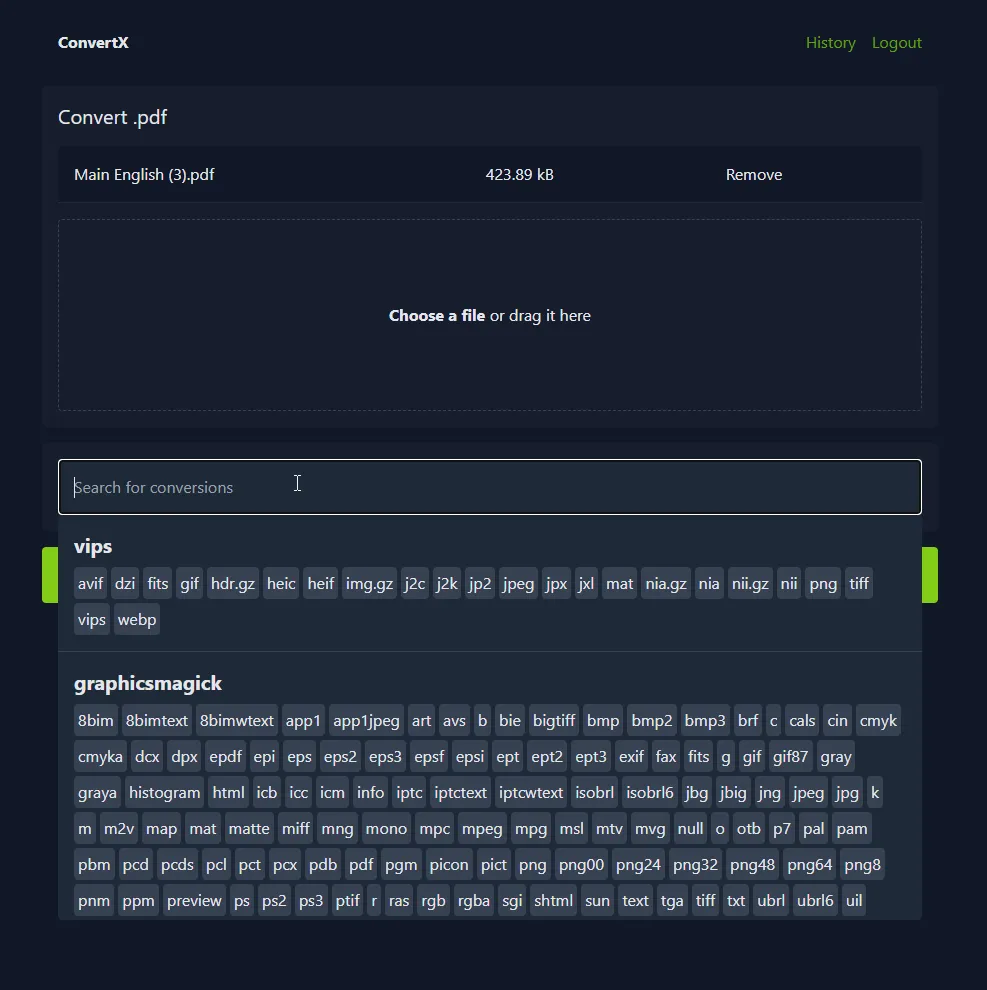
What Can You Do with ConvertX?
ConvertX aims to be a comprehensive solution for your conversion needs. At the time of writing, you can:
- Convert Images: Transform images between various formats, optimize them for web use, or prepare them for different devices.
- Convert Audio: Change audio file types, perhaps to a more universally compatible format or a compressed version to save space.
- Convert Video: Transcode video files, reduce their size, or change codecs for better compatibility with your media players.
- Convert Documents: Currently the project can convert a fair bit of documents, but also plans to incorporate more document conversion (via LibreOffice), which will further expand its utility.
- Convert Fonts: Change font file types to suit different operating systems or applications.
- Convert CAD Files: (Experimental) For those working with computer-aided design, ConvertX offers experimental support for CAD file conversions.
Essentially, ConvertX strives to eliminate the need for multiple, disparate conversion tools by offering a broad range of functionalities under one roof, and more conversions are on the way. ConvertX is still in an early stage, but the amazing contributors are doing a fantastic job of making ConvertX one of the first services any homelabber needs to install.
The Powerhouse Libraries Behind ConvertX
ConvertX leverages a suite of powerful, open-source libraries to perform its magic. Each library specializes in handling specific file types and conversion tasks:
- FFmpeg: This is the undisputed king of multimedia processing. FFmpeg is the backbone for audio and video conversions within ConvertX. It enables transcoding between a vast array of audio and video codecs and container formats. So, whether you need to turn a
.MOVinto an.mp4, or an.FLACinto an.mp3, FFmpeg is doing the heavy lifting. - Pandoc: (and upcoming LibreOffice) While not fully implemented for all document types yet, the integration of LibreOffice will enable ConvertX to handle even more document conversions. This will allow you to convert between formats like
.docx,.odt,.pdf, and others. - GraphicsMagick: A robust and feature-rich image manipulation toolkit, ImageMagick powers the image conversion capabilities of ConvertX. It allows you to convert between formats like JPEG, PNG, WEBP, GIF, TIFF, and many more. It can also handle resizing, compression, and other image processing tasks.
- libheif: libheif is an ISO/IEC 23008-12:2017 HEIF and AVIF (AV1 Image File Format) file format decoder and encoder. There is partial support for ISO/IEC 23008-12:2022 (2nd Edition) capabilities.
- Inkscape: With the ability to interpret vector graphics, Inkscape is a fantastic integration to convert to and from scalable graphics.
Technical Context for the Current Project
For implementation details, consult the current ConvertX project and container build. The project uses TypeScript, Bun and Elysia. The earlier Vue/Express/Socket.IO description was not supported by those sources.
The published container combines several specialist converters. Current builds include LibreOffice as well as FFmpeg, Pandoc, image tools and other engines. The earlier discussion of forthcoming LibreOffice support reflects the original article's context; check the installed release's conversion choices for an actual file. Support for many formats does not imply that every format converts directly to every other one or that layouts and metadata are always preserved.
A Private Starting Point for ConvertX
Install Docker Engine and the Compose plugin. A published image is sufficient for a normal installation; cloning and building the project is an optional development workflow. Create a dedicated directory, then save a private .env with a unique secret generated by openssl rand -base64 48:
CONVERTX_JWT_SECRET=REPLACE_WITH_YOUR_GENERATED_SECRETSave this as compose.yaml for a fresh local test:
services:
  convertx:
    image: ghcr.io/c4illin/convertx:latest
    restart: unless-stopped
    ports:
      - "127.0.0.1:3000:3000"
    environment:
      JWT_SECRET: ${CONVERTX_JWT_SECRET:?Set a private signing secret}
      ACCOUNT_REGISTRATION: "false"
      ALLOW_UNAUTHENTICATED: "false"
      AUTO_DELETE_EVERY_N_HOURS: "24"
      MAX_CONVERT_PROCESS: "2"
    volumes:
      - ./convertx-data:/app/data
The mount is /app/data, not the earlier /app/storage example. MAX_CONVERT_PROCESS is the documented concurrency setting; the previous list also included unsupported configuration names. Adjust concurrency after observing the host rather than assuming two jobs suit every machine. For non-root execution, follow the project's PUID/PGID instructions and match the chosen host ownership.
docker compose config --quiet
docker compose up -d
docker compose ps
docker compose logs --tail=100 convertx
Open http://localhost:3000 on the Docker host and create the first account immediately. The first-account setup is available even when general registration is disabled; do not leave an unconfigured instance accessible. Keep ordinary registration disabled afterward. The upstream instructions require localhost or HTTPS for normal sign-in; HTTP_ALLOWED=true is only an intentional private-HTTP exception, not something needed for an HTTPS deployment.
Keep Access, Files and Updates Under Control
This example binds only to the host. For a remote browser, arrange private access or an authenticated HTTPS proxy. A self-hosted converter keeps its processing under your administration, but account access, patching, backups and retention still matter. Avoid processing untrusted files with a service exposed to unrestricted users.
The cleanup setting checks periodically for older files; it does not promise deletion at the exact moment each file turns 24 hours old. Download and inspect a result before it expires. Keep the original family recording or document in separate durable storage rather than depending on conversion history as an archive.
The original article recommended Watchtower and linked the full tutorial; both links are retained. As later context, the Watchtower repository is archived. Check compatibility before relying on it. For planned manual updates, back up the data and settings, review release notes, pull the selected image and recreate the service, then repeat a sample conversion. Record the version because latest moves between releases.
Conclusion: Take Control of Your Conversions
ConvertX is a promising and valuable tool for any self-hoster dealing with diverse file formats. Its ability to bring a wide range of conversion capabilities under a single, self-hosted roof is a significant advantage for privacy, convenience, and control. By leveraging powerful open-source libraries and a modern tech stack, ConvertX offers a user-friendly way to tackle your image, audio, video, font, and (soon) document conversion needs.
While still under active development with features like CAD conversion being experimental and document conversion on the horizon, ConvertX is already a potent application. Give it a try, set it up in Docker, and simplify your self-hosted file management workflow!
Optional Checks for a Meaningful Conversion
These checks help you assess a conversion before using it for a private recording or other important file. Try a harmless file with the same general characteristics first. Keep both the input and output so that you can compare the actual result.
For video, a filename such as MP4 identifies a container, while the streams inside use codecs. The FFmpeg documentation distinguishes copying streams from transcoding them. Changing a container alone may not make an old recording playable on the intended device. Check the output there, listen to the audio and compare the duration and a few points near the beginning, middle and end.
For an image, inspect orientation, transparency, colour and resolution. A smaller file may have discarded detail. For a document, check page count, fonts, tables and text selection; conversion is not a guarantee of faithful layout. For a 3D asset, check scale and appearance in the application that will consume it. Select a converter for the job rather than assuming a format-count headline proves compatibility.
Finally, restart the service without deleting its data, confirm account access and repeat the harmless test. Test backup restoration into an isolated instance before relying on saved settings. Keep private source files outside automatic cleanup and verify who can access any retained conversion results.