Now that we can update our LXC containers easily in our Proxmox Homelab, we need to turn our focus to our Docker containers. As part of our Build your own homelab series, we have installed quite a few Docker containers in two separate instances - our main Docker LXC container and a separate Docker LXC container just for Immich. We also have Portainer installed for easy management of both Docker instances in one central place. And this is exactly what we are going to utilise to make our updates easier. That, and the help of Watchtower: a tool to automatically check (and update) our running Docker Containers.
Create a new once-off Watchtower instance
To use Watchtower to check for updates to Docker containers, and also update them, there is a lot of functionalities that Watchtower can provide. Before we continue, however, something to remember:
We do not recommend using Watchtower in a commercial or production environment.This is according to the creators of Watchtower themselves and should be heeded. But for our homelab, it is perfect. We are going to create an instance that will only update our docker containers when we say so. Although Watchtower can run on a schedule, checking and updating containers every so often, personally we feel it is better to be in control as to when it runs. For this reason, we are going to create it to run once, then stop. Should we ever want to check for updates again, we can just start the container again.
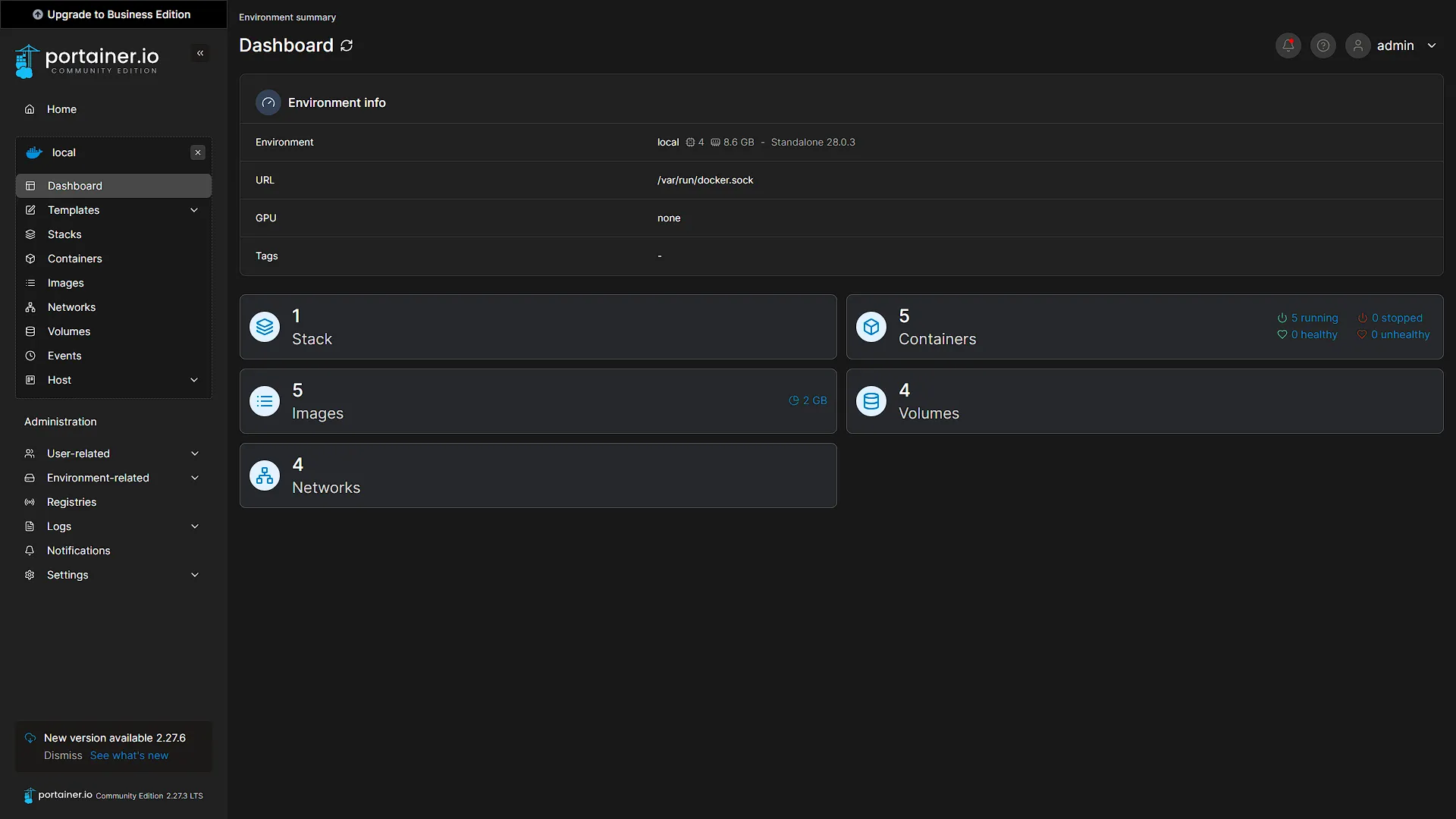
To start the process, access your Portainer WebUI and log in.
Optional: Download the image
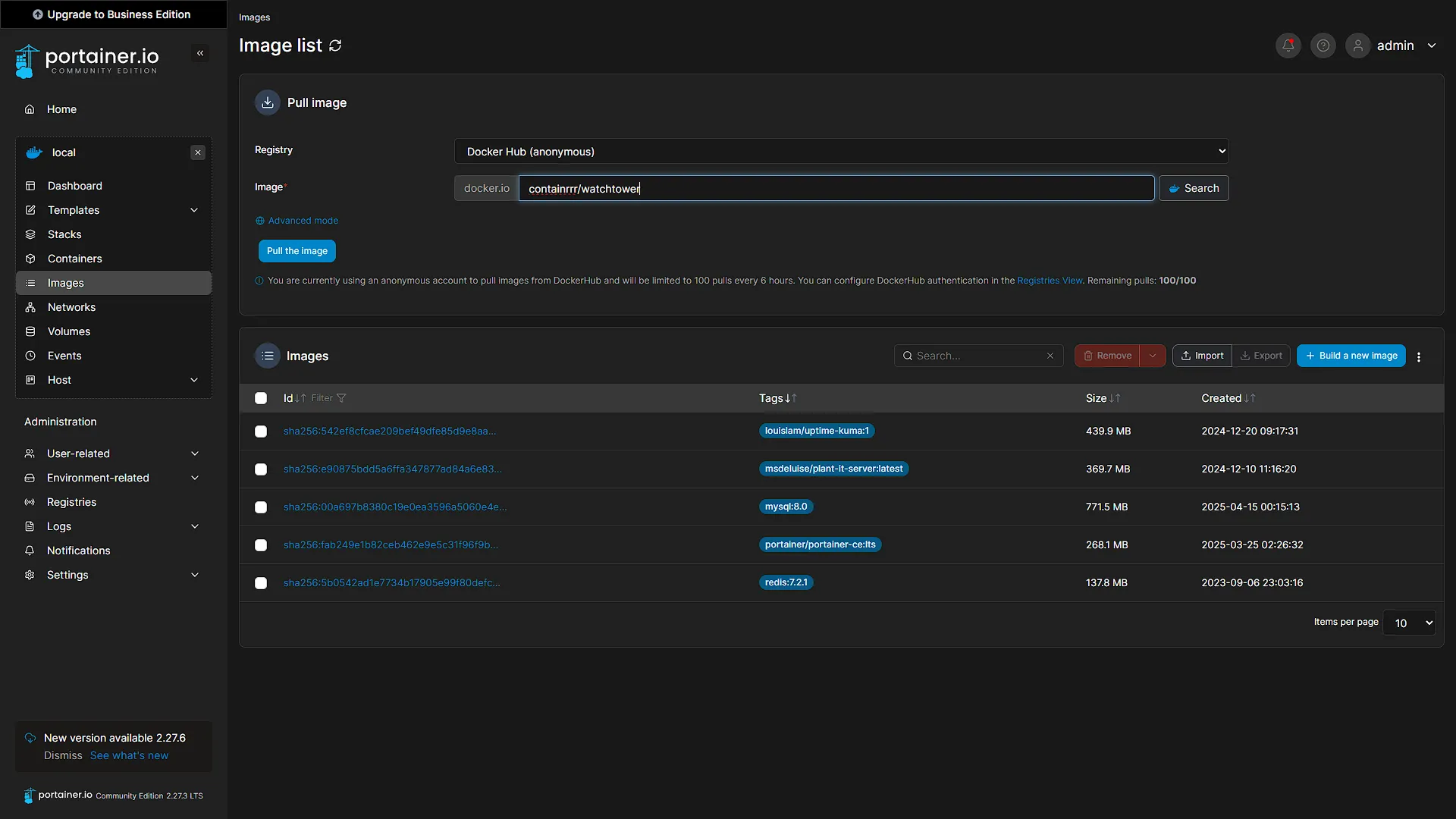
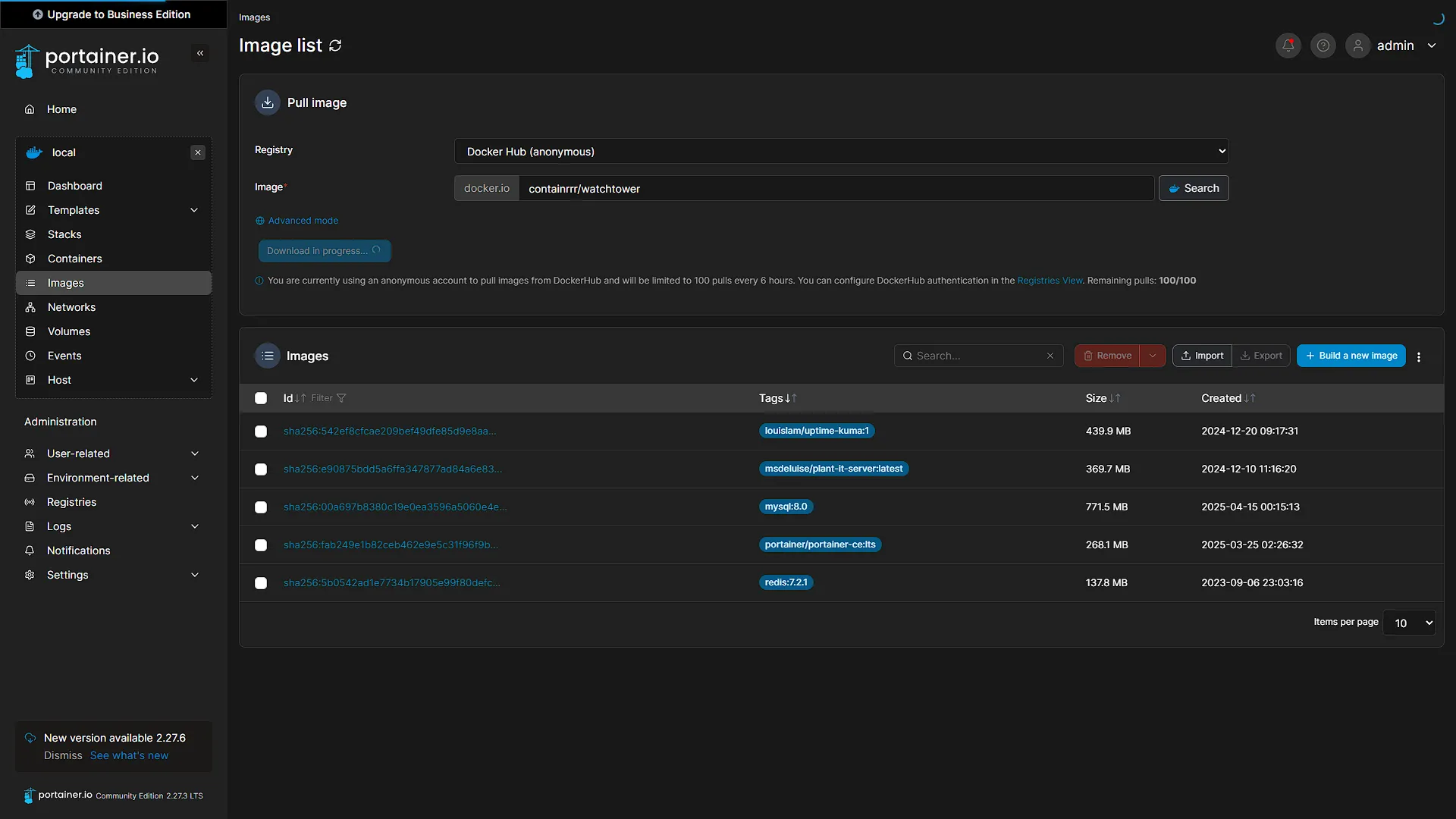
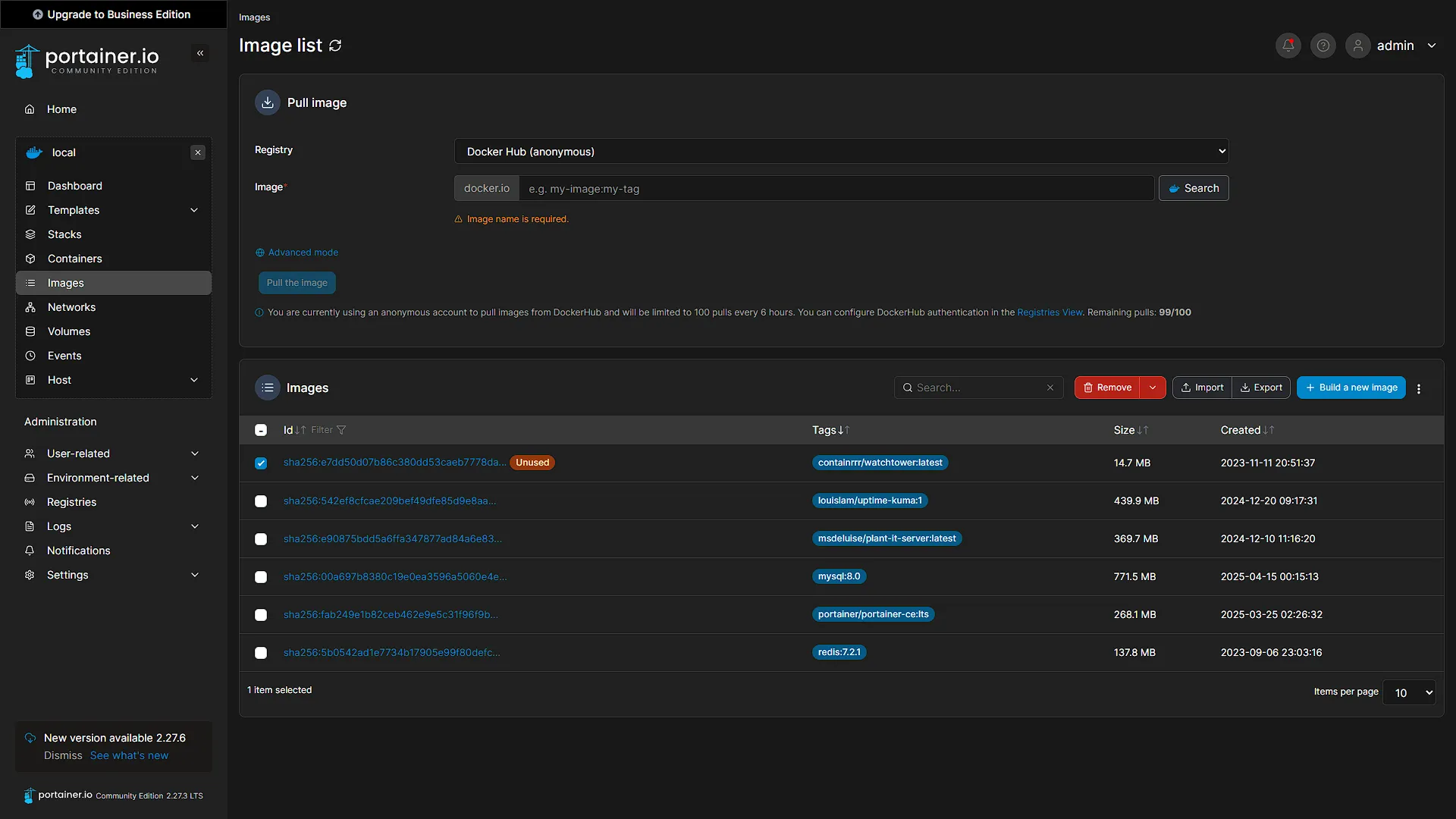
As an optional step, you can download the image for Watchtower first, before creating a container instance of it. To do this, first select the instance you want to update the containers for. Then click on images. In the top section of the page will be a grouping called Pull Image. In the Image field, type
containrrr/watchtowerand select Pull the image. This will download the image, ready to be used.
Create the container to update containers
Now we can create a Watchtower container that will update all our other running containers. For this to work, the Watchtower container needs access to our main Docker Instance API Socket. This is why it is not recommended to run Watchtower in a production environment. For today, we will create a new container that will only run once and then exits. If you are not in Portainer yet, access your Portainer web interface, log in and select the Docker instance where you want to update your containers.
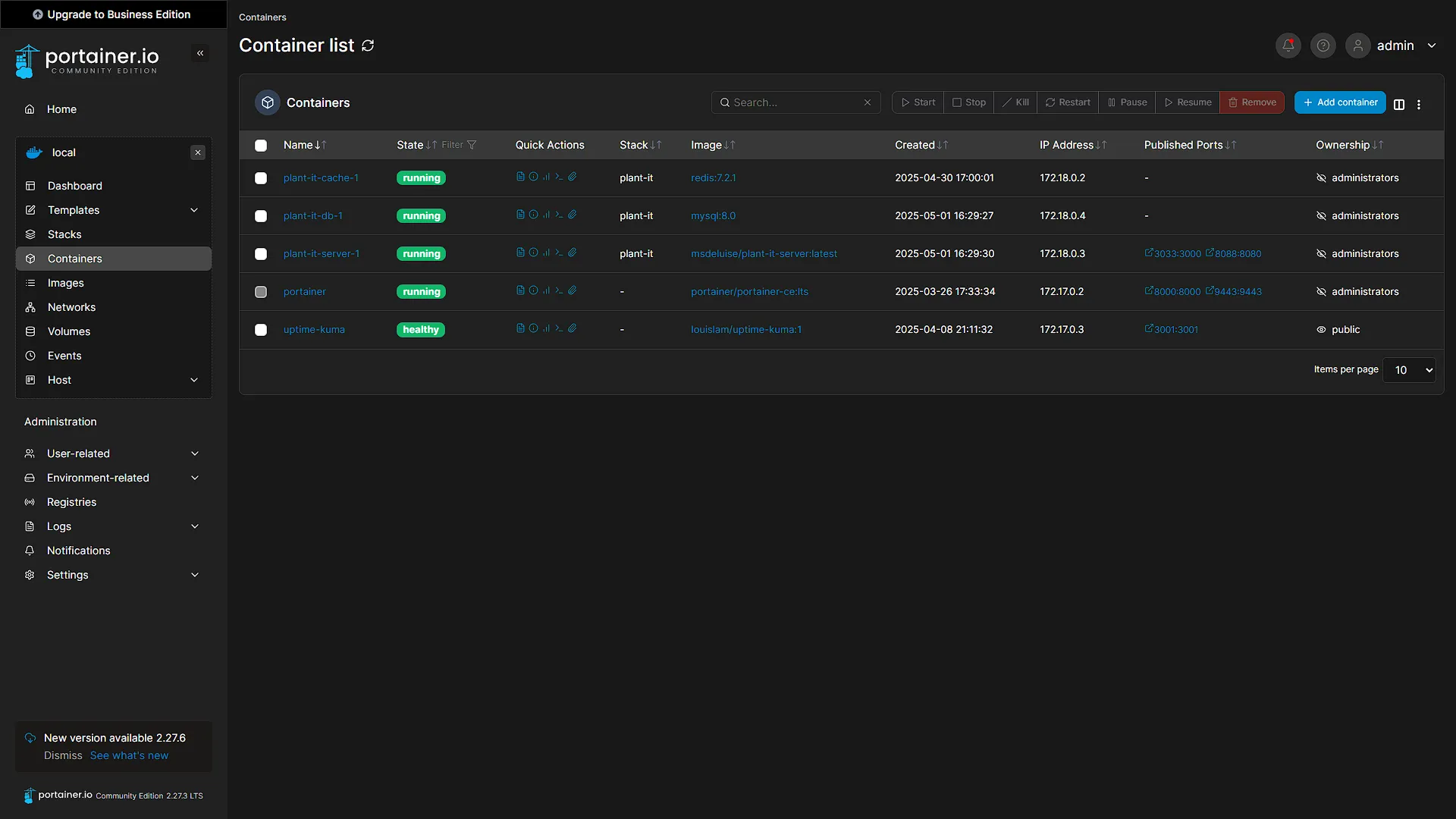
From the dashboard, or from the left navigation pane, select containers. Click on the  button in the main window. From the top of the window that opens:
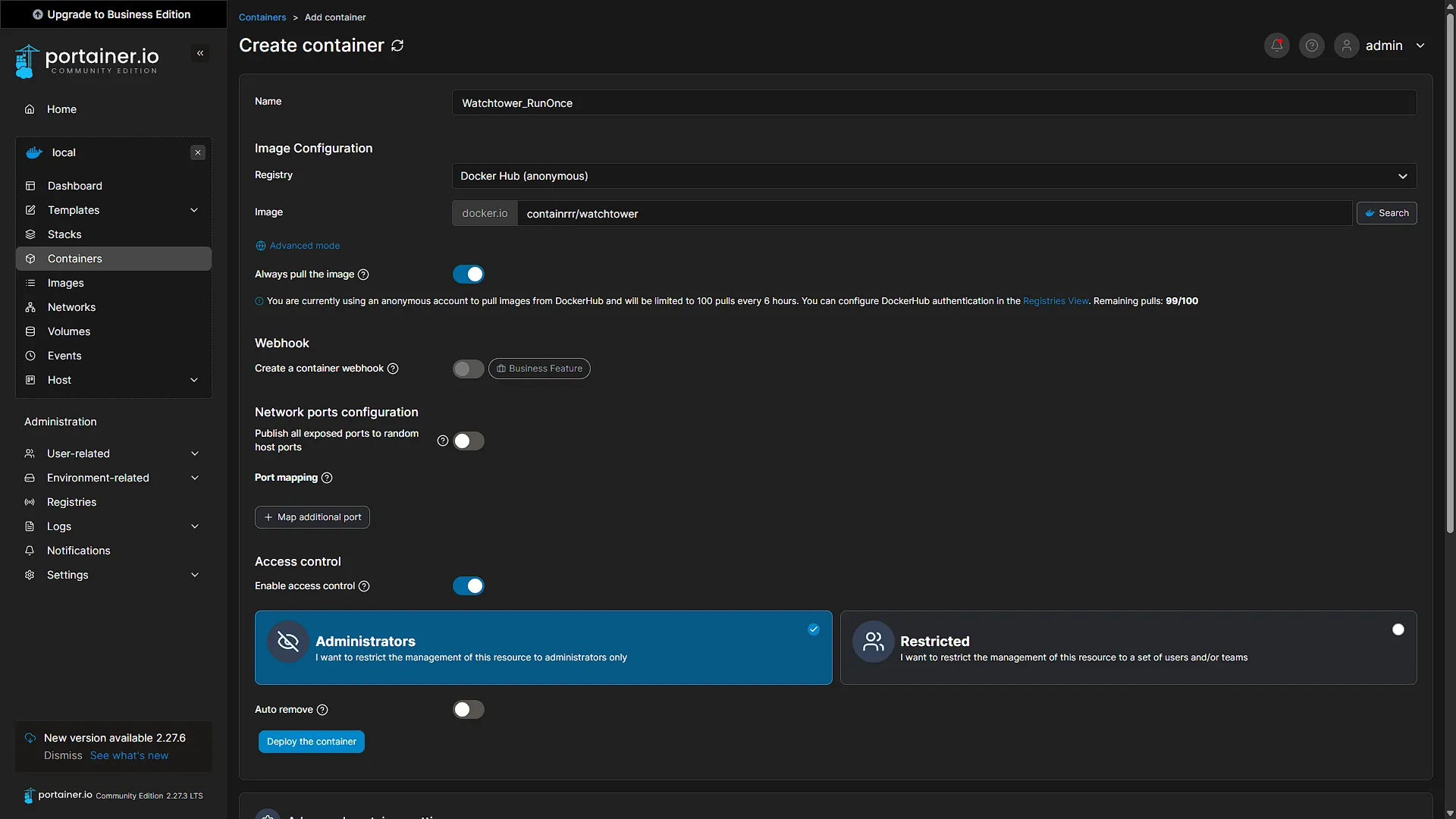
Fill in the Name field by giving this container a name, like Watchtower_RunOnce.
In the Image field, type containrrr/watchtower again.
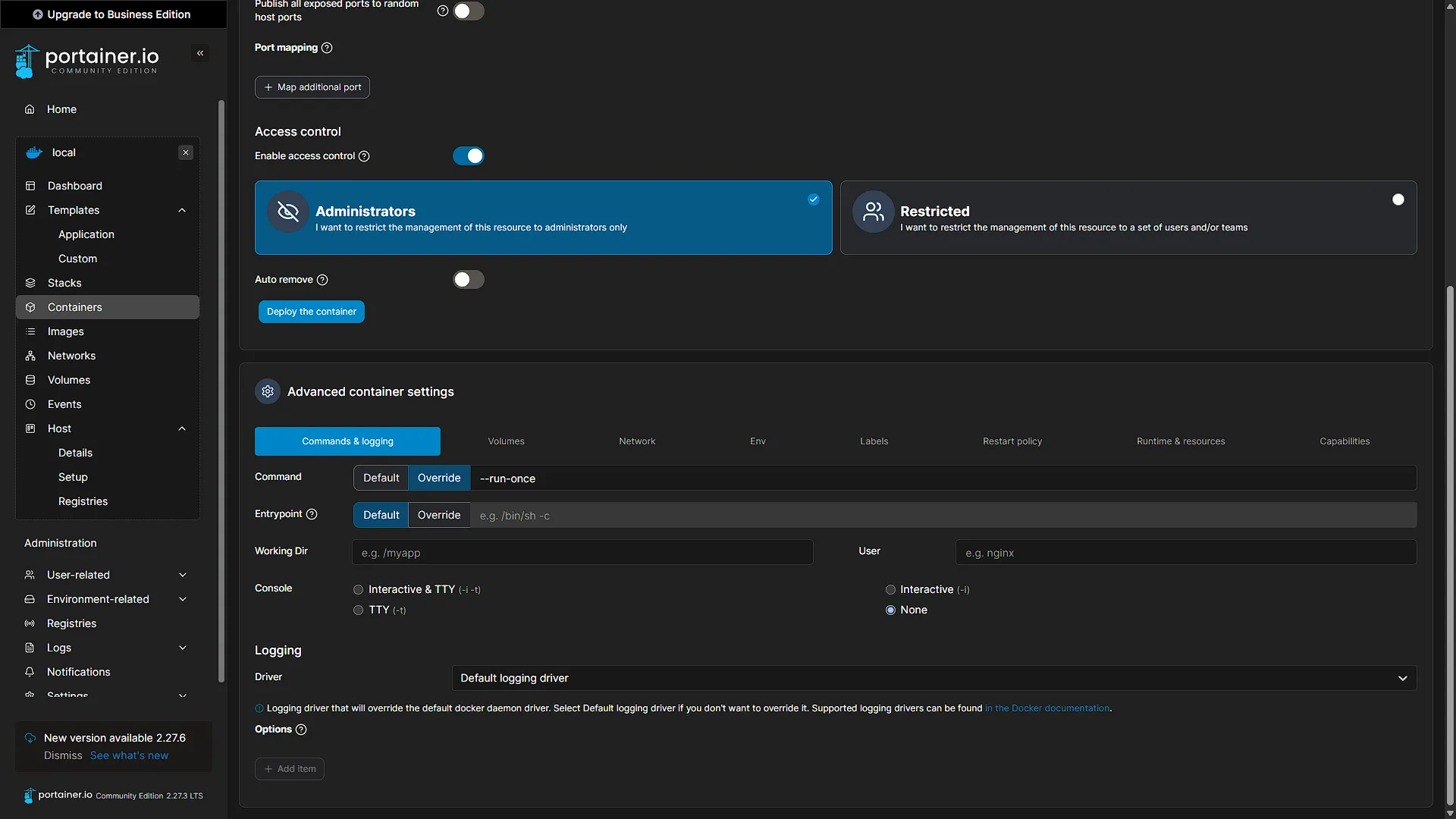
Scroll all the way down, past the Deploy the container button (do not click it yet!). In the Advanced container settings section, go to the Commands & Logging tab. In the Command field, change from Default to Override and then add the value
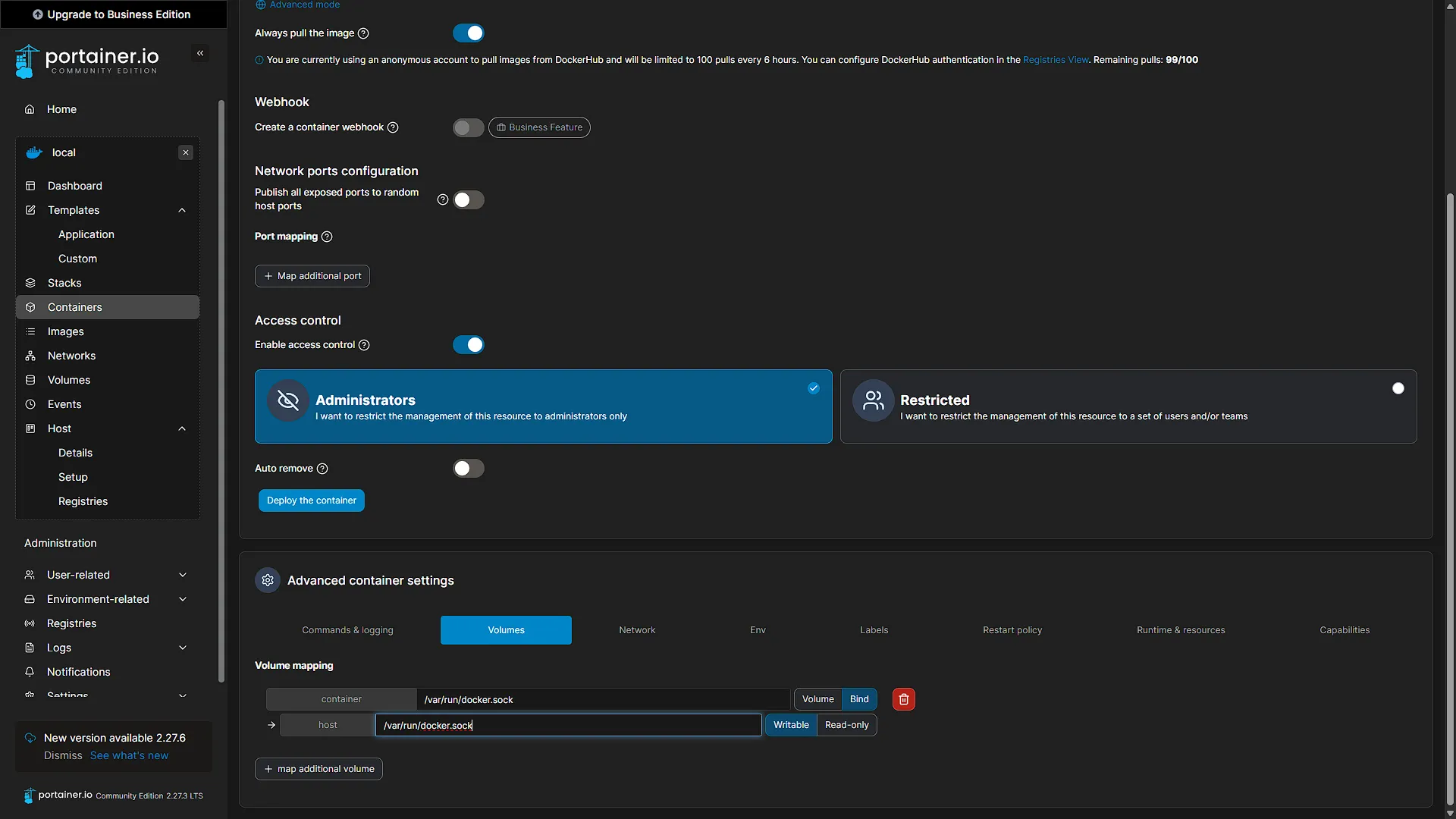
--run-onceNext go to the Volumes tab and click  . In the
 container field, add the value
/var/run/docker.sockChange from Volume to Bind in the button after the container field. The field below will change to host. Add the value
/var/run/docker.sockto the host field as well. Make sure to keep the access as Writable, otherwise Watchtower might not work as intended.
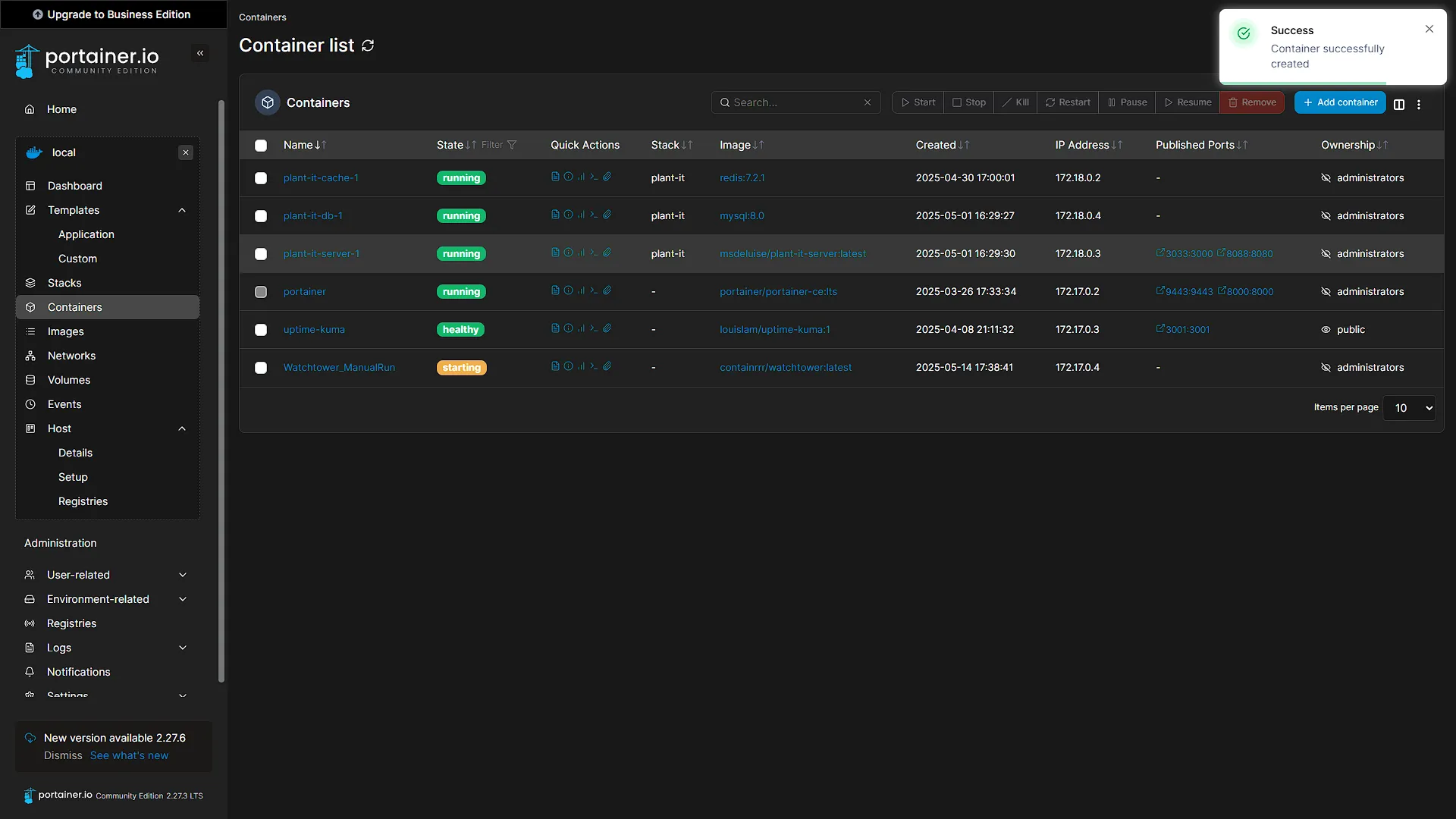
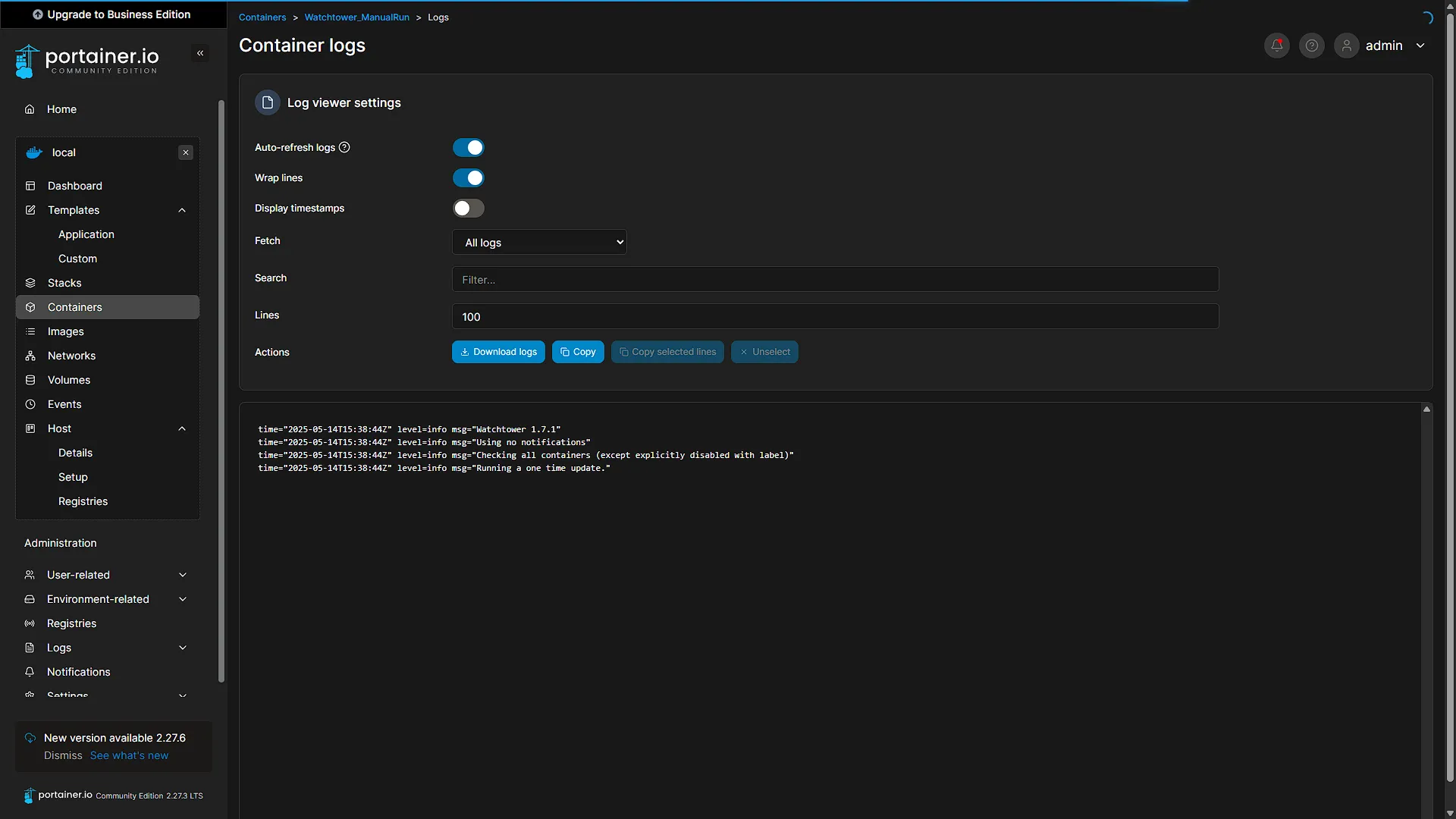
That's it, now we can go up again and click the  button. The container will deploy AND start up immediately after. Once started, it will check for container images that can be updated and update them. In our case, Portainer itself was updated, so we were logged out.
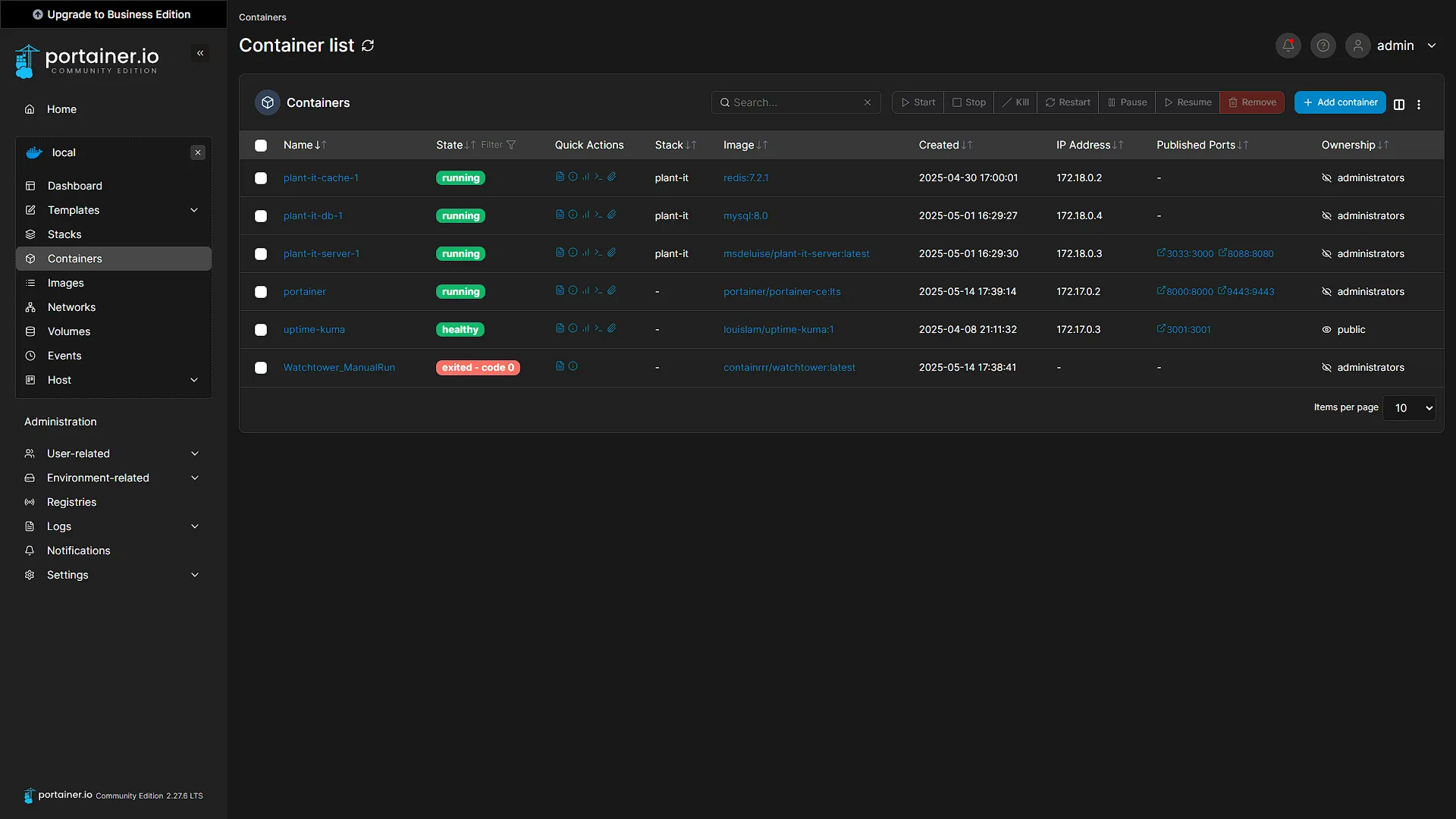
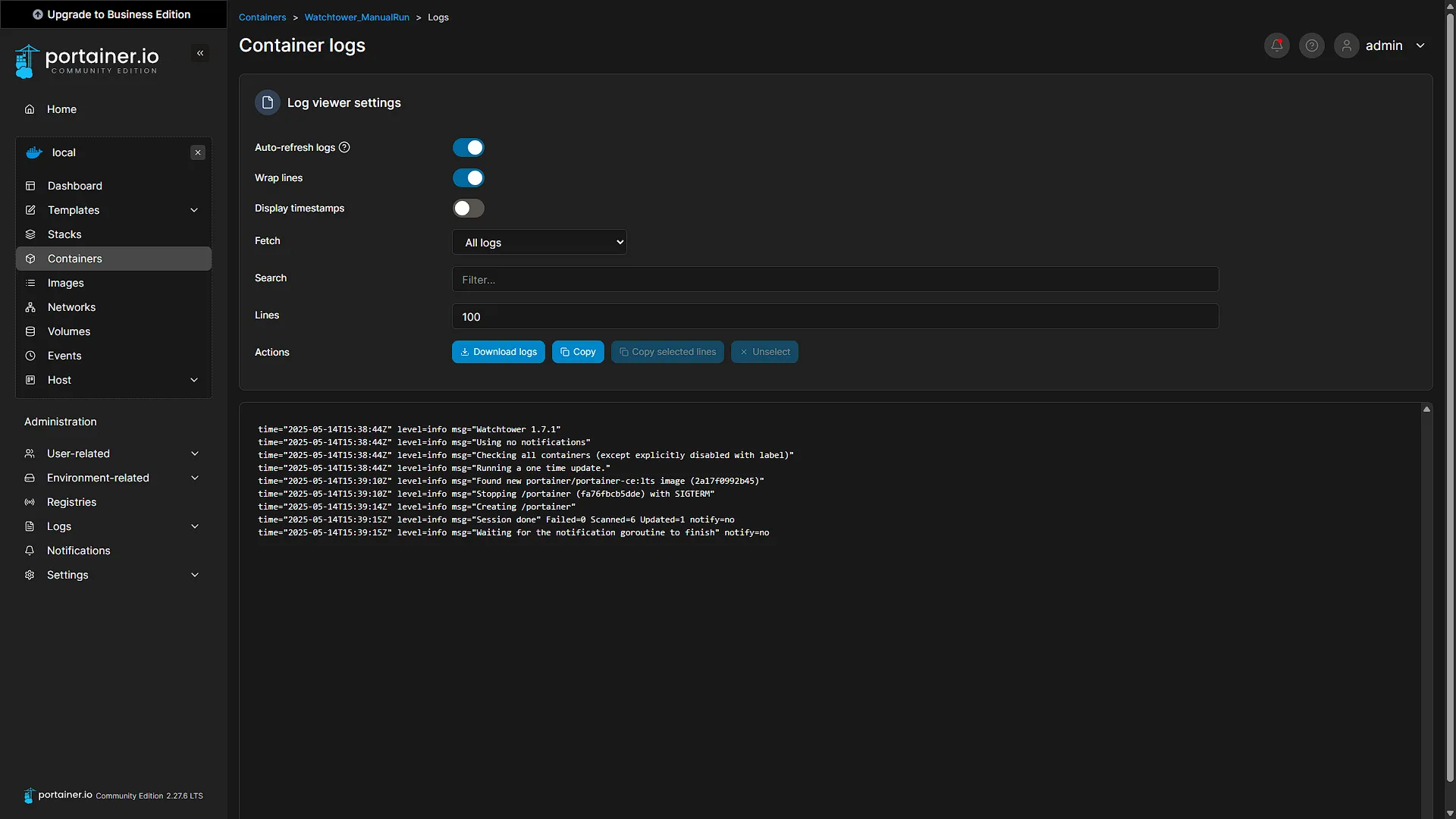
Clean up images
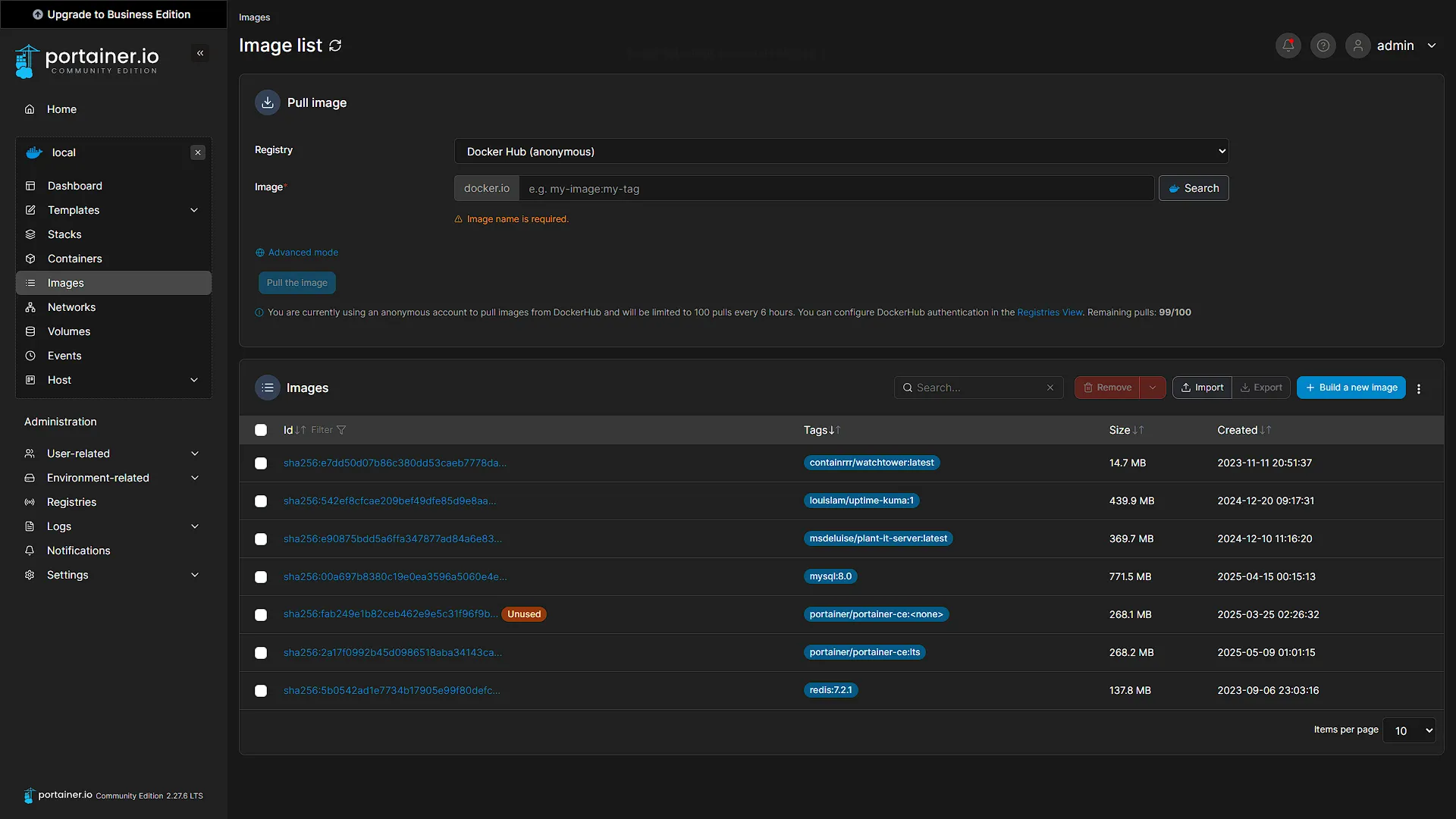
Once the update completes, it is a good idea to check unused images as they are taking up disk space and not being used. In our case, Portainer was updated, so the old Portainer image is still on disk, but the newer one is being used. Portainer once again makes this easy for us. In the left navigation pane, go to Images again. Any unused images will have a tag  . These can be safely deleted.
Optional After the Walkthrough: One-Shot Updates and Compatibility Limits
The screenshots demonstrate a one-shot Watchtower container using --run-once. It is expected to exit when the job finishes. Starting it again performs another update run; it is not a continually running monitor unless deliberately configured that way. Read the log and test each affected application after the run.
Current compatibility: the original Watchtower repository is archived. Its historical image may not work with newer Docker API requirements. Check the daemon and tool compatibility before starting the job; do not downgrade Docker security updates just to preserve this screenshot workflow. A reviewed manual stack update is an alternative when the historical tool cannot operate.
Before a run against an existing lab, review which containers are eligible. Image updates can introduce application or database migrations, so first save compatible data/configuration backups and read the relevant release notes. Immich in Part 39 needs its own database-version transition; an automatic re-pull is not that migration. Exclusion labels are optional tool controls, not a substitute for understanding an application's upgrade path.
Image cleanup is a separate optional action after successful verification. --cleanup removes old image references and can make an image-only rollback harder. Retain the required old image and recoverable data until you have tested the new service. An old image alone does not restore a schema changed by the new application.
Notification options require a supported notifier and a tested URL/authentication configuration. Do not assume monitor-only mode sends messages without a configured notification path. Keep tokens private and test completion/failure reporting. The Docker socket supplied to Watchtower grants powerful daemon access, so keep the management container and its configuration within the trusted administration environment.
Further reading: Watchtower project/archive status, Watchtower arguments.
Conclusion
We now have another container in our Docker instance. This one, however, will not be running. Whenever we want to update all our containers, we can just start up this one container and all our containers will be updated to the latest. In a future instalment, we will use Watchtower again to periodically check for updates, but not install them. For now, remember to check for updates to your running containers periodically as it is always a good idea to keep your services up to date with the latest versions.