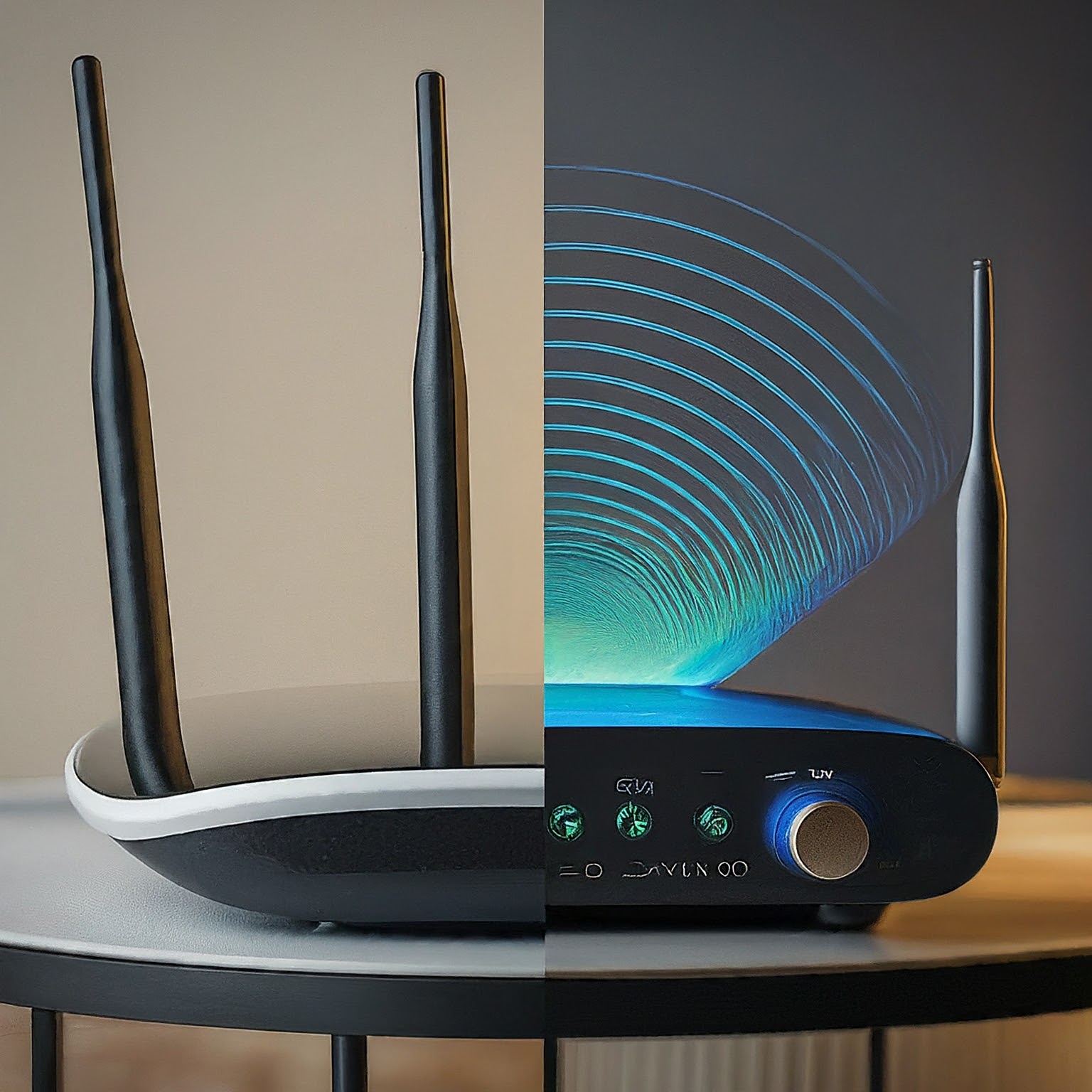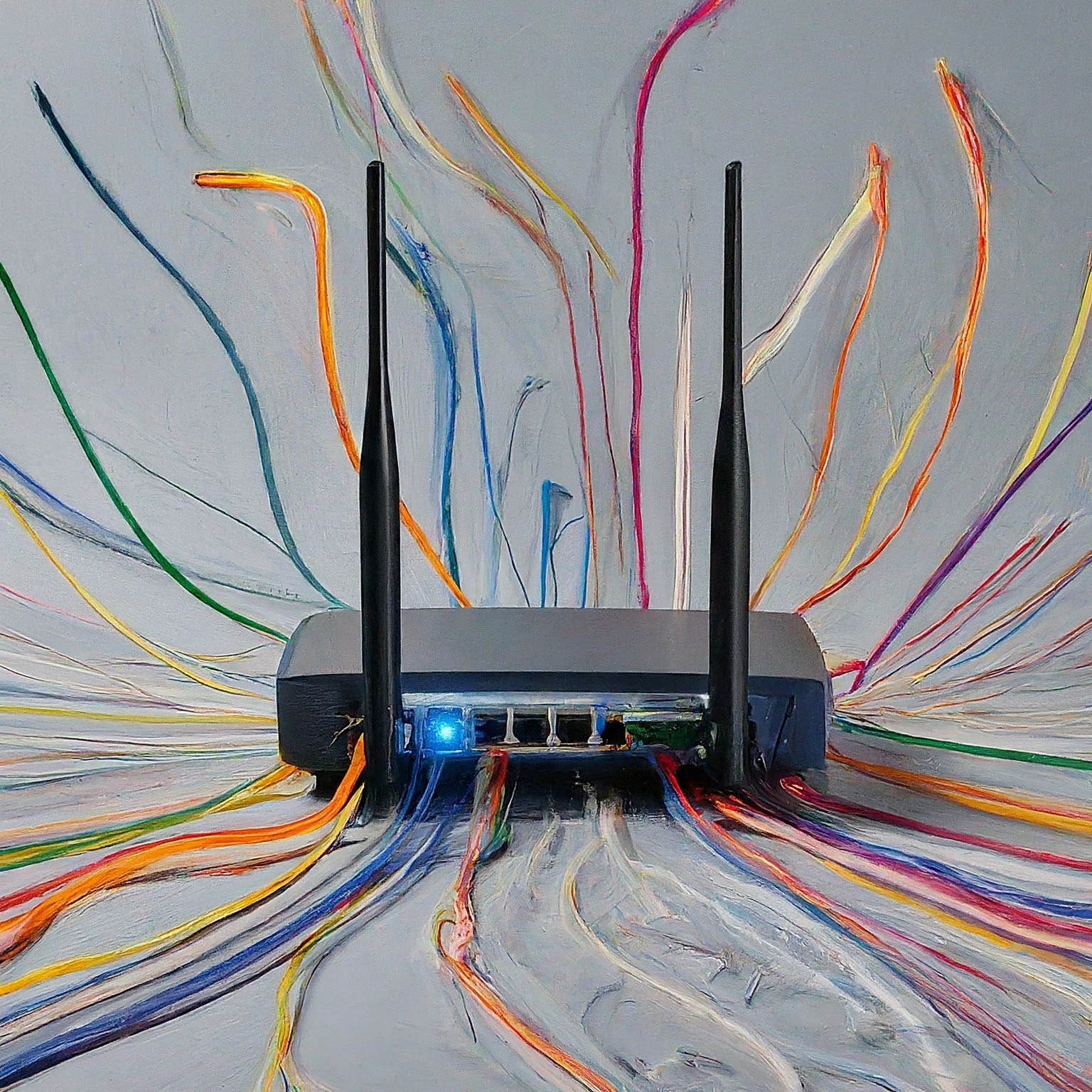
Imagine a bustling city with cars whizzing around. To avoid chaos, traffic lights and signs efficiently direct vehicles to their destinations. In the digital world, routers perform a similar function, ensuring data packets reach the right devices on your network. Let’s explore routers’ role, inner workings and different types.
The Mighty Router: Director of Network Traffic
A router is a networking device that connects two or more networks and intelligently directs data flow between them. A basic Ethernet switch forwards frames within a local network. A router examines a packet’s destination IP address and chooses a next hop from its routes and policy; some switches also support routing. This is crucial for connecting multiple devices in your home or office to the internet, allowing traffic to travel between networks when addressing, routes and access rules permit it.
How Routers Work: Under the Hood
Routers operate at layer 3 of the OSI model, also known as the network layer. Here's the breakdown of their magic:
- Receiving Data: A router receives data packets from a connected device.
- Reading the Address: It examines the destination IP address in the packet header.
- Consulting the Routing Table: The router maintains a routing table, a map of connected networks and their corresponding paths.
- Forwarding the Packet: Based on the destination IP and routing table, the router forwards the packet to the next hop on its journey, which could be another device on the local network or the internet connection.
Alternatives to Routers? Not Quite.
While technologies like mesh networking offer a more distributed approach to network access, they still rely on a central router or gateway device to connect to the internet. So, routers remain essential for internet connectivity and efficient network management.
A Router by Any Other Name: Exploring Different Types
The router world offers a variety of options to suit different needs:
- Wired Routers: These traditional routers connect devices through ethernet cables, providing a wired connection; security still depends on configuration and the devices involved.
- Wireless Routers: Also known as Wi-Fi routers, they offer wireless connectivity for laptops, smartphones, and other devices using Wi-Fi protocols. Many routers today combine wired and wireless functionality.
- VPN Routers: These routers offer built-in support for Virtual Private Networks, allowing secure remote access to your network.
- Gaming Routers: Optimized for online gaming, these routers prioritize gaming traffic and may offer features to reduce lag and improve responsiveness.
Feature Focus: What Your Router Might (or Might Not) Have
Routers come with a range of features, some more common than others:
- Dual-band Wi-Fi: Supports both 2.4 GHz and 5 GHz frequencies, offering better range and speed for different devices.
- Guest Network: Offers guest access. Check the actual isolation and access rules rather than assuming a separate Wi-Fi name blocks every local connection.
- Parental Controls: Allows you to restrict access to certain websites or applications for specific devices.
- Quality of Service (QoS): Can prioritise traffic or manage queues during contention; it cannot create more internet capacity.
- USB Ports: Enables connecting external storage devices to share files across the network.
- Mesh Networking Support: Works with mesh networking systems to create a wider and more seamless Wi-Fi coverage.
Understanding your needs and the available features will help you choose a router that fits for your home or office network. By effectively managing data flow, routers provide the paths between networks; suitable hardware, configuration and maintenance make those paths useful.
One box can perform several jobs
A home “Wi-Fi router” commonly combines routing, an Ethernet switch, wireless access-point functions and services such as DHCP or DNS forwarding. These are roles, not a guarantee of four separate appliances or one particular hardware chip inside every box.
An access point connects wireless clients to a network. A switch connects Ethernet devices. DHCP can provide addresses and other network settings; DNS resolves names. None of those functions alone is the router's job of forwarding packets between different networks.
A modem or optical network terminal supplies the provider-facing connection. It may be a separate device or part of a combined gateway. Do not assume every ISP gateway contains both a modem and an ONT. Identifying which box performs each job makes upgrades and troubleshooting much less confusing.
Local traffic versus routed traffic
Consider an illustrative laptop at 192.168.10.20 and printer at 192.168.10.30, both using a 255.255.255.0 mask on the same local network. Their traffic can travel through switching or access-point functions without being routed to the internet. The fact that those functions live in the router's enclosure does not make every local frame an internet-routed packet.
When the laptop needs a destination outside its local subnet, it normally sends that traffic to a default gateway, such as 192.168.10.1 in this example. The gateway uses its forwarding information to choose the next step. A default route supplies a path when no more-specific route matches.
Route selection uses the most-specific matching prefix; it does not promise to inspect worldwide congestion and find the fastest path for every packet. Cisco's route-selection explanation distinguishes prefix specificity from the preferences used to select routes. The example addresses here are illustrative, not settings to paste into your existing network.
NAT and the firewall are separate functions
Many home IPv4 networks use address-and-port translation so several private clients can share an external address. A router records mappings and translates replies back to the relevant client. RFC 3022 describes this NAPT behaviour.
A stateful firewall separately decides which traffic is permitted. Translation is not a substitute for those rules or for secure applications. Port forwards and automatically created mappings can permit incoming paths. Review what is exposed instead of assuming NAT drops every unsolicited connection under all configurations.
IPv6 networks can use globally routed addresses with firewall protection and no equivalent home address-sharing requirement. RFC 4864 explains protection without relying on NAT. Keep IPv4 and IPv6 policies aligned with the access you intend.
Your router also may not receive a public IPv4 address directly. Some providers use carrier-grade NAT, described with shared address space in RFC 6598. A home port-forward rule cannot by itself configure a separate provider-controlled translation layer.
Choose a layout for the problem
| Layout | Useful reason to choose it | What still needs checking |
|---|---|---|
| Combined Wi-Fi router | Convenient central management for a modest network. | Placement, ports, coverage and supported firmware. |
| Mesh system | Several coordinated access points for distributed coverage. | Backhaul, each node's capabilities and client compatibility. |
| Separate router, switch and access points | Independent placement and upgrades; more flexible network design. | End-to-end configuration, maintenance and total cost. |
Separate equipment can be useful without being the single biggest upgrade for every household. VPN, traffic inspection, VLANs and failover need support and correct configuration; a mini-PC's processor name does not guarantee multi-gigabit performance with all those features enabled.
A VLAN can separate a broadcast domain, while routing and firewall rules govern permitted access between networks. A managed switch, access point and router must all support the intended design. Changing one setting on one box is not evidence that every wired and wireless device is isolated.
Diagnose by role before replacing hardware
First check whether one device or the whole network is affected. Compare a wired client with a wireless one. If Ethernet works but Wi-Fi does not, examine access-point coverage and radio conditions before blaming routing.
Check the client's address, mask, default gateway and DNS settings. Reaching a known local service but failing to resolve a name points to a different question from failing to reach the gateway at all. A failed ping alone is not conclusive because some hosts or rules do not answer it.
Keep a simple diagram showing the provider device, router, switches and access points, plus which device assigns addresses. Record working settings before a change. Update supported firmware and test the usual tasks afterward. Understanding the roles makes it easier to change the component that actually limits the network.