A home lab is amazing to have. Some might need one for research, work or management, and for some it is just a relaxing hobby. Whether you are a scientist or just an enthusiast, we are entering an era where no home should go without a home lab in some shape or form. To run your home lab, you will need certain software or apps to customise your home lab to your liking. Today we look at another dashboard that will make running your home lab a breeze: Heimdall Dashboard. But first, let's recap on what a home lab actually is and why you would want a tool like Heimdall Dashboard.
What is a Home Lab?
A home lab is a personal setup of hardware and software where you experiment, learn, or run services at home. It can include computers, servers, networking equipment, and software platforms. For instance, if you host a Plex media server for movies, a file server for backups, or even experiment with virtual machines, you’re running a home lab.
Home labs let you learn new tech skills, manage your data independently, and customize services to suit your needs. But as you add more tools and services, keeping track of everything can get complicated. That’s where tools like Heimdall Dashboard come in handy.
Why Heimdall Dashboard?
Heimdall Dashboard solves the problem of juggling multiple services by giving you a centralized way to manage them. Think of it as a one-stop launchpad for all your tools, apps, and services. Instead of remembering multiple URLs, you can access everything from a single, user-friendly interface.
What is Heimdall Dashboard?
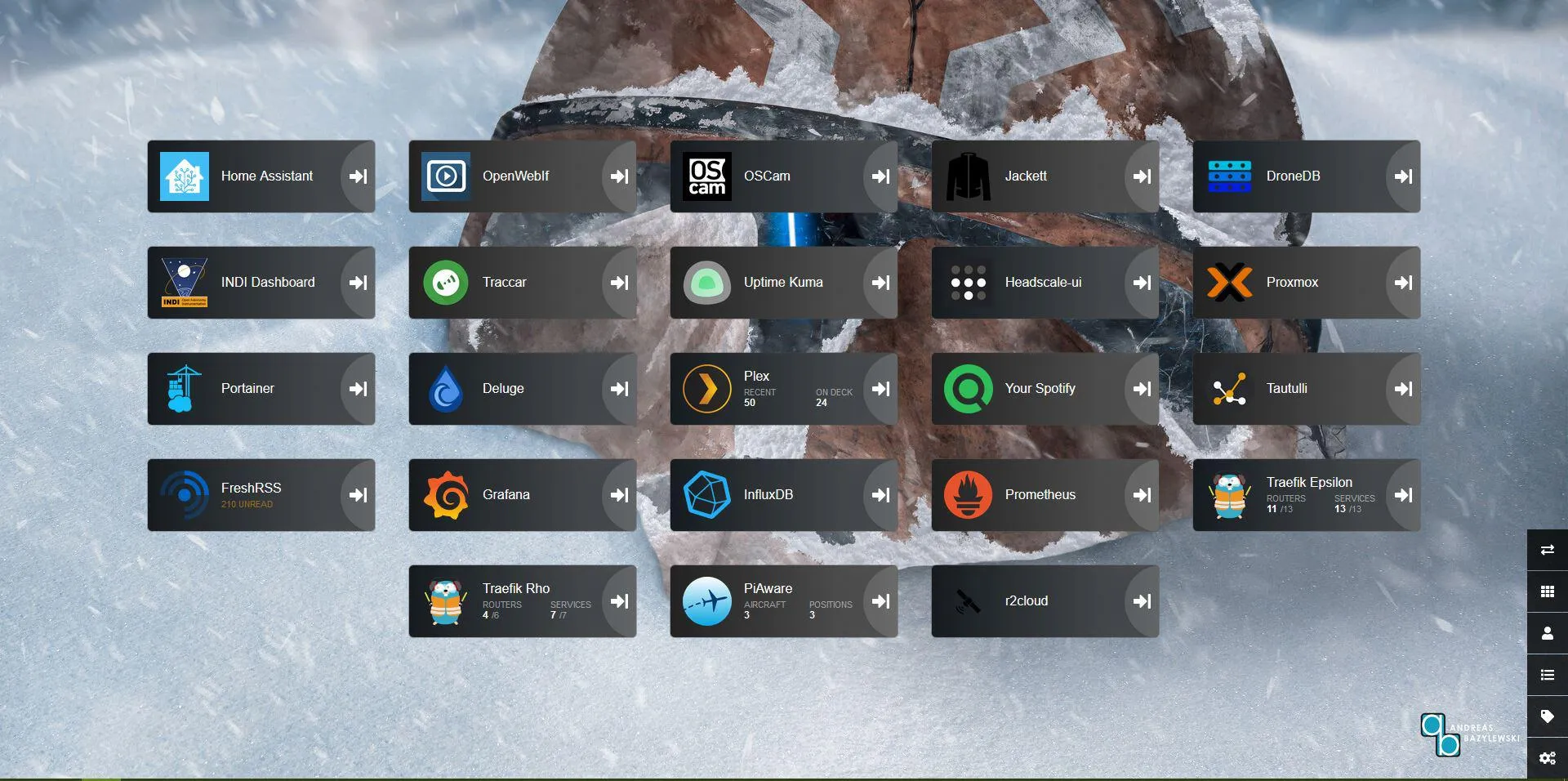
Heimdall Dashboard is an open-source tool designed to organize and display all your applications and services in one place. It’s a visually clean and straightforward dashboard, accessible via a web browser, that acts as a launchpad for your home lab tools.
Whether you’re managing streaming services, cloud storage, or smart home tools, Heimdall Dashboard lets you link to them with just a few clicks.
How Does Heimdall Dashboard Work?
Heimdall Dashboard works by allowing you to add links to the services and apps you use. You install Heimdall on a server, computer, or even a Raspberry Pi, and then access it through a web browser.
Once set up, you can:
- Add icons for your favorite tools (e.g., Plex, Nextcloud, or Sonarr).
- Categorize services by type, making it easy to navigate.
- Use optional integration features for specific tools to display real-time info, like server status or notifications.
Features of Heimdall Dashboard
- Customizable Dashboard: Arrange and organize shortcuts the way you like.
- App-Specific Integrations: Certain services offer extra features, such as server statistics.
- User-Friendly Interface: Clean, minimalist design that's easy to use.
- Open Source: Free to download, with an active community for support.
- Lightweight: It doesn’t require heavy resources, so it can suit modest hardware; measure usage on your own installation.
- Mobile-Friendly: Works just as well on smartphones or tablets as on desktops.
Considerations When Using Heimdall Dashboard
- Hosting Requirements: Heimdall needs a server to run, which can be a dedicated device or a virtual machine.
- Basic Setup Skills: You’ll need some knowledge to install and configure it, though many tutorials are available.
- Network Configuration: To access Heimdall remotely, you may need to configure your router and set up secure access.
- Customization: While Heimdall is simple, customizing it for complex needs may require advanced skills.
Pros and Cons of Heimdall Dashboard
Pros:
- Centralized Access: No more hunting for URLs. Each linked service still handles its own login.
- Easy to Use: Clean interface that doesn’t overwhelm.
- Free and Open Source: Great for hobbyists and enthusiasts.
- Supports Many Services: Works with a wide variety of apps and tools.
Cons:
- Limited Advanced Features: It’s primarily a launcher, not a monitoring or analytics tool.
- Self-Hosting Required: You need some technical know-how to set it up.
- Basic Design: While functional, it lacks flashy or dynamic visual options.
Alternatives to Heimdall Dashboard
- Organizr: A more advanced dashboard with additional features like user authentication and media streaming integration.
- Dashy: A highly customizable dashboard with more visual flair and dynamic widgets.
- Flame: A lightweight alternative with simple navigation and configuration.
- NetBox: A tool focused more on network management but can also serve as a dashboard.
- Home Assistant Dashboards: Perfect if you’re already running a smart home platform like Home Assistant.
Conclusion
If you’re managing multiple services in a home lab, Heimdall Dashboard is a fantastic tool to simplify your workflow. It provides a centralized, user-friendly interface to access everything you need with minimal effort.
While it might not have every advanced feature, its simplicity, ease of use, and flexibility make it a valuable addition for beginners and experts alike. With alternatives like Organizr and Dashy available, you can explore different options based on your needs.
Whether you’re just starting your home lab journey or looking to streamline an existing setup, Heimdall Dashboard is a straightforward and effective tool to keep everything organized.
Visit the official Heimdall Dashboard Site.
A Contained Docker Compose Start
This example is for a Linux host with a maintained Docker Engine and the Compose plugin already installed. LinuxServer's current image supports x86-64 and ARM64; do not assume an older 32-bit Raspberry Pi image is still supported. The publisher's stable release reviewed here is Heimdall 2.8.3. No universal memory figure or sixty-second installation time applies to every host.
In your normal Linux user's terminal, create a fresh project directory and capture that user's IDs. Use an empty directory rather than overwriting an existing installation's environment file:
mkdir -p heimdall/config
cd heimdall
printf 'PUID=%s\nPGID=%s\nTZ=Africa/Johannesburg\n' "$(id -u)" "$(id -g)" > .env
Save the following as compose.yaml inside that directory. The image digest fixes the multi-platform publisher image checked for this example. The /config mapping persists the dashboard when the container is recreated. Its host directory must be writable by the selected user and group.
services:
  heimdall:
    image: ghcr.io/linuxserver/heimdall@sha256:3c9e97c416c7f6d72a3fc12af01a37bd0e71d9e6588d25c40b47e391f39ff7fd
    container_name: heimdall
    environment:
      PUID: "${PUID:?Set PUID in .env}"
      PGID: "${PGID:?Set PGID in .env}"
      TZ: "${TZ:?Set TZ in .env}"
      ALLOW_INTERNAL_REQUESTS: "false"
    volumes:
      - ./config:/config
    ports:
      - "127.0.0.1:8085:80"
    restart: unless-stopped
The port mapping binds HTTP to the host's loopback address on port 8085. On a current Engine with its normal bridge-network configuration, open http://127.0.0.1:8085 in a browser on that host. On your laptop, that address means your laptop, not a remote server. Remote access needs a deliberately configured private tunnel or protected proxy. Docker documents a same-network exposure issue for localhost publishing before Engine 28.0.0, so update an older host before relying on this boundary.
docker compose config --quiet
docker compose up -d
docker compose logs --tail=100 heimdall
Links, Integrations and Private Addresses
Start by adding a plain link that opens successfully in your browser. Foundation apps provide recognised icons and colours. Enhanced apps additionally query a supported application's API for particular statistics; they are not a replacement for full monitoring or backups. The API URL must be reachable from Heimdall's container, whereas the tile's browsing URL must be reachable from the reader's device. A container service name may satisfy the first requirement but fail the second.
Use the integration's documented authentication and minimum permissions. A read-only token is useful when the target service actually offers one; do not assume every API key is restricted. The dashboard's configuration and backups may contain those credentials.
The example leaves ALLOW_INTERNAL_REQUESTS false. Heimdall blocks server-side lookups of private or reserved addresses by default, including website and icon lookups. For a trusted private instance, LinuxServer documents enabling the option after securing access. Understand that this changes a security boundary; a private tile URL and the dashboard's server-side request are different things.
Protecting and Maintaining the Dashboard
Before publishing a dashboard beyond this local test, protect access. LinuxServer documents creating a password file and enabling its Nginx basic-auth directives. For a new password file only, this example creates the login named dashboard and prompts for its password:
docker exec -it heimdall htpasswd -c /config/nginx/.htpasswd dashboardUncomment the basic-auth lines in /config/nginx/site-confs/default.conf, restart the container, and confirm that a fresh browser session requires authentication. The -c option replaces an existing password file; omit it when adding users to a file you already use. Use HTTPS for credentials crossing a network. Logging into Heimdall still does not log you into Plex, Proxmox or another linked application.
Keep an offline copy of the complete persistent configuration, Compose file and environment file. For a simple consistent filesystem backup, stop the container while copying its configuration, then restart it. Protect the copy as sensitive data, and test restoration in a separate directory before an upgrade. Record the image digest alongside it so the previous application version can be identified.
A digest stays fixed when you pull it. For an update, read the publisher's release notes, choose a verified new digest or stable tag, back up, change the image reference and recreate the container. Check links, integrations and login afterwards. Replacing packages inside a running container is not the normal image-update process.
Heimdall remains a straightforward way to organise a home lab, which is the attraction described above. Decide whether you mainly need shortcuts, inventory, service monitoring or smart-home controls before comparing alternatives. That decision is more useful than a table claiming one dashboard is best for everyone.